Onboarding Custodians
Prerequisite
Configure SMTP mail server for Custodian Management by clicking the link provided on the Getting Started with PKI+ Web page for instructions.
To onboard custodians:
-
Go to
 (Menu) icon > PKI+ > Custodian
Management.
(Menu) icon > PKI+ > Custodian
Management.
-
Enter the following fields:
Table 1. Field Description for Custodian Management page Field Description *Quorum Value By default, the quorum value is configured to 51%. This value signifies the minimum number of approvals needed for tasks such as adding or removing custodians and approving the creation of a certificate authority (CA). For instance, if there are three custodians, the minimum approval required is rounded off to two. In case of six custodians, the minimum approval required is four. *Approval Link Validity By default, the approval link is valid for 30 minutes. Minimum value is 10 minutes while maximum value is 7 days.
Note: Fields marked with red asterisk (*) are mandatory. -
Enter the following fields in the Add Custodian section:
Table 2. Field Description for Add Custodian section Field Description First Name The first name of the custodian being added. Custodian must have login access to AppViewX. Last Name The last name of the custodian being added. Email ID The email address of the custodian to which the approval link and notification messages are sent. -
Click Save.
Note: If the custodian being added is not part of the AppViewX users, then the following confirmation screen appears. Click Save and Continue to proceed as an SSO user.
The first custodian is automatically approved.
Details of the newly added custodian are populated in a table along with Email Verification - Pending approval status and Inactive status as shown. If you want to abort the action, click Abort. Any workflow that is triggered and is in progress is killed from the Request page prior to triggering any further actions.
-
The requester receives a notification email. Click the here hyperlink to
be directed to the AppViewX login page.
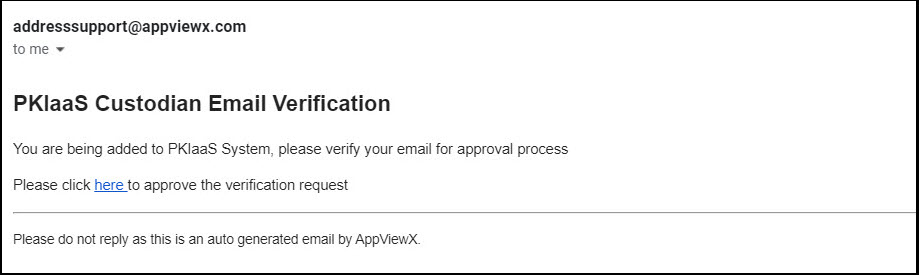
- The requester must log into the application using their credentials and approve the request by going to Menu > Requests > All requests.
- Enter the comments and click Approve.
- Refresh the custodian table to see the approval status changed to Add - Approval Pending and the status as Inactive.
- All active custodians (whose status are Active) also get an email from AppViewX PKIaaS for approval.
- The active custodians click the here hyperlink in the email to be redirected to the AppViewX login page. On successfully logging in, go to Menu > Requests > All requests where the approval request is displayed with the Approve and Reject buttons.
-
Enter the comments and click Approve. If the request is rejected for
any reason, then the approval status changes to Email Verification -
Rejected and the status to Inactive.
A confirmation popup window appears if you want to submit the request.
- Click OK. Once the approval count reaches the minimum approval as set by the quorum number, the custodian is approved.
-
Click the
 (Refresh) icon in the custodian table to see
the approval status as Add - Approved and the status as
Active.
(Refresh) icon in the custodian table to see
the approval status as Add - Approved and the status as
Active.
-
[Optional] Click Audit Log against each custodian for more information
about the request and the response count along with comments, if any, from other
approvers. You can also download the audit log by clicking the Download
button on the Audit Log view page and exporting it in the .xls format. Once the
audit log is fully loaded, the Loading button will turn to View.
Refresh the page to see the View button.
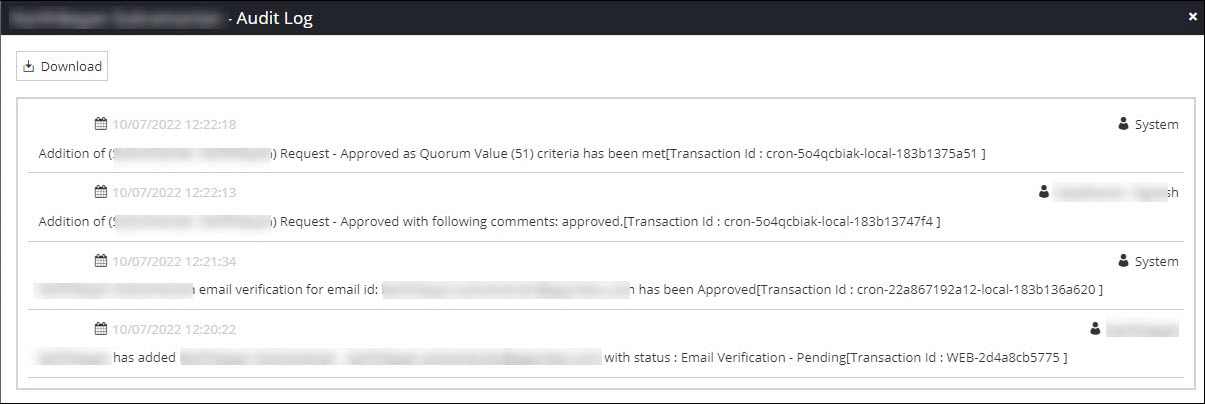 On adding the second custodian, the individual receives a notification stating Email Verification - Pending. Once the email verification is completed, an approval link is sent to the first custodian. Upon approval, the second custodian transitions to the active state.Important:
- If any of the approvals is in the pending state, then no new actions on the CA or the Custodian Management pages are allowed until the current one is either approved, rejected, or aborted.
- At least two custodians must be added to perform the m(n) approvals in PKI+.
- To add consecutive custodians, follow the aforesaid steps. Successful addition of custodians depends on the approval of active custodians per the quorum value set.