Actions in User Key/Host Key Inventory

You can perform the following actions from the Key Inventory page.

Table 1. Action description on User/Host Key Inventory page
Action Description
Change status Users with RW permission can change the status of a key to Managed or Monitored.
Export You can export the user or host key from their respective inventory in .csv or .xls format.
Upload User SSH key
Note: This field appears only for User Key Inventory.
Table 2. Field description for Upload SSH key section
Field Description
*Key File Click Search icon to browse for the file.
*Key Group Select key group from the dropdown list.
Note: A key is linked to a key group, and this key group is further connected to a policy. Based on the selection of the key group, it is determined if the key needs a work order approval. The key is also checked for compliance with the key policy associated with the key group.
*Key Name Enter a unique name for the key to facilitate easy identification.
Passphrase Enter a passphrase
Confirm Passphrase Enter the passphrase again to confirm.
*Validity Select validity from the dropdown list. This determines the duration for which the key is valid.
Comment Enter remarks specific to the key.
Note: Fields indicated with red asterisk (*) symbol are mandatory.
Revoke
Note: This field appears only for User Key Inventory.
Users with RW permission can revoke certificates that are associated with keys that have a private key and key pair (public + private). If the selection has even one key that is a public key, then revoke is disabled.
Rotate Users with RW permission can rotate selected user keys or host keys based on the rotation configuration outlined in their corresponding key policies. Keys selected for rotation are automatically backed up and stored in a secure encrypted format in a designated backup location.
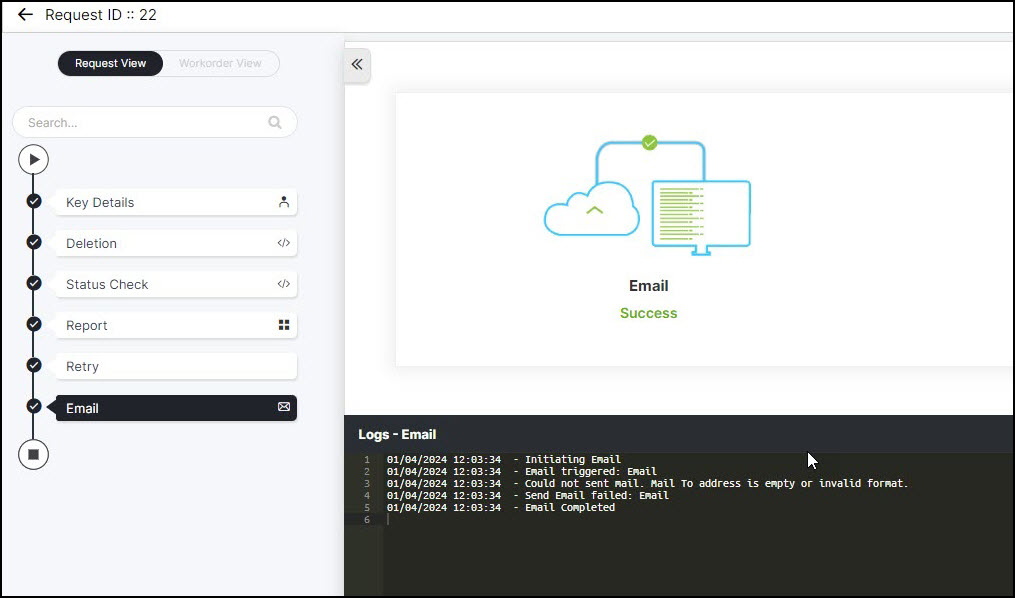
On selecting keys for rotation, a confirmation message appears. On confirming, the rotate operation is triggered via workflow. To check the status and reports, go to Automation > Service Request and select your request from All requests.
The newly rotated key adheres to the following naming convention: KEYTYPE_TIMESTAMP, where key type denotes the encryption algorithm of the key while timestamp is when you have rotated the key in the yyyyMMdd_HHmmss_SSS_counter format where:
  • yyyy denotes the year
  • MM denotes the month
  • dd denotes the date
  • HH denotes the hours
  • mm denotes the minutes
  • ss denotes the seconds
  • SSS denotes the milliseconds
  • counter denotes the number of keys being rotated
For example, ECDSA_20230908_123456_789_1 implies that the rotated key follows the ECDSA algorithm and was generated on September 8, 2023, at 12:34:56.789 GMT.

Upon successful rotation of the key, the Comments field is updated.

Important:

Best practices before rotating host keys:

  1. If the global known host file is not present, then AppViewX will create one in the root folder by including all public keys from users in the global known host file.
  2. Prior to host key rotation, update the global known host file.
  3. The old public key is deleted and the new key is replaced in the global known host file.
Best practices before rotating user keys:
  1. If the global authorized key file is not present, then AppViewX will create one in the root folder for each login user with privileged user permission.
  2. Prior to user key rotation, update the global authorized key file.
  3. The old public key is deleted and the new key is replaced in the global authorized key file.
CAUTION: Rotating keys can result in access loss and authentication problems. Proceed with caution and ensure proper backup and alternative authentication methods are in place.
Delete Users with RW permission can:
  • Delete from Endpoints: Deletes the keys from the host endpoints. Keys selected for deletion from endpoints are automatically backed up and stored in a secure encrypted format in a designated backup location.
    Note:
    • If you try deleting keys from hosts with only one key, then a warning message about the potential service disruption is displayed.
    • On selecting keys for deletion from endpoints, a confirmation message appears. On confirming, the delete operation is triggered via workflow. To check the status and reports, go to Automation > Service Request and select your request from All requests.
  • Delete from Inventory: Deletes the keys from the AppViewX inventory and not the actual hosts.