Note: During migration, random passwords generated for the MongoDB
users will be available in the temporary file location:
<appviewx_dir>/scripts/.mongo_users (hidden file). This file location
will be displayed during the installation process. Random passwords will be generated
only for the users whose passwords were not changed.
- Case 1 - If the admin password has been changed, then no random passwords will
be generated.
- Case 2 - If the admin password has not been changed but the appviewx user
password has been changed, then the random passwords will be generated for an
admin and aps user.
- Case 3- If the admin password has not been changed but the aps user password has
been changed, then the random passwords will be generated for an admin and
appviewx user.
- Case 4 - If the admin password has not been changed but the appviewx and aps
user passwords have been changed, then the random passwords will be generated for
an admin.
- Case 5 - If the password has been changed for all the users (admin, appviewx,
and aps), then no random passwords will be generated.
- The passwords that were changed will only get updated in the .mongo_users file
and the user will be intimated. If no password has been changed, the user will not
be intimated and .mongo_users file will not be created.
If the proxy has been configured for the CA settings, please execute the below
command to update the changes
appviewx --restart plugins
              avx_vendors
.
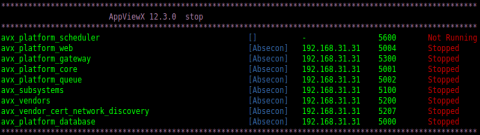
 The upgrade process is triggered, which stops the previous running AppViewX components.