Create a Resource
-
Click
 and select
Account > Resource.
and select
Account > Resource.
-
Click
 on the top.
- On the Add details page, under the Information tab, enter a resource name.
- Enter a brief description of the resource or the granular level access associated with the resource.
- Click Save.
-
Click the Access Control tab on the top and select one of the following:
- Device — You can click
 to select devices to be displayed.
 - Certificate
- ADC — You can click to
select device objects to be displayed.
- SSH
- Command Session Control
- Provisioning Templates
- Provisioning Requests
- Security Policy
- Application Security Policy
- Proxy List
- Blueprint
- Application
- Workflow Studio
- Workflow Requests
- Device — You can click
-
To use a regular expression (regex) to identify devices you want to associate with the
resource that you are creating:
- Enter the regex in the Search field.
- Click either the R (Read-only) or RW (Read/Write) to designate whether user groups assigned to the resource have read-only or read/write permissions on devices returned as search results.
- Click Add as Regex. Devices list updates and show checkmarks beside all devices that match the regex to indicate that they have been selected. The Regex column also displays the total number of devices that match each of the regex search criteria you have created.
-
If you do not want to use a regex for each device in the list, click R
(Read-only) or RW (Read/Write) to designate whether user groups assigned to the
resource have read-only or read/write permissions on the device.
Note: The benefit of using a regex rather than selecting devices manually is that the search string continues to work in the background, auto-assigning all new devices to the resource if the devices match the regex you create.
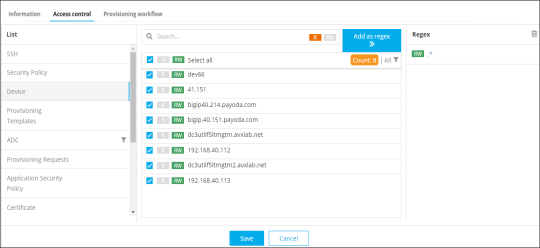
- After assigning a device to the role, click Save.
- Repeat steps 6 through 9 for each of the remaining list on the Access Control page.
-
The ADC has two additional fields that allow you to assign global permissions for
orphan and secondary ADC objects to the resource you are creating. Users cannot assign
individual permissions to orphan and secondary objects. To enable this ability, complete
the following sub-steps:
- Click the ADC tab.
-
Under the Search field, select the checkbox beside Orphan to assign global
permissions to orphan objects.

- Click either the R or RW icon to give users assigned to the resource Read-Only or Read/Write permissions on all orphan objects.
- Select the checkbox beside Secondary if you want to assign global permissions for secondary objects.
- Click the R icon to give user groups assigned to the resource Read-Only permissions on all secondary objects. The RW icon is not available because you cannot grant Read/Write access to secondary objects.
- Continue with the rest of the steps in the process, then click Save.
- After assigning the role, click the Provisioning Workflow tab on the top. The provisioning workflow allows you to determine workflows you want to associate with the resource you are creating.
-
Select the checkbox beside each workflow you want to associate with the resource and
click
 beside a workflow
name to view and select approval levels you want to provide to the workflow.
beside a workflow
name to view and select approval levels you want to provide to the workflow.
- Click Save.