Add Server Details
To add the server,
- Log in to AppViewX application with valid credentials.
-
Click the menu button located in the upper left corner of the screen.
The left navigation pane appears.
-
Click Inventory > Device.
By default, the ADC tab opens.
- Click the Server tab.
-
Click the Add button.
The Device details page appears.
.png)
- Select the desired vendor from the Vendors list.
-
In the Server details section, select/enter the details
as follows.
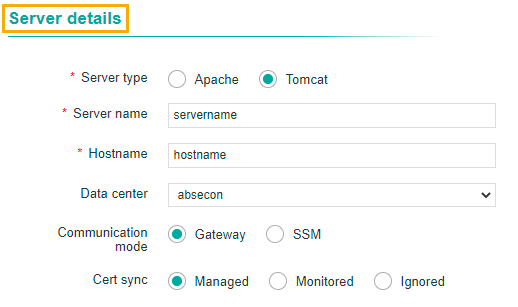
The following table describes the options available in the Server details section:
Options Description *Server Type Select the required server type.
The possible options are:
- Apache
- Tomcat.
*Server name Enter the name of the server. Hostname Enter the name of the host. Data center Select the data center from the dropdown list. Communication mode Select the required communication mode.
The possible options are:
- Gateway
- SSM.
Cert sync Select the required cert sync.
The possible options are:
- Managed
- Monitored
- Ignored.
Note: The asterisk (*) symbol indicates a mandatory field. -
In the Credentials section, select/enter the details as
follows.
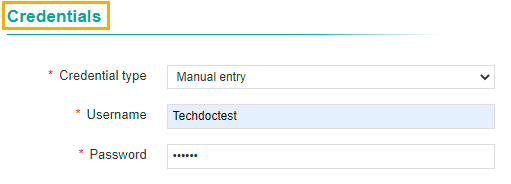
The following table describes the options available in the Credentials section:
Options Description *Credential Type Select the type of credential from the dropdown list that will be entered in the username and password field. *Username Enter the desired username. *Password Enter the secured password. Note: The asterisk (*) symbol indicates a mandatory field. - In the Windows gateway details section, select/enter the details as
follows.
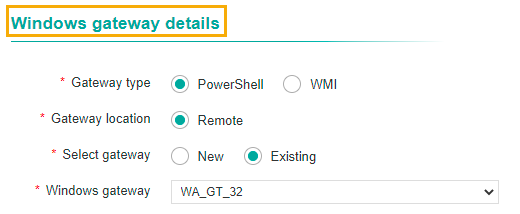
The following table describes the options available in the Windows gateway details section:
Options Description *Gateway type Select the required type of gateway.
The possible options are:
- PowerShell
- WMI.
*Gateway location Select the gateway location. *Select gateway Select the gateway.
- New
- Existing.
*Windows gateway Select the windows gateway from the dropdown list. Note: The asterisk (*) symbol indicates a mandatory field. - In the Certificate details section, enter the server path.
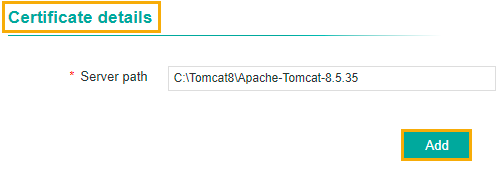
Enter the following path as mentioned in the table, depends on the OS that you choose:
OS Server Path Windows C:\Tomcat8\Apache-Tomcat-8.5.35 Linux /opt/tomcat/apache-tomcat-9.0.52 - Click the Add button.
- Once the server is added successfully, the server path will be listed in the Server
path section.
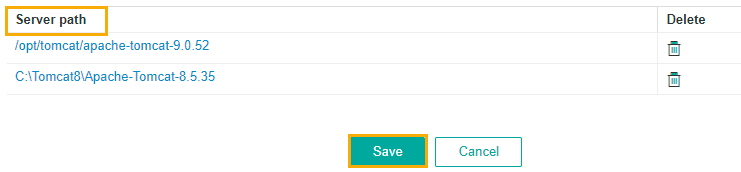
- Click the Delete icon, if you want to delete the server path from the list.
- The status of the server can be viewed in the Status column.
- You can configure multiple device details for the same vendor.