Overview
Client certificate inventory is where all the client certificates with the EKU(Extended/enhanced key usage) client authentication, email protection. The certificates in this inventory will be shown to the user only based on role-based access control on the certificate group. From this inventory, the user can select one or many certificates and perform bulk certificates renewal/revocation check/CA migration, search and filter certificates, export certificates, download certificates, delete certificates, and so on.
In the Certificate Inventory > Client Certificate page, all the client certificates are listed. You can perform the following actions:
- Export Certificates - To export the client certificate
- Delete - To delete the client certificate
- Change Status - To change the client certificate status
- Assign Group - To assign a group to the certificate
- Unassign Group - To Unassign a group from the certificate
- Add/Modify Comments - To add/modify comments to the certificate
- Certificate Attributes - To update the certificate attributes.
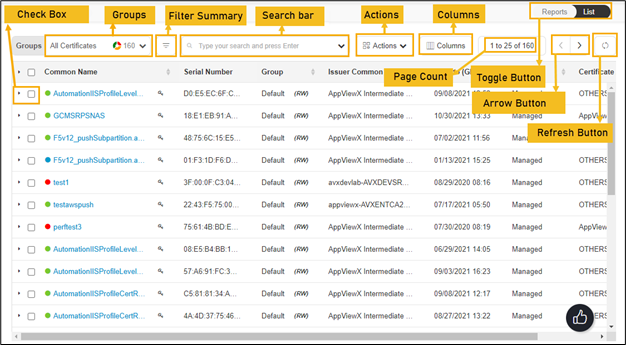
The following table describes the options available on the client certificate inventory page:
| Options | Description | ||||||||||||||||||||||||||||||||||
|---|---|---|---|---|---|---|---|---|---|---|---|---|---|---|---|---|---|---|---|---|---|---|---|---|---|---|---|---|---|---|---|---|---|---|---|
| Check Box | Select the check box of the certificate that needs to be renewed. | ||||||||||||||||||||||||||||||||||
| Groups |
Displays the group of certificates that needs to be displayed as selected. 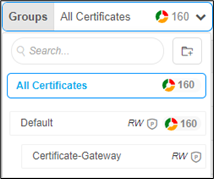 |
||||||||||||||||||||||||||||||||||
| Filter Summary |
Displays number of certificates in which state.  |
||||||||||||||||||||||||||||||||||
| Search Bar (Basic/Advanced) |
Searches for the given keyword in the field and results in the feature that matches the search keyword. Basic Search - Searches in the given keyword in the field and results from the feature that matches the search keyword. Advanced Search - The advanced search is used to perform quick searches of the data. If a more specific needs to be composed, the advanced search bar is a readily available option. To activate the advanced search bar, click the Chevron icon in the search field. The advanced search page appears. 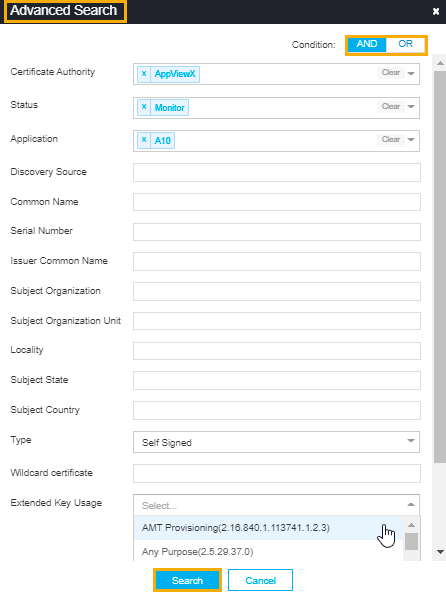 The following table describes the options available in the Advanced Search feature:
|
||||||||||||||||||||||||||||||||||
| Actions |
Displays the list of actions. The possible actions are,
|
||||||||||||||||||||||||||||||||||
| Columns |
Allows you to select the number of desired columns to show on the certificate page. 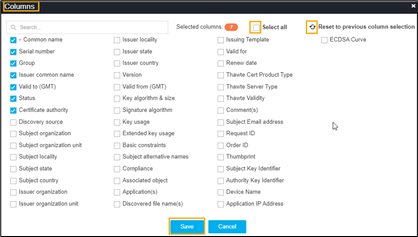
|
||||||||||||||||||||||||||||||||||
| Page Count | Displays the number of certificates listed on the page. | ||||||||||||||||||||||||||||||||||
| Toggle Button |
Displays the desired dashboard report on the page. The available options are,
|
||||||||||||||||||||||||||||||||||
| Arrow Button | Allows you to move next page. | ||||||||||||||||||||||||||||||||||
| Refresh Button | Allow you to refresh the current page. |