Step 1: Creating an S3 bucket using the Cloudformation template
- Login to the AWS account and navigate to the CloudFormation service section.
-
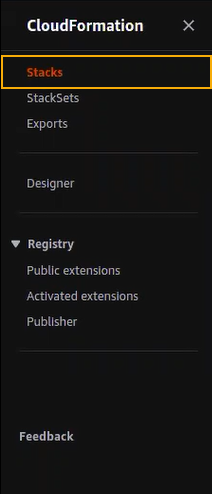
From the navigation pane on the left, select Stacks.
-
From the top-right corner of the CloudFormation > Stacks screen,
click Create stack > With new resources (standard).
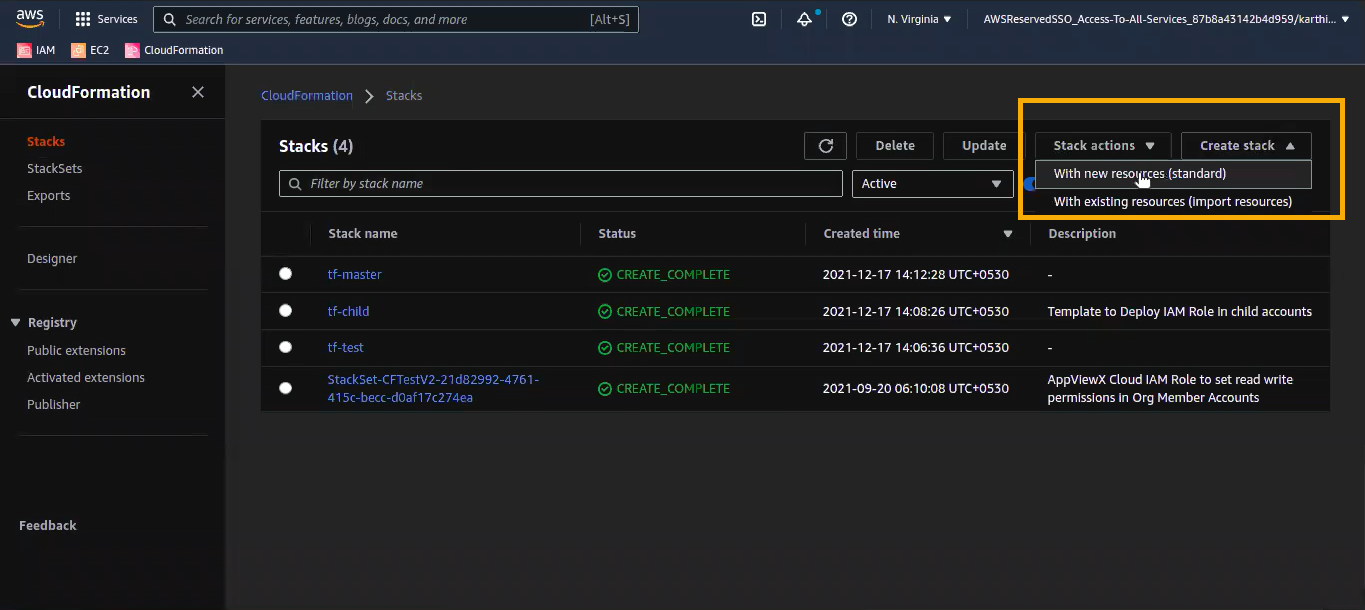
The Create stack page is updated to display the fields for Step 1 Specify template of the stack creation process.
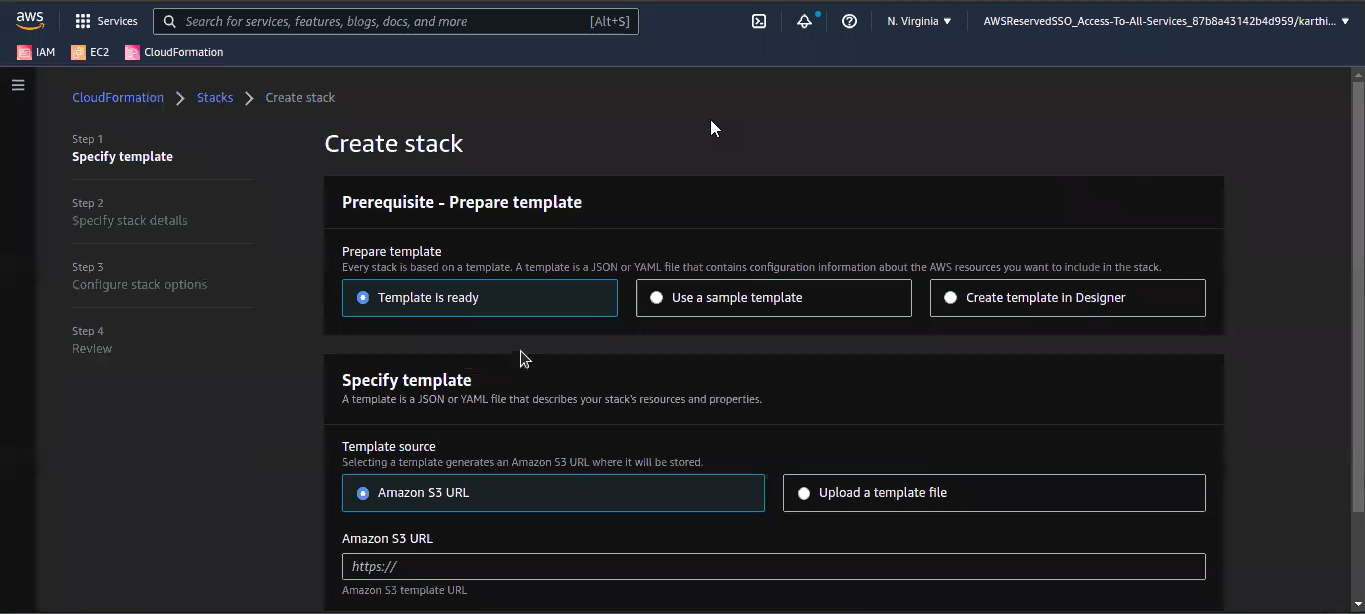
- In the Prerequisite - Prepare Template section, select the Template is ready option.
-
In the Specify template section:
- For Template source, select Upload a template file.
- To Upload a template file, click Choose file.
- Navigate to the CloudFormationTemplates/WithoutCondition folder.
- Select the S3Bucket.yaml file and click Open.
-
Click Next.
The Specify Stack Details page (step 2 of the stack creation process) is displayed.
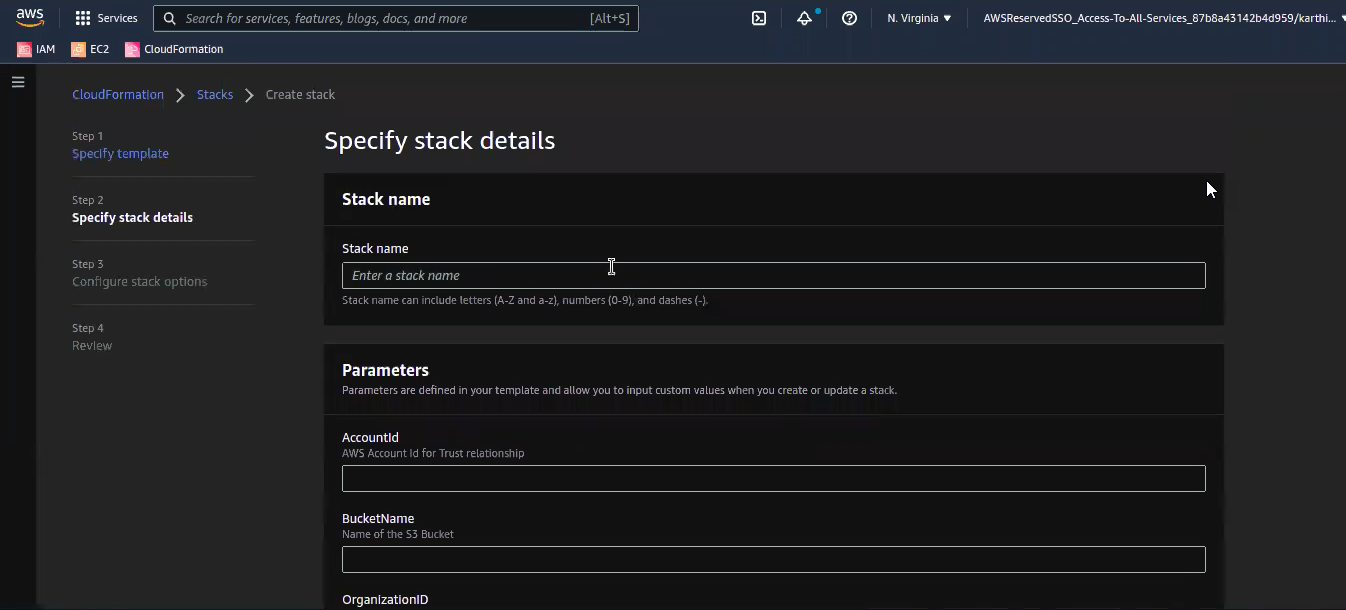
- Enter a Stack name. For the purpose of this guide, we will name this stack avxdemo-S3.
-
In the Parameters section, enter the following details:
-
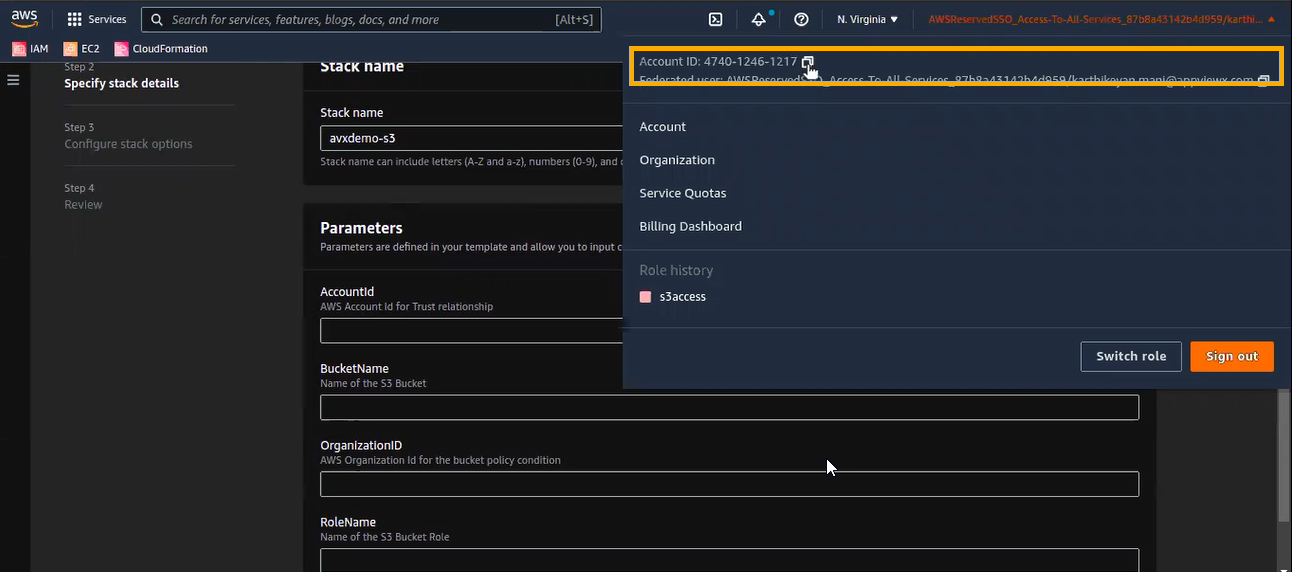
AccountId: From the top-right corner of the screen, click your
username and copy the account ID displayed.
-
OrganizationID:
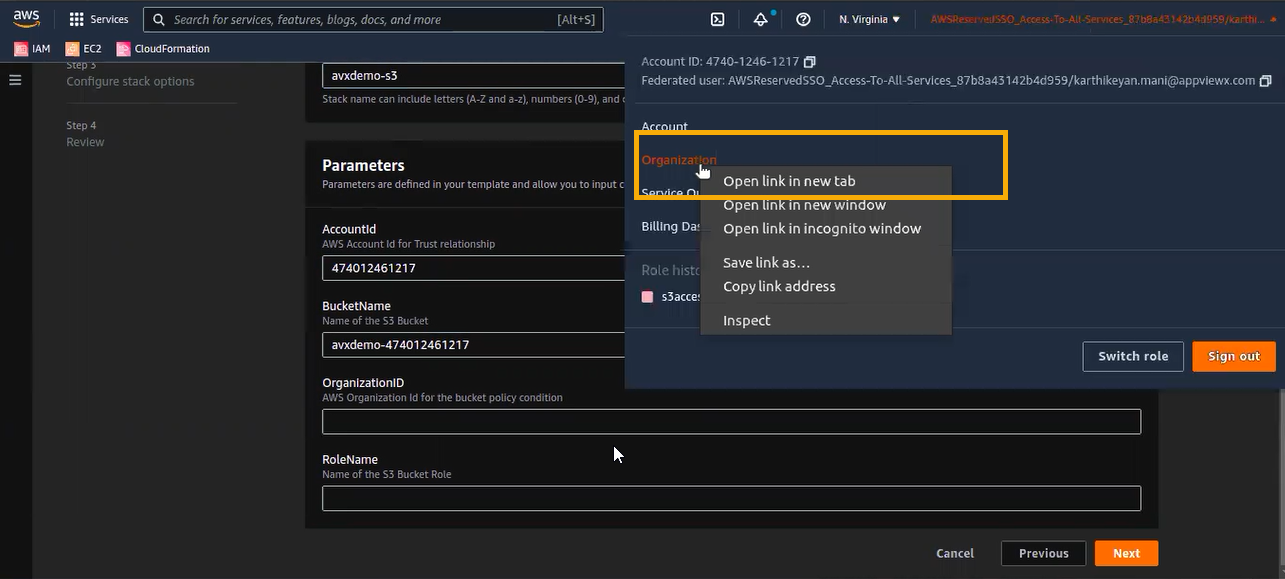
- From the top-right corner of the screen, click your username.
- From the menu displayed, right click Organization to open
it in a new tab.
The Dashboard is displayed.
- From the Dashboard, copy the organization ID and paste it
into the OrganizationID field.
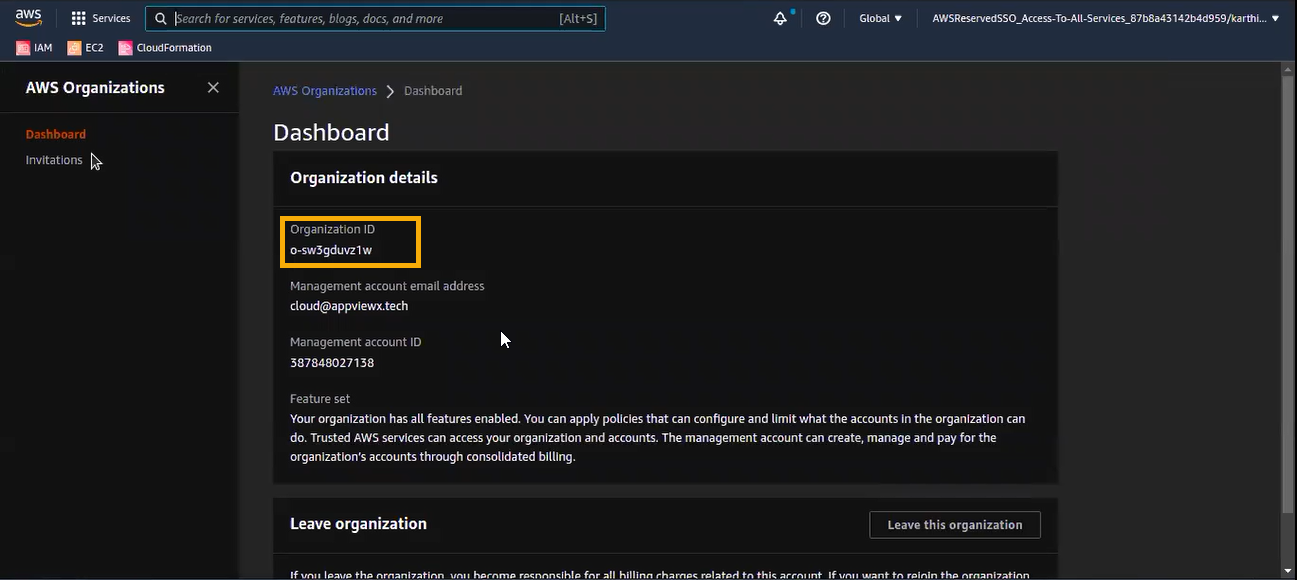 Note: The organization ID is a mandatory entry for the CloudFormation template.
The details entered on the Specify stack details page will be used to create a bucket policy for the S3 bucket we created for the AWS account. This bucket policy can be customized later based on customer preferences for how they want to secure their infrastructure.
-
AccountId: From the top-right corner of the screen, click your
username and copy the account ID displayed.
-
Click Next.
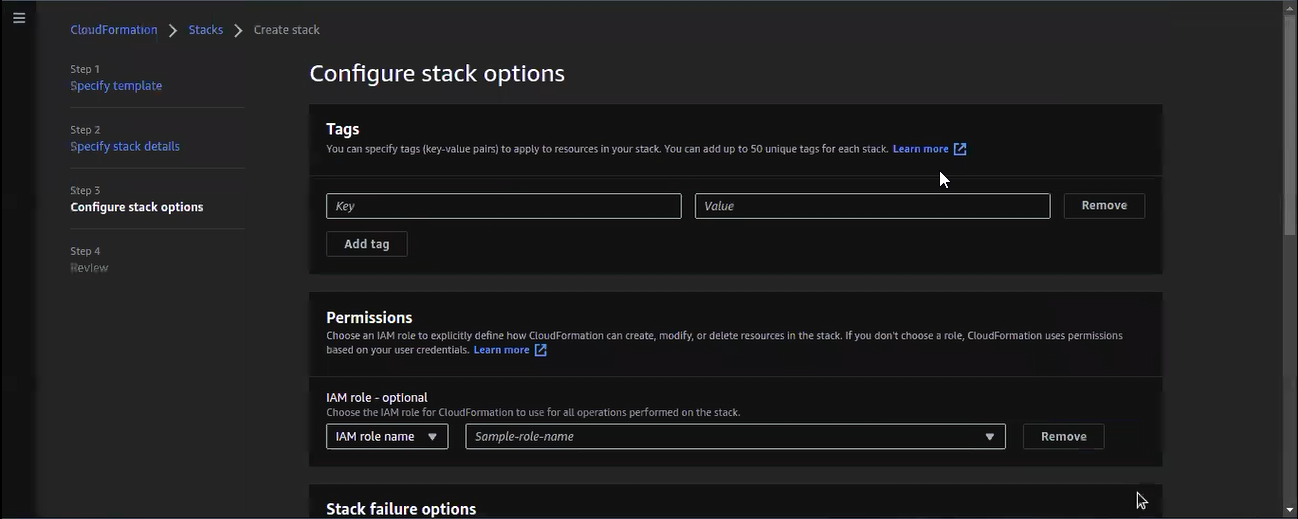
The Configure stack options page (step 3 of the stack creation process) is displayed.
-
Scroll down to the Stack failure options section and select Preserve
successfully provisioned resources.

-
Click Next.
The Review <stack name> page (step 4 of the stack creation process) is displayed
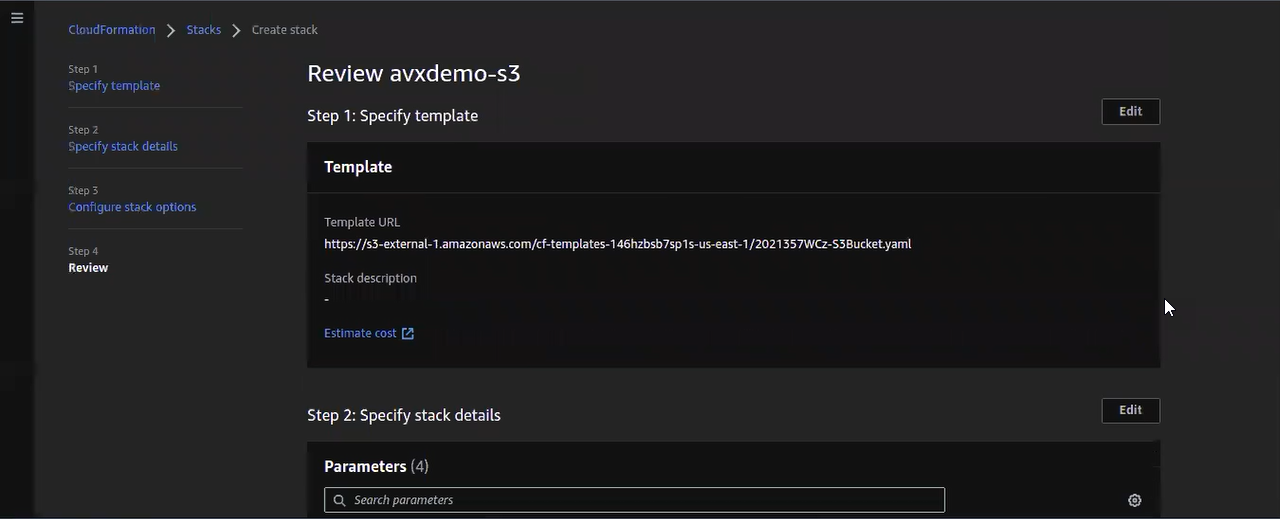
-
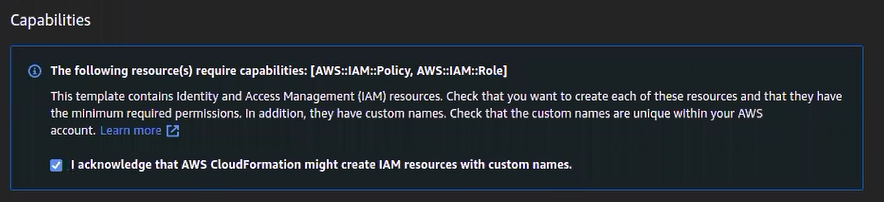
On the Review <stack name> page, scroll down to Capabilities
and select the I acknowledge that AWS CloudFormation might create IAM
resources with custom names checkbox.
-
Click Create stack.
The <stack name> page is displayed. This page lists the existing stacks on the left and the following details for each stack on the right:
- Stack info
- Events
- Resources
- Outputs
- Parameters
- Templates
- Change sets
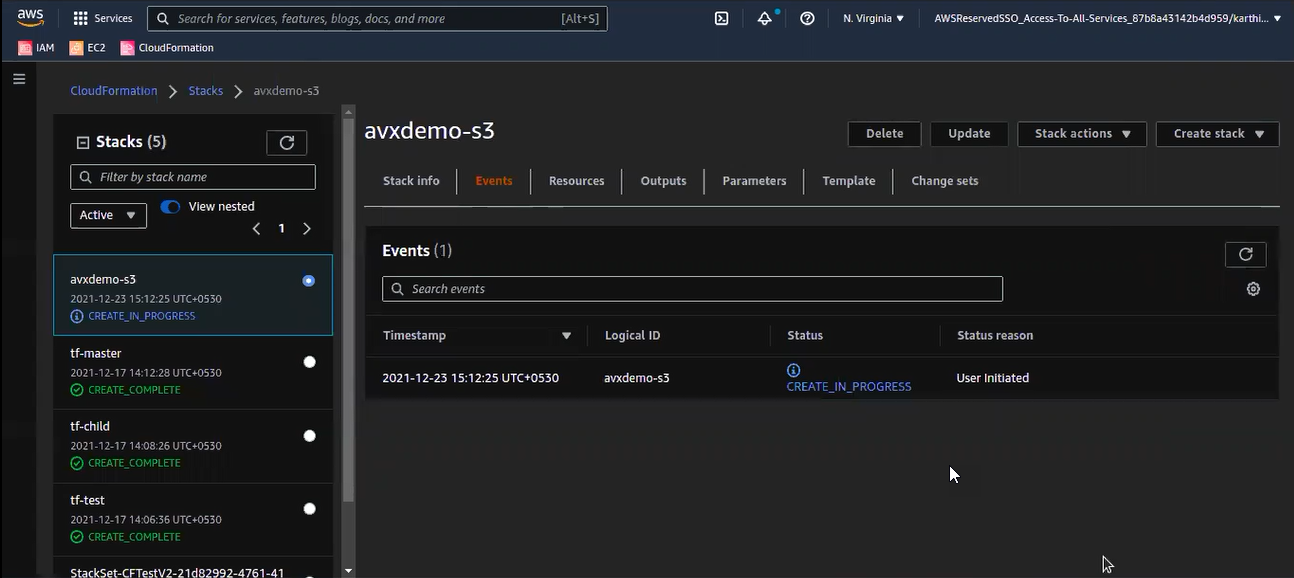
When the stack creation process is complete, Status (under the Events tab) will be updated to CREATE_COMPLETE. This means that, in the backend, an S3 bucket as well as the roles required to provision the bucket have been created. The bucket policy for the S3 bucket has also been updated accordingly.
- Navigate to the Parameters tab and note the bucket name to use it in the CloudFormation template for the master account.