Viewing Dashboard
To view for a dashboard,
- Log in to AppViewX application with valid credentials.
-
Click the menu button located in the upper left corner of the screen.
The left navigation pane appears.
- Click Dashboard in the left navigation pane.
-
Click the desired Dashboard name.
The dashboard page appears:
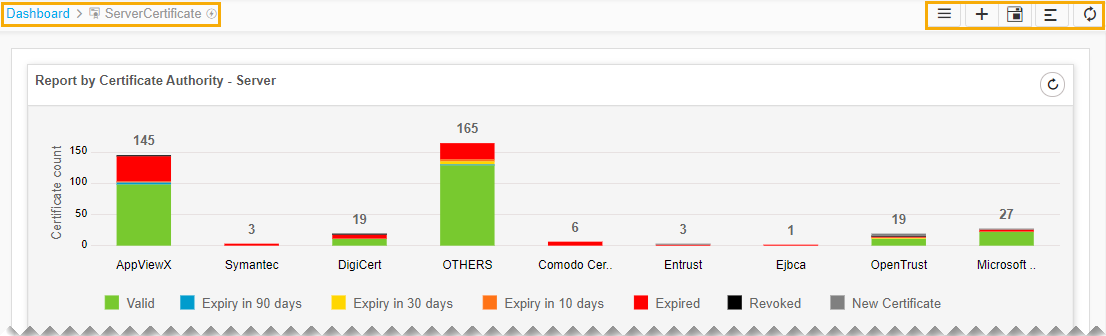
The following table describes the options available on the dashboard view page:
Options Descriptions Dashboard inventory 
Go to Dashboard page where all the Dashboards are listed.
Create 
Create a dashboard/widget.
Save widget 
Save the widget changes.
Align 
Align the widgets within the dashboard.
Refresh 
Refresh a dashboard.
- Click the Save Widget button in the command bar located at the upper right of the screen.