Folders
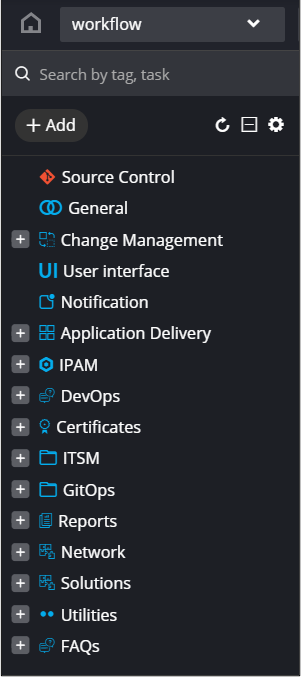
The following options are available in the Workflow Tasks folder menu:
| Options | Description |
|---|---|
| Search | Allows you to search for tasks by typing keyword(s) |
| Add | Allows you to add a new folder |
 |
Refreshes the tasks folders menu |
 |
Allows you to expand and collapse the task folders |

|
Allows you to hide folders from the workflow tasks menu and customize task sequence within a folder |
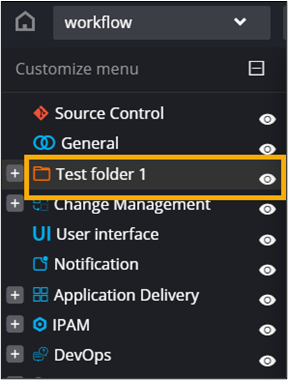
To hide a folder from the workflow tasks menu:
-
From the top right corner of the menu, click .
-
Click
 next to the folder you want to hide from the menu.
-
Click Save.
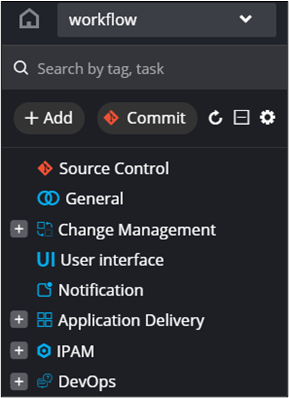
The folder is no longer visible in the menu.
-
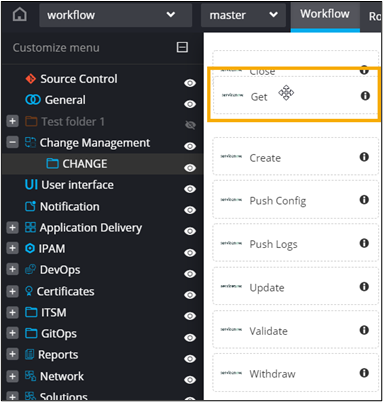
To reorder the sequence of tasks within a folder, from the top right corner of
the menu, click .
- Select a folder from the menu.
-
Hold and drag tasks to change their sequence in the folder.