How to Connect Script to Script
-
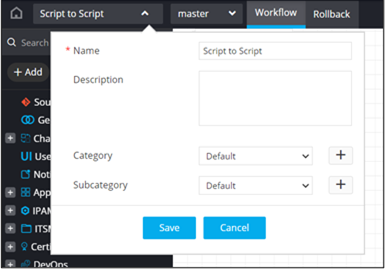
Design a new workflow.
-
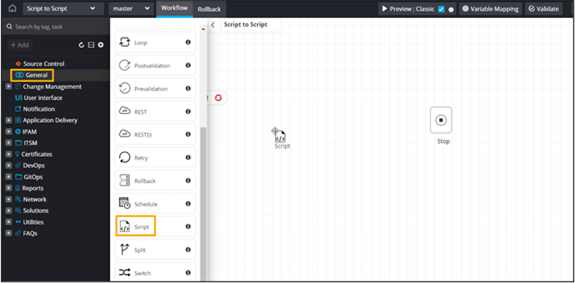
From the General section, drag and drop the
Script task.
-
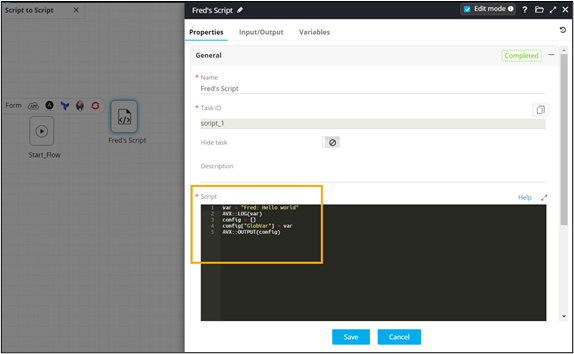
In the Script task window, under the
General section, define the Script.
-
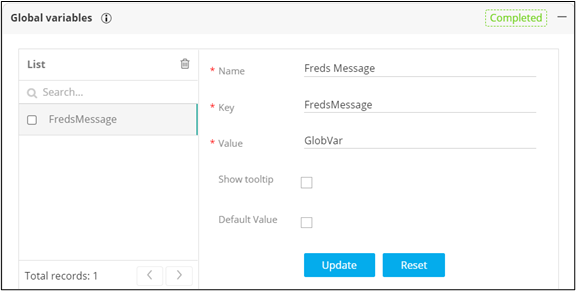
In the Script task window, under the Global
variables section, define and declare the value as a global
variable.
-
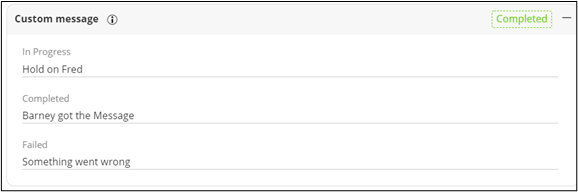
In the Script task window, under the Custom
message section, define the custom messages to be displayed
between workflow stages.
-
Drag and drop another Script task into the
workspace.
Tip: You can also right-click and clone the first script task.
-
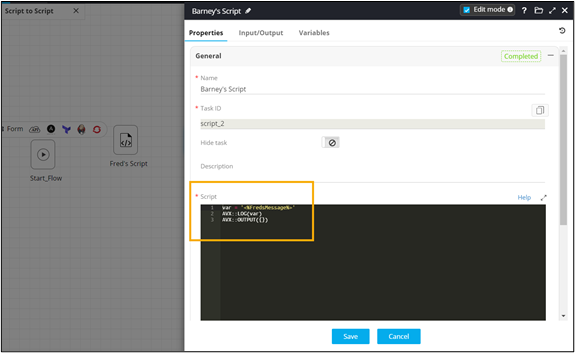
Refer the global variable value from the first Script.
-
Connect and enable the workflow.
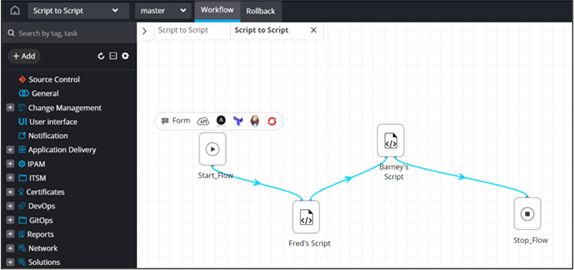
Note: For more information on enabling a workflow, click here. -
From the top left corner of the screen, click
 .
.
- From the menu displayed, click Request.
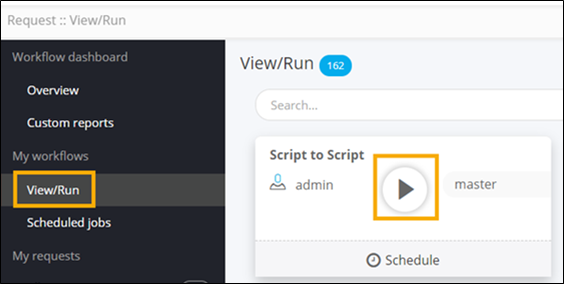
- On the Request :: Overview page, from the navigation pane on the left, click View/Run.
-
To trigger the workflow, on the Request :: View/Run
page, search for the Script to Script
workflow and click
 .
. 
- The script is executed.
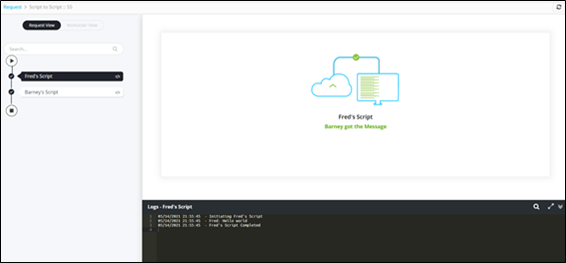
- Values are passed from one script to another.
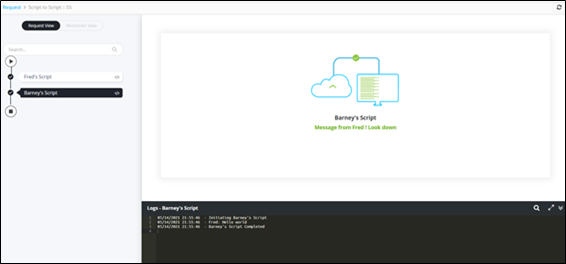
Note: For more information on how to connect various tasks in the Visual Workflow studio, refer to the section Connecting tasks in Workflow Studio. - The script is executed.