Change the Settings for a Dashboard
-
AppViewX recommends to enable Syslog based configuration update so that any changes on the end devices with regards to state/status will be reflected in AppViewX on a near real-time basis ensuring a seamless experience.
-
The ‘Last Refresh time’ on the widget displays the last time the widget is updated with the latest State/Status information.
-
Click on the ‘Refresh’ button on the widget to perform on-demand State/Status information. Each Object will contain a last refresh time on the tooltip, you can also trigger a refresh for a particular object from the tooltip.
-
Enable ‘Auto refresh’ from the
 (Settings) of the dashboard page with a
particular interval (1 - 5 mins) which will automatically refresh the
state/status information of the objects.
(Settings) of the dashboard page with a
particular interval (1 - 5 mins) which will automatically refresh the
state/status information of the objects. -
Enable ‘Refresh on load’ from the
(Settings) of the dashboard page to get
the latest state/status information on loading the dashboard. -
‘Keep Alive’ option on the dashboard Settings
if enabled will ensure the session is not timeout by refreshing the dashboard every 15 mins.
To change the settings for a dashboard,
-
Go to
 Menu
> ADC+ > TRAFFIC MANAGEMENT > Dashboards.
Menu
> ADC+ > TRAFFIC MANAGEMENT > Dashboards.
- If you have more than one dashboard, in the dashboard list, click the name of the one whose settings you want to view and/or update.
-
In the Command bar for the dashboard, click the (Settings)
button.
-
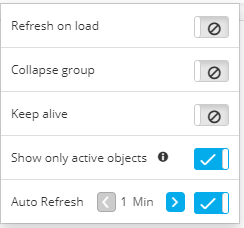
A dropdown menu appears, listing the settings you can change:
-
Refresh on load - If this setting is enabled, each time the dashboard loads, it displays the latest data in the system.
-
Collapse group - If this setting is enabled, each time the dashboard loads, all groups within widgets on the dashboard display in a collapsed state by default.
-
Keep alive - If this setting is enabled, the dashboard expiry function is disabled, allowing users to monitor all objects on the dashboard without interruptions caused by session timeouts.
-
Show only active - If this setting is enabled, the objects of an active device are displayed in run time. This functionality is applicable only for Application View widgets.
-
-
If the setting is currently disabled, a
 (Disabled) button appears.
-
If the setting is currently enabled, an
 (Enabled) button appears.
- To change a setting, click the corresponding button and the opposite setting appears.