Certificate Authority Scan
AppViewX can communicate with CA and scan certificates.
Prerequisite
To discover certificates from a CA, the CA account must be determined under the AppViewX Inventory settings.
To discover a certificate from CA:
- Click the Menu (
 ) icon.
 - Click CERT+.
The CERT+ left navigation pane appears.
- Click Discovery from Certificate Discovery on the LHS pane.
- Click Certificate Authority Scan.
The Add Discovery page appears.
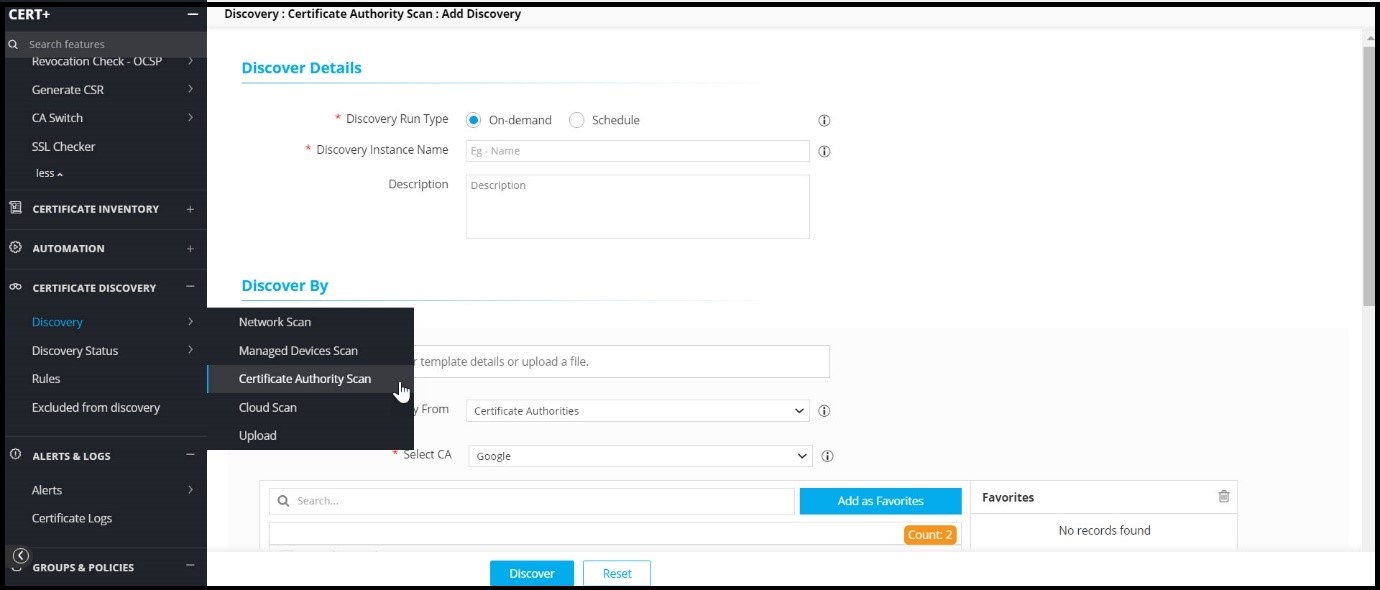
- In the Discover Details section, enter the details as follows.
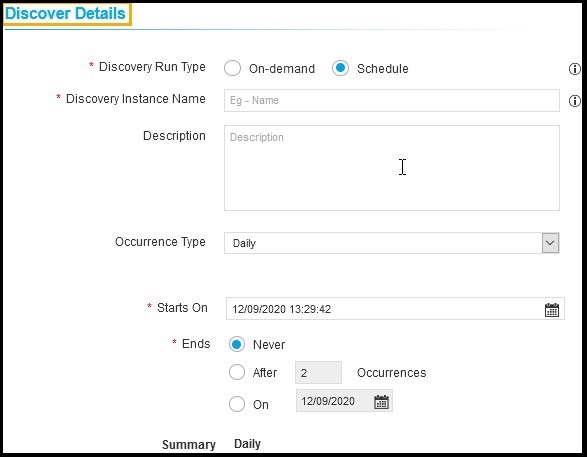
The following table describes the options available in the Discover Details section:
Field Description *Discovery Run Type Click the check box to select the desired discovery run type. Options are:
- On-demand: You can trigger a discovery manually whenever you want.
- Schedule: By scheduling the discovery, you can automate the process for a defined time/ frequency.
If you select Scheduled discovery, fill out the following details.-
Occurrence Type: Select the type of occurrence from the dropdown list.
Options are:
- Daily
- Weekly
- Monthly
- Yearly
-
Repeat On: Select day in the week to schedule the weekly discovery.
-
Starts On: Select the date to start the scheduled discovery.
-
Ends: Select the desired last discovery:
- Never: Continues to discover the certificate.
- After: Stops the discovery process after number of occurrence entered in the field.
- On: Stops the discovery process for the selected period from calendar.
Note: AppViewX will trigger the discovery certificate process for that instance.*Discovery Instance Name Enter the name of the discovery instance. Description Enter the required details in this field.
Note: You can enter maximum of 2000 words in the field.Note: Fields marked with red asterisk (*) symbol are mandatory. - In the Discover By section, enter the following details:
Field Description *Discovery From Select the source from the dropdown list to discover a certificate. *Select CA Select AppViewX PKIaaS. CA Window List of all the managed CAs will be shown in the CA window. Select CAs to discover certificates from.
- Add as Favorites: You search for a desired CA and add as favorites.
- All: You can see all the CAs on the list.
- Select: You can see all the selected CAs from the list.
- Unselect: You can see all the unselected CAs from the list.
- Delete: You can delete the favorite CAs from the list.
- In the Discovery Rules section, select the Associate Rule from the
dropdown list.Note: Set of filters created as a rule in the Rules menu. The selection of rules will apply to respective filters on discovered certificates.
- In the After Discover section, enter the details as follows.
Field Description *Move Certificate to Inventory with Status Click the check box to select the desired move certificate for inventory with status. Options are:
- Do not move: New discovered certificates and associated objects will not be moved to inventory.
- Managed: New discovered certificates and associated objects will be moved to inventory with managed status.
- Monitored: New discovered certificates and
associated objects will be moved to inventory with
monitored status.Note: If the discovered certificates already exist in the inventory, the associated object will be moved to the same status.
Use Access Control Rule Select the check box.
Note: If this check box is enabled, the certificate group will be associated automatically with rules of access control.*Certificate Group Select the certificate group from the dropdown list. Discovered certificates will be associated with this provided group. - Click Discover to perform an on-demand discovery or click Schedule to perform a scheduled certificate discovery.