Managing HSM Integration
To integrate a HSM device:
-
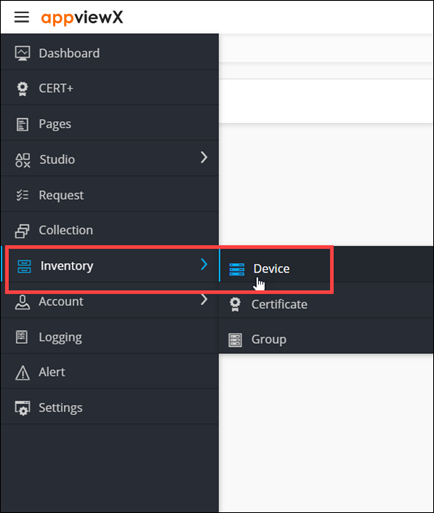
To access the navigation pane, in the top-left corner of the screen, hover the
mouse pointer over the
 icon.
icon.
-
From the menu displayed, click Inventory >
Device.
The Device :: ADC page is displayed.
-
On the Device :: ADC page, to configure the HSM
settings, click the HSM tab.
The Device :: HSM page is displayed.
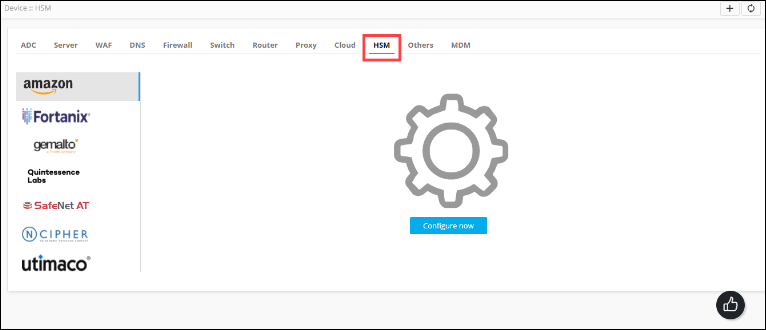
- From the left pane, select the vendor for integrating the HSM device.
-
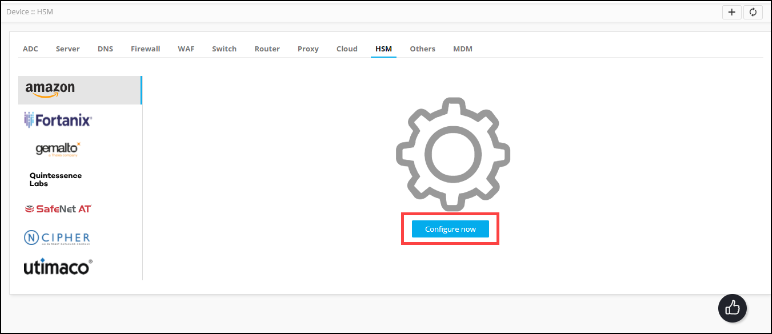
For the selected vendor, click Configure Now.
-
For all vendors, in the General information section,
enter the following details:
Field Description *Name Name of the device/settings being integrated Description Description/purpose of adding the device Implementation type From the drop-down menu, select one of the following options: - CSR Generation
- Private key encryption
- Both
Default Data center From the drop-down menu, select the data center where the HSM AppViewX VM is deployed. All * marked fields are mandatory. -
In the Vendor specific details section, enter the
required details.
- To enter vendor specific details for Fortanix, click here.
- To enter vendor specific details for Gemalto, click here.
- To enter vendor specific details for SafeNet AT, click here.
- To enter vendor specific details for Utimaco, click here.
- To save the HSM integration details, click Save.