Running F5 BIG-IP CVE Reporting
To run this workflow,
-
Go to
 Menu > Request > View/Run.
The ADC OOB workflows are listed.
Menu > Request > View/Run.
The ADC OOB workflows are listed.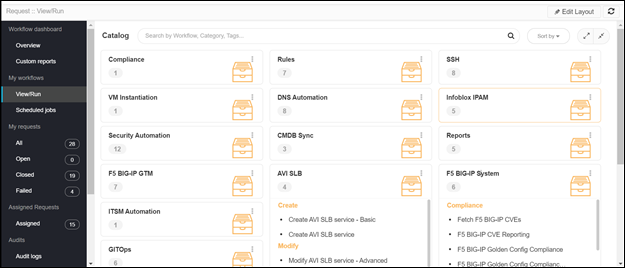
- In the Workflow Catalog page, hover over the Fetch F5 BIG-IP CVEs workflow.
The Run and Schedule buttons are shown.
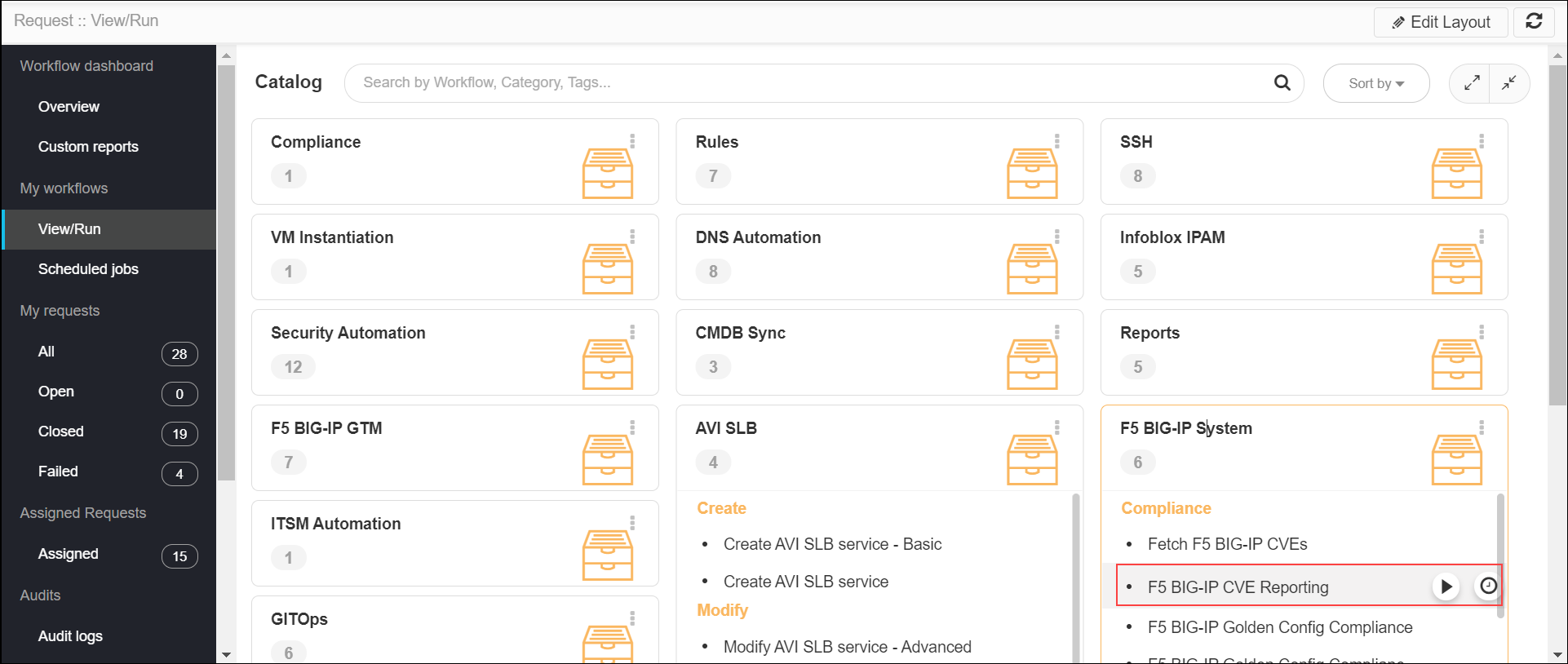
- Click the Run
 button.
The Form Input page opens:
button.
The Form Input page opens: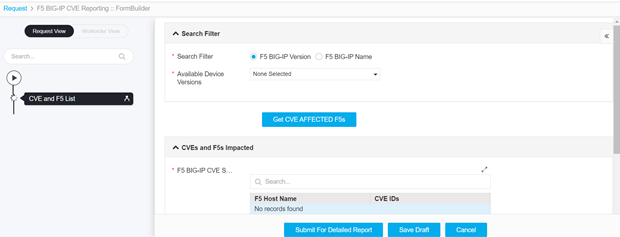
- Enter or select the field information in the Search Filter section of Form
Input.
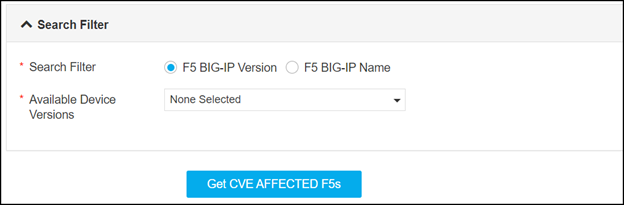
- The following table provides the field description for the Search Filter
section of Form Input:
Field Description Search Filter Select the search filter. The possible options are:
- F5 BIG-IP Version – This option allows you to get the devices based on the product version. The product versions listed in the drop-down option are in the format <major version>.x.x. The vulnerabilities will be validated for the devices of selected product versions.
- F5 Big-IP Name – This option allows you to get the devices based on the name.
*Available Device Versions Select the devices or product version from the drop-down list for which CVE validation to be triggered. The drop-down list is displayed if Search Filter is F5 BIG-IP Version. *Available Devices Select the devices from the drop-down list for which CVE validation to be triggered. The drop-down list is displayed if Search Filter is F5 BIG-IP Name. -
Click the Get CVE AFFECTED F5s button to get the devices which are affected by
the CVE vulnerabilities.
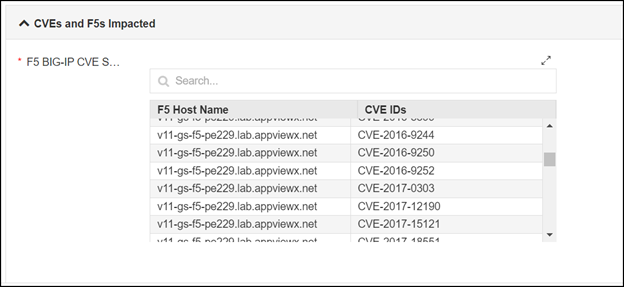
The devices that are affected by the vulnerabilities are listed in the CVEs and F5s Impacted section. -
If this report is to be sent via email, select the Get Report By Email option as
Yes, and then enter the email IDs in the Email_id field.

Note: Multiple email IDs can be added as comma-separated values. -
Click the Submit For Detailed Report button.
Note:
- To save this form for later run by clicking the Save Draft button.
- To cancel this workflow, click the Cancel button.
-
Click Ok in the Confirmation popup.
The report generation starts automatically.
- The CVE Report and CVE Severity Report are generated.
-
To view the CVE Report, click the CVE Report tab in the left panel.
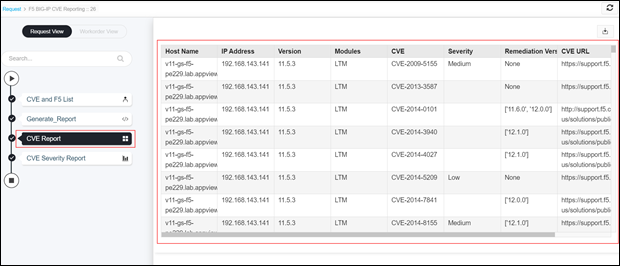
The report can be downloaded by clicking the Download ( ) button.
 -
To view CVE Severity Report, click the CVE Severity Report tab in the left
panel.
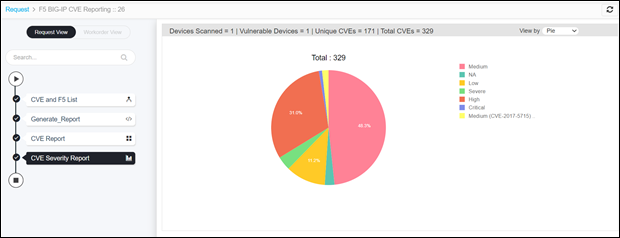
The view of this report can be changed from Pie chart or Donut view by selecting the option from the View by drop-down option. -
The CVE Severity Report displays the following details:
- Device Scanned – Total number of scanned devices.
- Vulnerable Devices – Total number of vulnerable devices in the devices scanned.
- Unique CVEs - Unique vulnerability.
- Total CVEs – Cumulative count of severities (Critical, Medium, High, etc.) reported for each module (LTM, GTM, AFM, and ASM) in the device. The severity reported for a module is identified only if the module is enabled in AppViewX while adding the device in the Inventory.
The remediation versions are mentioned for each module (LTM/GTM/AFM/ASM) in the vulnerable devices, in the CVE Report tab. If required, trigger the F5 BIG-IP Software Upgrade on Standalone or F5 BIG-IP Software Upgrade on HA Devices to fix the vulnerabilities in the device.