Birthright Role
When the Admin enables the Birthright role feature, all new users who log into the product will be provided with a pre-defined set of customizable functions.
When this role is enabled, the admin can create and assign a dedicated user group with pre-defined roles and resources and set it as the Birthright role.
Whenever a new user logs in, the user will be mapped with roles and resources specified in that particular user group.
To configure the Birthright role,
- Log in to AppViewX application with valid credentials.
-
Click the menu button located in the upper left corner of the screen.
The left navigation pane appears.
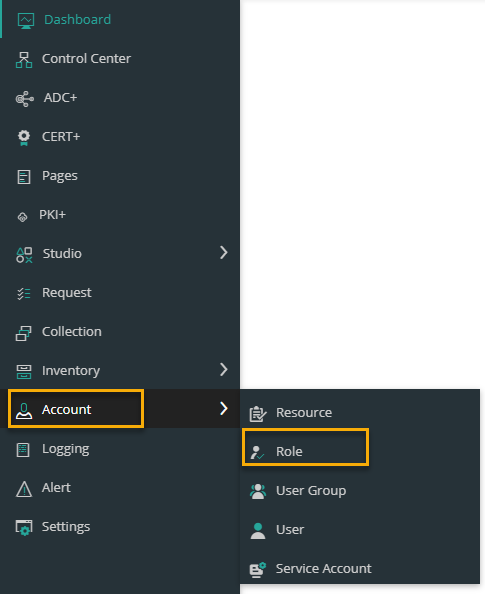
- Click Settings.
- Navigate to General, and then select Authentication.
-
Click Authentication Settings.
Displays the available options on the page.
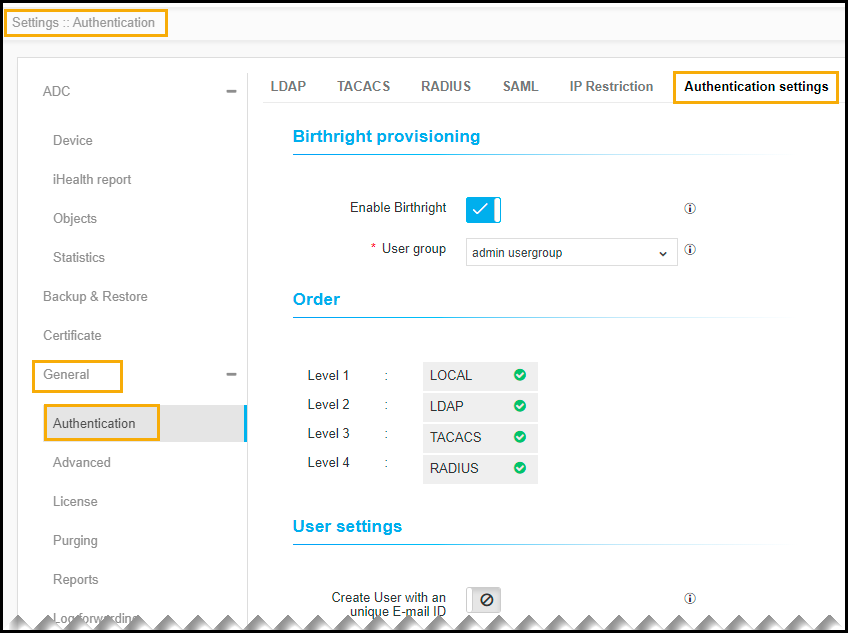
- The following table describes the options available on the Authentication settings page:
| Options | Description | ||||||||
|---|---|---|---|---|---|---|---|---|---|
| Birthright provisioning |
|
||||||||
| Order | By default, all the associated orders are selected. | ||||||||
| User settings |
Enter/Enable the following settings:
|
||||||||
| Node settings |
Enter the node password whenever AppViewX node password gets changed. Note: The password entered in the
Node Password field must be the
same as the node password. Restart the avx-config-server pod
in every data center.
|
||||||||
|
Note: The asterisk (*) symbol indicates a
mandatory field.
|
|||||||||
- Click Save.