Validating Digicert MPKI Connection
Once the Digicert MPKI settings are added, the validation must be done to check whether the connection between AppViewX and Digicert MPKI is configured properly.
- Log in to the AppViewX application with valid credentials.
-
Click on the menu button.
The left navigation pane appears.
-
Click CERT+.
The CERT+ left navigation pane appears.
- Expand ADMINISTRATION.
-
Click Certificate Authority, and then select DigiCert.
The Certificate Authority home page appears.
-
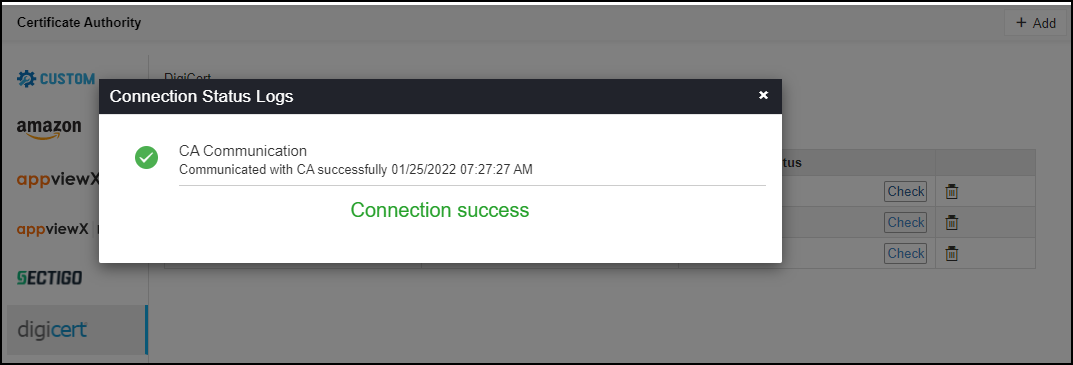
Click Check to validate the CA setting that is created.
The CA communication will be validated and the Connection Status will be shown as either Success or Failure.