Configuring Let’s Encrypt CA
To configure the Let's Encrypt CA,
- Log in to AppViewX application with valid credentials.
-
Click the menu button located in the upper left corner of the screen.
The left navigation pane appears.
-
Click CERT+.
The CERT+ left navigation pane appears.
- Expand ADMINISTRATION.
-
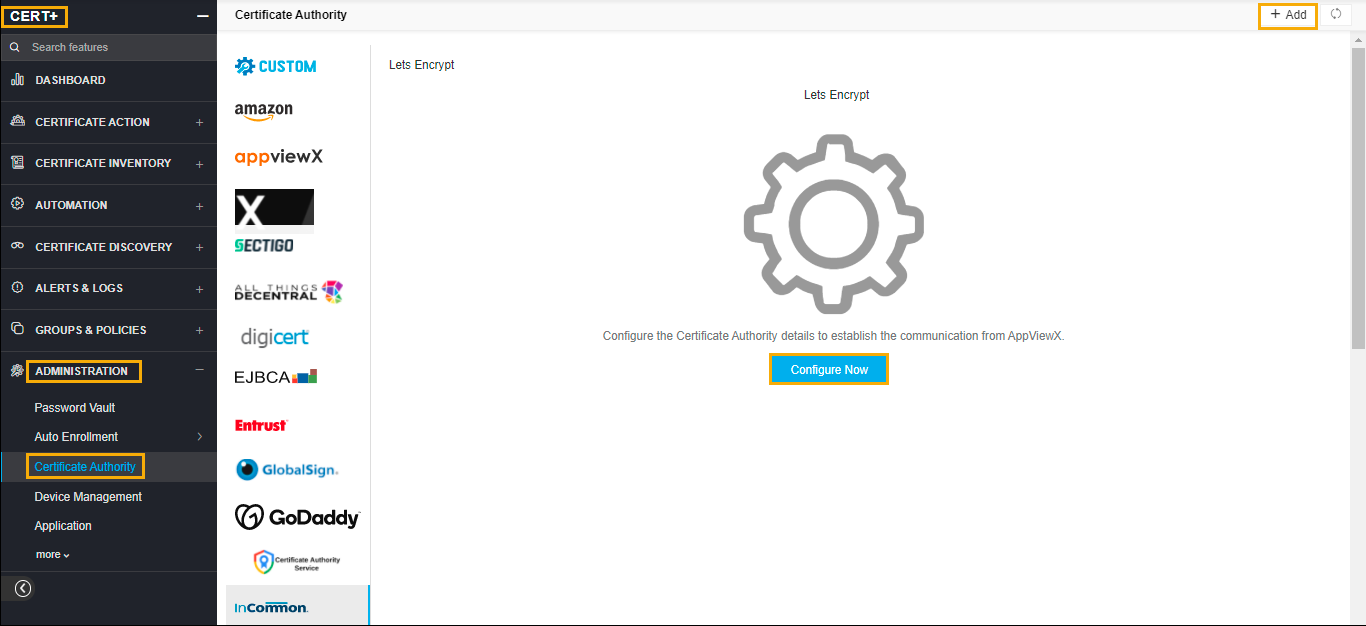
Click Certificate Authority, and then select Let's Encrypt.
The Certificate Authority home page appears.
-
Click the +Add icon or Configure Now icon on the page.
The Let's Encrypt configuration page appears.
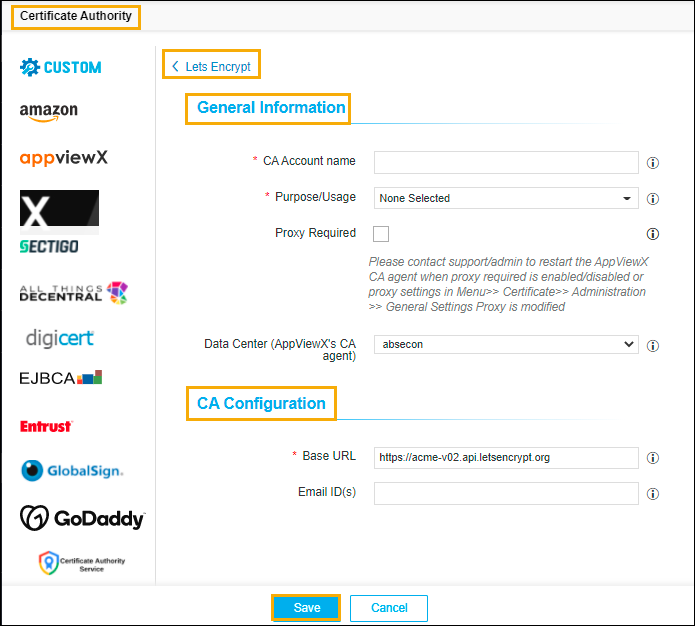
- Update the following details in the General Information section
as described in the table:
Name Description *Name A unique name to identify the CA setting.
Note: No special characters other than ‘.’, ‘-’,’_’ are allowed. The name must not start with special characters.*Purpose/Usage The certificate types will be managed by these settings. For now, Let’s Encrypt is having only one purpose Server. Proxy Required Enable this field if the CA communication needs to happen via Proxy. The proxy details configured in general settings will be used for communication. Data Center (AppViewX's CA agent) Select the data center through which the CA communication needs to happen. Note: The asterisk (*) symbol indicates a mandatory field. - Update the following details in the CA Configuration section as
described in the table.These fields are necessary for invoking the Let’s Encrypt CA APIs for
Certificate Management.
Name Description *Base URL Let’s Encrypt certificate enrolment URL either staging or production based on the requirement. *Email ID(s) Enter email ID(s) in this field to receive notifications from Let's Encrypt. Multiple email ID must be separated by comma (,). Note: The asterisk (*) symbol indicates a mandatory field. - Click Save.