Validating Microsoft Enterprise
Once the Microsoft Enterprise settings are added validation needs to be done to check whether the connection between AppViewX and Microsoft Enterprise is properly configured. To validate the Microsoft enterprise CA,
- Log in to AppViewX application with valid credentials.
-
Click the menu button located in the upper left corner of the screen.
The left navigation pane appears.
-
Click CERT+.
The CERT+ left navigation pane appears.
- Expand ADMINISTRATION.
- Click Certificate Authority, and then select Microsoft Enterprise.
-
Click Check to validate the CA setting that has been created.
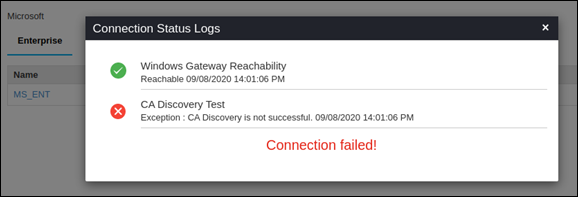
The CA communication will be validated and the Connection Status will be shown as either Success or Failure.
Success Message.
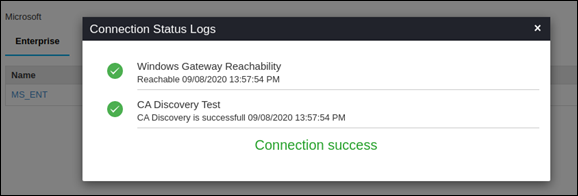
Success Scenario for Native API
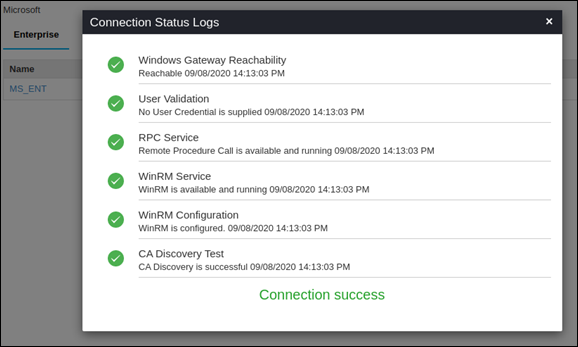
Success Scenario for Powershell
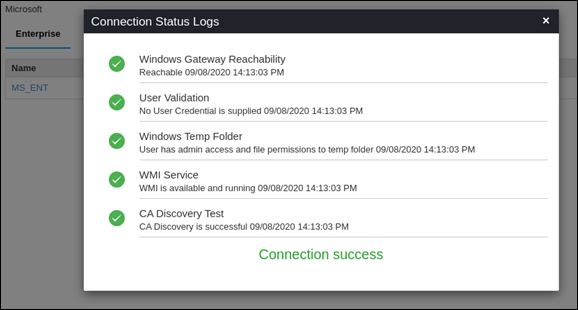
Success scenario for WMI