Configuring MS Intune
To perform mobile device certificate enrollments for MS Intune managed devices using the (SCEP based) MS Intune protocol on AppViewX, the admin or a privileged user needs to first set up the MS Intune server agent using the AppViewX portal. Upon successful set up of the MS Intune server agent through the portal, a URL will be generated. Clients can then use this URL to send enrollment requests to AppViewX via MS Intune.
The detailed steps for setting up the MS Intune server agent are listed below:
- Log in to AppViewX application with admin or privileged user credentials.
- Click the menu button located in the upper left corner of the screen.
The left navigation pane appears.
- Navigate to CERT+ > ADMINISTRATION > Auto Enrollment > MS INTUNE.
- Select Add or Configure Now.
-
Configure the End Point Details details as follows:
Prerequsistes for entering the IP/FQDN field:
- The "Cloud Connector Name" (in the Add Cloud connector page) must be the same as the FQDN name entered.
- The given FQDN must be resolvable in the cloud connector machine and also in the company portal Application running machine
- The CC should have the reachability to the Endpoint.
- If entering the IP the ensure that single cloud connector is used.
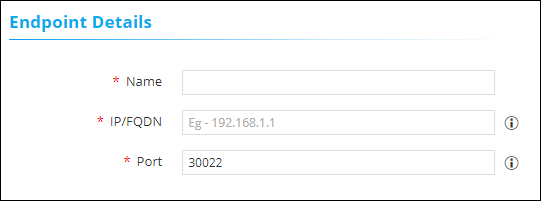 The following table provides the field description for Agent Details section:
Field Name Field Type Mandatory Description Validation Name Text Yes Unique name to identify the Agent setting. No special characters other than ‘.’, ‘-’,’_’ are allowed. Name should not start with special characters. Host Text Yes IP address of the AppViewX intune plugin.
Invalid IP address(example: xxx.xxx.xxx.xxx) Port Text Yes HTTP gateway port of the AppViewX intune plugin node. Port will accept only numerical values between 0 to 65535. -
Configure the Intune Details as below:
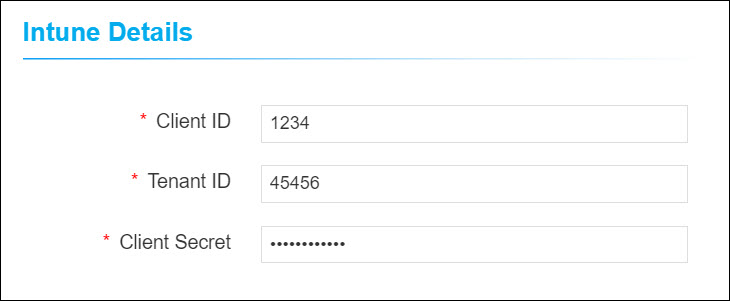 The following table provides the field description for Intune Details section:
Field Name Field Type Mandatory Description Validation Client ID Text Yes Client ID of the Intune Account - this value should have been captured during Intune App Registration. NA Tenant ID Text Yes Tenant ID is the domain name in your account ID. For example, if your account id is [email protected] then the tenant Id is test.onmicrosoft.com. NA Client Secret Text Yes Client Secret for the Intune Account - this value should have been captured during Intune App Registration. NA -
Configure the CA Accounts as follows:
The following fields are displayed as per the selected CA:The following table provides the field description for CA Accounts section:
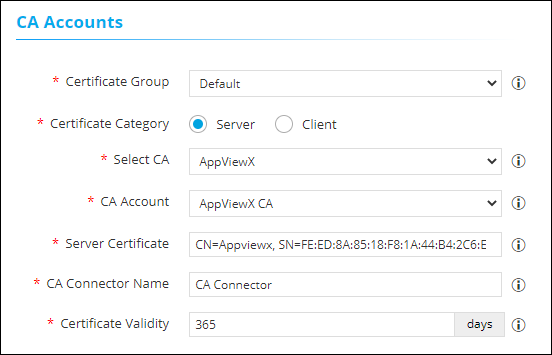
Field Name Field Type Mandatory Description Validation Certificate Group Select Yes Select a specific group under which certificate needs to be enrolled. NA Certificate Category Select Yes Select a specific certificate type (Server / Client) to be enrolled.
NA Select CA Select Yes Select the required CA from the available options. The certificate will be enrolled under the selected CA.
The CAs associated with the Default certificate group are:-
AppViewX
-
Google
-
Ejbca
-
Microsoft Standalone
-
AppViewX PKIaaS
-
Microsoft Enterprise
-
Entrust MPKI
-
Amazon Private CA
-
DigiCert
-
DigiCert MPKI
-
Nexus
-
Globalsign MSSL
Note: The Vendor Specific Details section is displayed after the CA Accounts section only if Ejbca, Microsoft Enterprise, or Entrust MPKI is selected as the CA.NA -
When AppViewX is selected as CA,
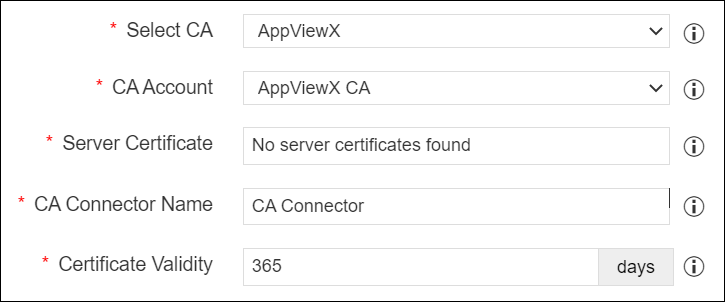 The following table provides the
field description for AppViewX CA:
The following table provides the
field description for AppViewX CA:Field Name Field Type Mandatory Description Validation NA CA Account Select Yes Select a specific CA Account from the selected CA which is to be used for certificate creation operations. NA Server Certificate Select Yes Type 3 or more letters of the certificate keywords after which a list of server certificates issued from the above selected CA account will be displayed, one certificate can be selected for further communications with SCEP client machine. NA CA Connector Name Text Yes Name of the CA connector after certificate is being enrolled. NA Certificate Validity Text Yes Validity of the certificate to be enrolled. Certificate validity accepts only numerical values -
When Google is selected as CA,
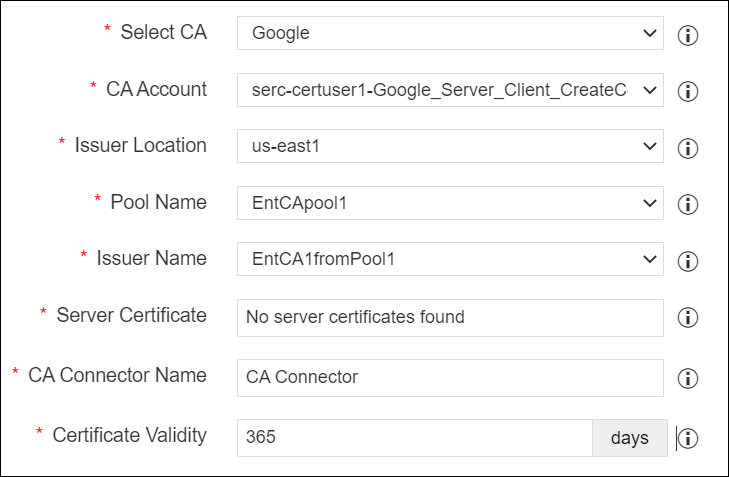 The following table provides the
field description for Google CA:
The following table provides the
field description for Google CA:Field Name Field Type Mandatory Description Validation CA Account Dropdown Yes Select the specific CA Account associated with the selected CA to be used for certificate creation operations. NA Issuer Location Dropdown Yes Select the issuer location associated with the CA account. NA Pool Name Dropdown Yes Select a pool name to issue the certificate. NA Issuer Name Dropdown Yes Select a issuer name to issue the certificate. NA Server Certificate Dropdown Yes Type 3 or more letters of the certificate keywords after which a list of server certificates issued from the above selected CA account will be displayed, one certificate can be selected for further communications with SCEP client machine. NA CA Connector Name Text Yes Name of the CA connector after the certificate is enrolled. No special characters are allowed. Only alphanumeric and space are allowed. Certificate Validity Text Yes Validity of the certificate to be enrolled. Certificate validity accepts only numerical values. -
When Ejbca is selected as CA,
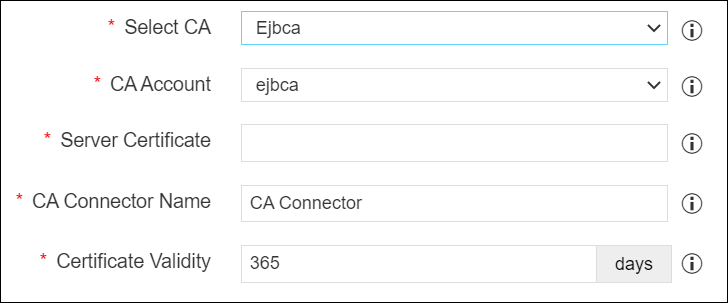 The following table provides the
field description for Ejbca CA:
The following table provides the
field description for Ejbca CA:Field Name Field Type Mandatory Description Validation CA Account Dropdown Yes Select the specific CA Account associated with the selected CA to be used for certificate creation operations. NA Server Certificate Dropdown Yes Type 3 or more letters of the certificate keywords after which a list of server certificates issued from the above selected CA account will be displayed, one certificate can be selected for further communications with SCEP client machine. NA CA Connector Name Text Yes Name of the CA connector after the certificate is enrolled. No special characters are allowed. Only alphanumeric and space are allowed. Certificate Validity Text Yes Validity of the certificate to be enrolled. Certificate validity accepts only numerical values. If the selected CA is Ejbca, a separate section Vendor specific details is displayed after the CA Accounts section.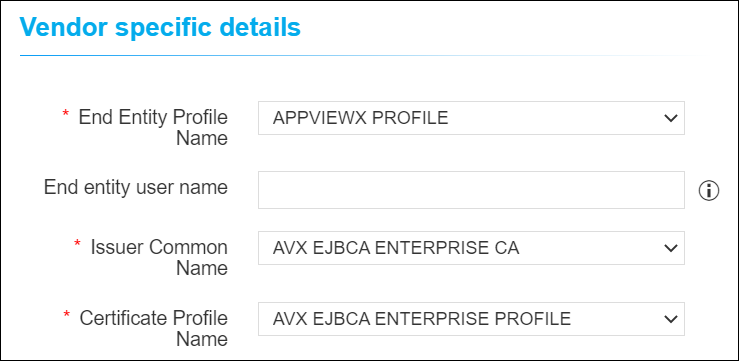 The following table
provides the field description for Vendor specific details:
The following table
provides the field description for Vendor specific details:Field Name Field Type Mandatory Description Validation End Entity Profile Name Dropdown Yes Select a profile of an end entity. NA End entity user name Text No Enter the user name for the end entity. Alphanumeric characters, spaces, and the special characters -_.* are allowed. Issuer Common Name Dropdown Yes Select a common name of an issuer. NA Certificate Profile Name Dropdown Yes Select a profile name of certificate. NA -
When Microsoft Standalone is selected as CA,The following
table provides the field description for Microsoft Standalone CA:
Field Name Field Type Mandatory Description Validation CA Account Dropdown Yes Select the specific CA Account associated with the selected CA to be used for certificate creation operations. NA Server Certificate Dropdown Yes Type 3 or more letters of the certificate keywords after which a list of server certificates issued from the above selected CA account will be displayed, one certificate can be selected for further communications with SCEP client machine. NA CA Connector Name Text Yes Name of the CA connector after the certificate is enrolled. No special characters are allowed. Only alphanumeric and space are allowed. Certificate Validity Text Yes Validity of the certificate to be enrolled. Certificate validity accepts only numerical values. -
When Microsoft Enterprise is selected as CA,
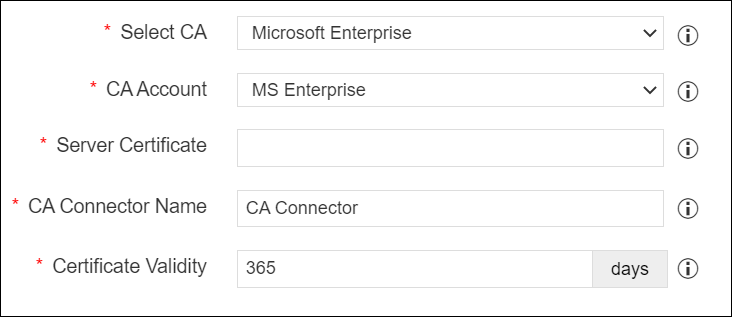 The following
table provides the field description for Microsoft Enterprise CA:
The following
table provides the field description for Microsoft Enterprise CA:Field Name Field Type Mandatory Description Validation CA Account Dropdown Yes Select the specific CA Account associated with the selected CA to be used for certificate creation operations. NA Server Certificate Dropdown Yes Type 3 or more letters of the certificate keywords after which a list of server certificates issued from the above selected CA account will be displayed, one certificate can be selected for further communications with SCEP client machine. NA CA Connector Name Text Yes Name of the CA connector after the certificate is enrolled. No special characters are allowed. Only alphanumeric and space are allowed. Certificate Validity Text Yes Validity of the certificate to be enrolled. Certificate validity accepts only numerical values. If the selected CA is Microsoft Enterprise, a separate section Vendor specific details is displayed after the CA Accounts section.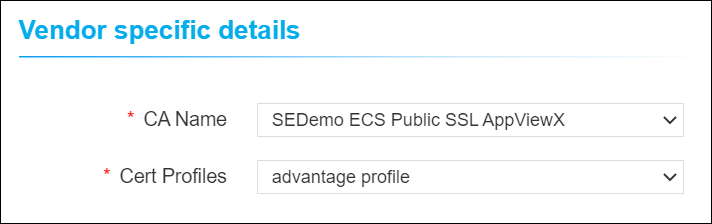 Select a template from
the dropdown list.
Select a template from
the dropdown list. -
When AppViewX PKIaaS is selected as CA.
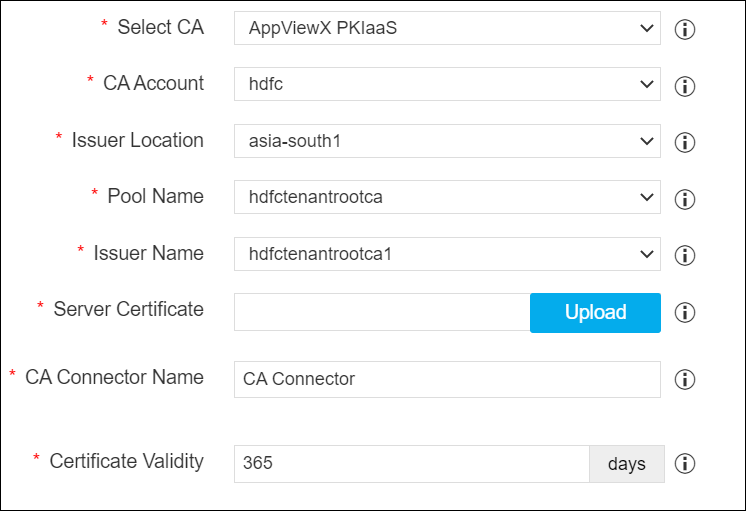 The following table provides the field
description for AppViewX PKIaaS CA:
The following table provides the field
description for AppViewX PKIaaS CA:Field Name Field Type Mandatory Description Validation CA Account Dropdown
Yes
Select a specific CA Account from the selected CA which is to be used for certificate creation operations.
NA
Issuer Location Dropdown
Yes Select an issuer location that is associated with the CA account. NA Pool Name Dropdown
Yes Select a pool name to issue the certificate. NA Issuer Name Dropdown
Yes Select an issuer name to issue the certificate. NA Server Certificate Browse Yes Browse and upload a server certificate with private key to certificate inventory and enter the exact match of common name/serial number to select the same. NA CA Certificate Dropdown
Yes
Type 3 or more letters of the certificate keywords after which a list of server certificates issued from the above selected CA account will be displayed, one certificate can be selected for further communications with EST client machine.
NA
CA Connector Name Text
Yes
Name of the CA connector after certificate is being enrolled.
NA
Certificate Validity Text
Yes
Validity of the certificate to be enrolled.
Certificate validity accepts only numerical values.
-
When Entrust MPKI is selected as CA.
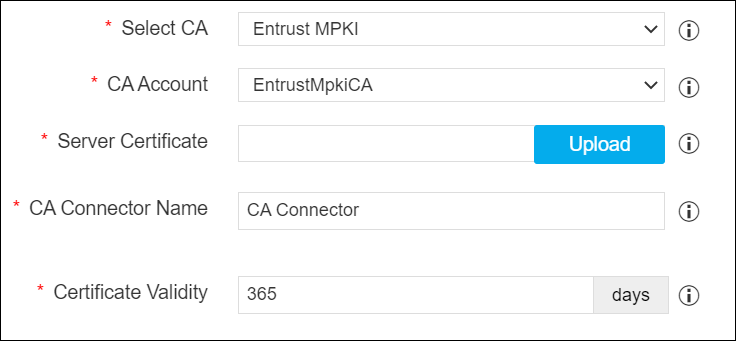 The following table provides the field
description for Entrust MPKI CA:
The following table provides the field
description for Entrust MPKI CA:Field Name Field Type Mandatory Description Validation CA Account Dropdown
Yes
Select a specific CA Account from the selected CA which is to be used for certificate creation operations.
NA
Server Certificate Browse Yes Browse and upload a server certificate with private key to certificate inventory and enter the exact match of common name/serial number to select the same. NA CA Connector Name Text
Yes
Name of the CA connector after certificate is being enrolled.
NA
Certificate Validity Text
Yes
Validity of the certificate to be enrolled.
Certificate validity accepts only numerical values.
If the selected CA is Entrust MPKI, a separate section Vendor specific details is displayed after the CA Accounts section.The following table
provides the field description for Vendor specific details:Field Name Field Type Mandatory Description Validation CA Name Dropdown Yes Select a CA name from the dropdown list. NA Cert Profiles Dropdown Yes Select a cert profile from the dropdown list. NA - When Amazon Private CA is selected as CA.
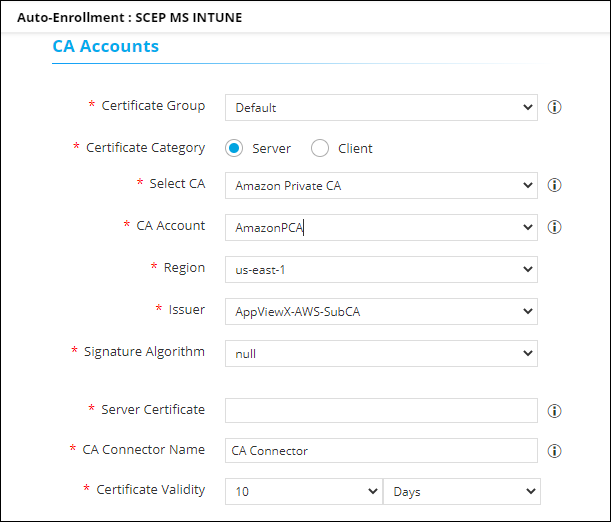
The following table provides the field description for Amazon Private CA
Field Name Field Type Mandatory Description Validation CA Account Dropdown Yes Select a specific CA Account from the selected CA which is to be used for certificate creation operations. NA Region Dropdown Yes Select a valid region associated with the CA account.
The dropdown is populated with the first available value. Select an appropriate value as required.
NA Issuer Dropdown Yes Select a valid issuer associated with the CA account.
The dropdown is populated with the first available value. Select an appropriate value as required.
NA Signature Algorithm Dropdown Yes Select a valid issuer associated with the CA account.
The dropdown is populated with the first available value from the group's associated policy. Select an appropriate value as required.
NA Server Certificate Select Yes Browse and upload a certificate for further communications with SCEP MS Intune client machine. NA CA Connector Name Text Yes Name of the CA connector after the certificate is enrolled. NA Certificate Validity Dropdown Yes Validity of the certificate to be enrolled. (in days/months/years) Certificate validity accepts only numerical values. - When DigiCert is selected as CA.
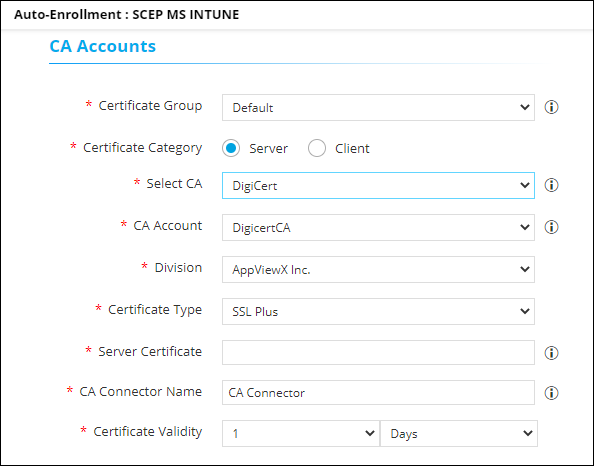
The following table provides the field description for DigiCert CA:
Field Name Field Type Mandatory Description Validation CA Account Dropdown Yes Select a specific CA Account from the selected CA which is to be used for certificate creation operations. NA Division Dropdown Yes Select a division associated with the CA account.
The dropdown is populated with the first available value. Select an appropriate value as required.
NA Certificate Type Dropdown Yes Select a valid cert type associated with the CA account.
The dropdown is populated with the first available value. Select an appropriate value as required.
NA Server Certificate Text Yes Type 3 or more letters of the certificate keywords after which a list of server certificates issued from the above selected CA account will be displayed, one certificate can be selected for further communications with SCEP MS Intune client machine. NA CA Connector Name Text Yes Name of the CA connector after the certificate is enrolled. NA Certificate Validity Dropdown Yes Validity of the certificate to be enrolled. (in days/months/years) Certificate validity accepts only numerical values. - If the Select CA =DigiCert, and the Certificate type =
Server, a separate section Vendor Specific Details is displayed
after the CA Accounts section with two fields.
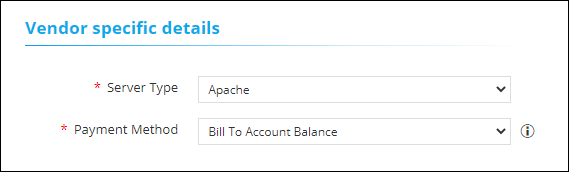 If the Select CA =DigiCert, and the Certificate type = Client, a separate section Vendor Specific Details is displayed after the CA Accounts section with one field.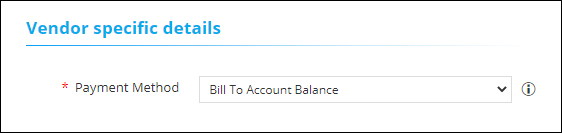
Field Name Field Type Mandatory Description Validation Server Type Dropdown Yes Select a server type.
The dropdown is populated with the first available value. Select an appropriate value as required.
NA Payment Method Dropdown Yes Select a payment method. The possible options are:
1. Bill To Account Balance - Pay with the account balance. Returns an error if this option is disabled for the account or if the account has an insufficient fund.
2. Bill To Default Credit Card - Pay with the account's default credit card. Returns an error if no default credit card is configured for the account
Alphanumeric characters, spaces, and the special characters -_.* are allowed.
- If the Select CA =DigiCert, and the Certificate type =
Server, a separate section Vendor Specific Details is displayed
after the CA Accounts section with two fields.
-
-
Configure the Advanced Settings as follows:
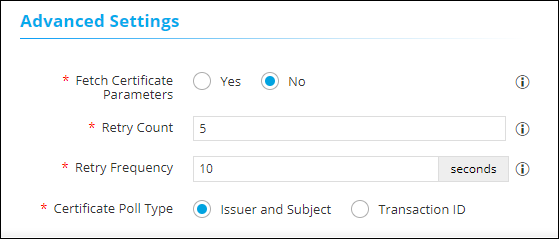 The following table provides the field description for the Advanced Settings section:
Field Name Field Type Mandatory Description Validation *Fetch Certificate Parameters Radio button Yes Select Yes or No
Setting the radio button to Yes, will enable the system to automatically fetch certificate parameters from a Suggestive Policy, and append them to the client CSRs.
*Retry Count Text Yes Values accepted between 5 - 99.
Based on this value, the EST agent will trigger the number of calls to collect the certificate from AppViewX until it is received.
*Retry Frequency Text Yes Values accepted between 10 - 99.
The value specified in this field determines the duration taken between the trigger calls by the EST agent.
*Certificate Poll Type Radio button Yes Select Issuer and Subject or Transaction ID.
The client agent will use this field to poll the issued certificate from the agent to the subsystem certificate plugin.
- Click Save.