Deleting Intermediate Certificate
Deleting intermediate certificate will delete the certificate from the intermediate certificate inventory only in AppViewX. Once the certificate gets deleted from the inventory, the same will not be shown in the reports and for alerts.
To delete the intermediate certificate,
- Log in to AppViewX application with valid credentials.
-
Click the menu button located in the upper left corner of the screen.
The left navigation pane appears.
-
Click CERT+.
The CERT+ left navigation pane appears.
- Expand CERTIFICATE INVENTORY.
-
Click Intermediate.
The Intermediate Certificate page appears.
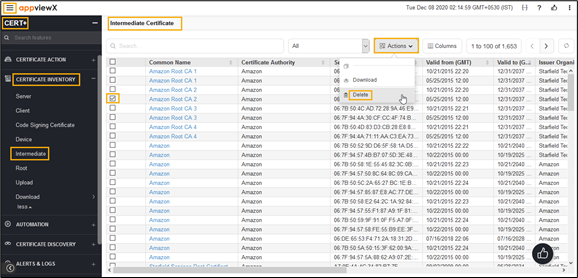
- In the Common Name column certificate list, select the desired certificate(s) that you want to delete.
-
Click Actions, and then select Delete.
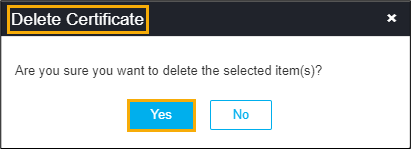
The Delete Certificate pop-up window appears.
-
Click Yes.
The client certificate is deleted and the pop-up message appears as “Selected certificate(s) with RW permission has been deleted from AppViewX inventory”.