Deleting Root Certificates
During download of the root certificate from both inventory and holistic view, the certificate gets downloaded in PEM <.*crt> format
in the inventory, the user can select one or more certificates and download them in .crt format. From the holistic view, only one certificate can be downloaded at a time.
To delete the root certificate,
- Log in to AppViewX application with valid credentials.
-
Click the menu button located in the upper left corner of the screen.
The left navigation pane appears.
-
Click CERT+.
The CERT+ left navigation pane appears.
- Expand CERTIFICATE INVENTORY.
-
Click Root.
The Root Certificate page appears.
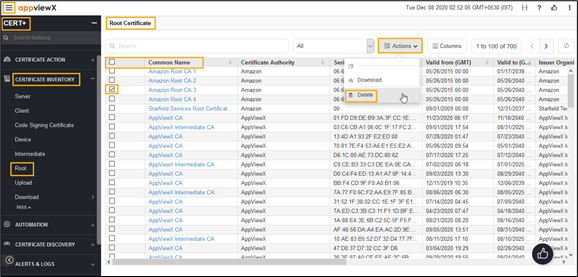
- In the Common Name column certificate list, select the desired certificate that you want to delete.
-
Click Actions, and then select Delete from the list.
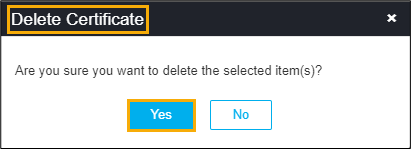
The Delete pop-up window appears.
-
Click Yes.
The client certificate is deleted and the pop-up message appears as “Selected certificate(s) with RW permission has been deleted from AppViewX inventory”.