Creating New Rule
To create a new Rule,
- Log in to AppViewX application with valid credentials.
- Click on the menu button.
The left navigation pane appears.
-
Click CERT+.
The CERT+ left navigation pane appears.
- Expand CERTIFICATE DISCOVERY.
-
Click Rules, and then click Create New
Rule.
The Create New Rule page appears.
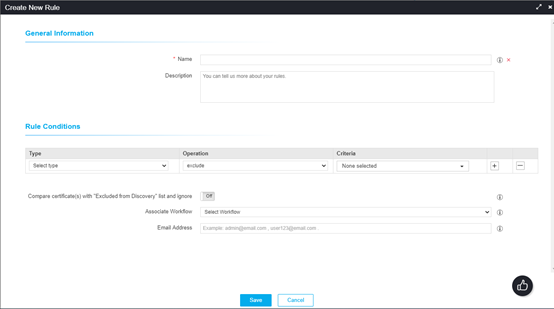
- On the Create New Rule popup window, enter a unique name for the rule. You can also enter a description for the rule.
- In the Rule Conditions section, you can specify the type, operation, and criteria of the rule.
- If you want to compare certificate(s) from the Exclude from discovery list and ignore it, you can enable that option. Based on this discovery, the discovered certificates that were already excluded and stored in the Excluded from discovery inventory, will automatically be excluded.
-
To associate a workflow with your rule, you can select your workflow from the
Associate Workflow drop-down list.
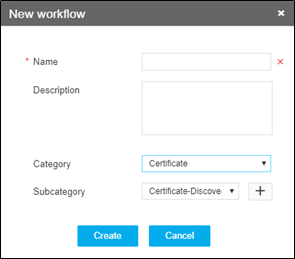
Only workflows that were already created appear in this list. To create a workflow, go to Menu >> Studio >> Workflow and click Design. Ensure that you map the workflow to the Certificates. Only then it will appear in the Rules section.
- If you want to email the rule details to the email address(es), you can enter the email addresses separated by a comma in the Email Address section.
- Click Save.