Reinstating Client Certificate
To reinstate a client certificate,
- Log in to AppViewX application with valid credentials.
- Click the menu button located in the upper left corner of the screen.
The left navigation pane appears.
- Click CERT+.
The CERT+ left navigation pane appears.
- Expand CERTIFICATE INVENTORY.
- Click Client.
The Client Certificate page appears.
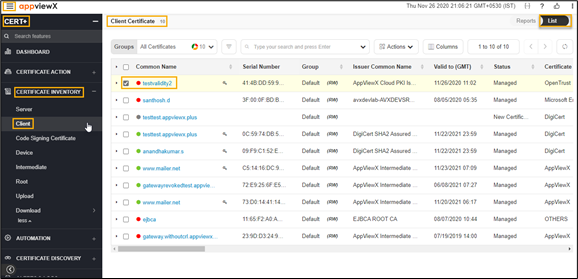
- In the Common Name column certificate list, select the desired certificate(s) that you
want to regenerate a certificate.
The holistic view page appears.
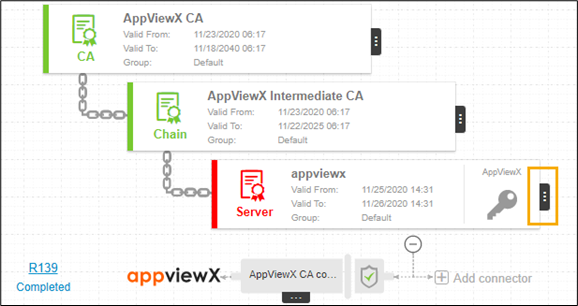
- Click the vertical eclipse icon, and then select Regenerate from the list.
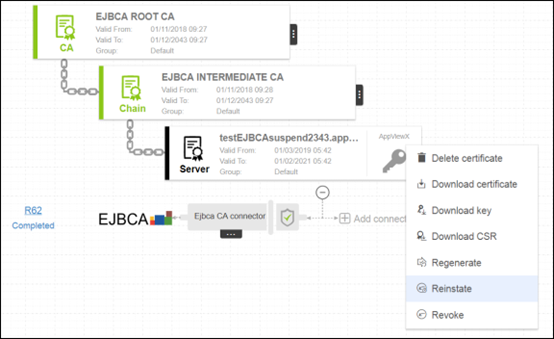
The Reinstate pop-up window appears.
- On the Certificate reinstate pop-up window, select a reason for reinstating the certificate from the list.
- In the Comments field, enter details for reinstating the certificate.
- Click Yes.