Running Revocation Check for Server Certificate
To perform revocation check for server certificate,
- Log in to AppViewX application with valid credentials.
- Click the menu button located in the upper left corner of the screen.
The left navigation pane appears.
- Click CERT+.
The CERT+ left navigation pane appears.
- Expand CERTIFICATE ACTION.
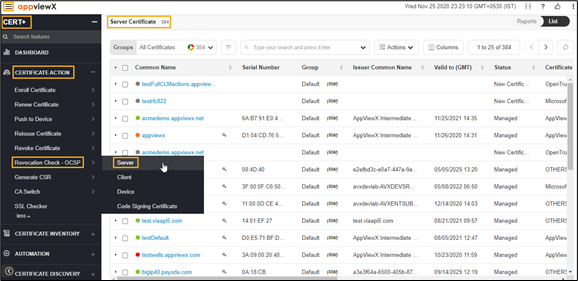
- Select Revocation Check - OCSP, and then Server.
The Server Certificate page appears.
- In the Common Name column certificate list, select the desired certificate(s) that you
want to do the revocation check.
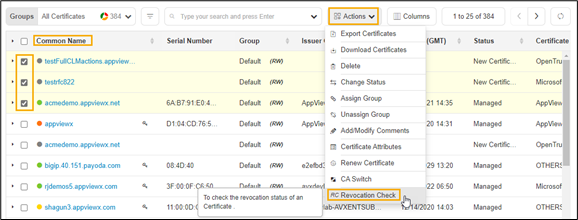
- Click Actions, and then select Revocation Check.
The Revocation Check pop-up window appears.
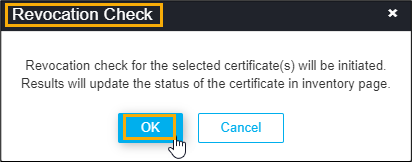
- Click OK.
The status of the revoked certificate is displayed on the Valid to (GMT) column.