Running SSL Checker for Certificate
To run SSL checker on a certificate,
- Log in to AppViewX application with valid credentials.
-
Click the menu button located in the upper left corner of the screen.
The left navigation pane appears.
-
Click CERT+.
The CERT+ left navigation pane appears.
- Expand CERTIFICATE ACTION.
-
Click SSL Checker.
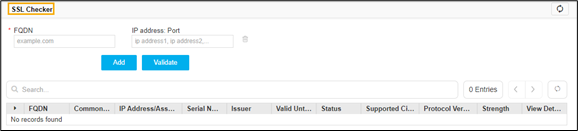
The SSL Checker page appears.
The following table describes the options available in the SSL Checker page:
Options Description FQDN Enter the fully qualified domain name (FQDN) in the field. IP address: Port Enter the valid IP address with the port number. Search Searches for the given keyword in the field and results in the feature that matches the search keyword. - Click Add
- Click Validate to run SSL checker.