Logging in to your SaaS Account
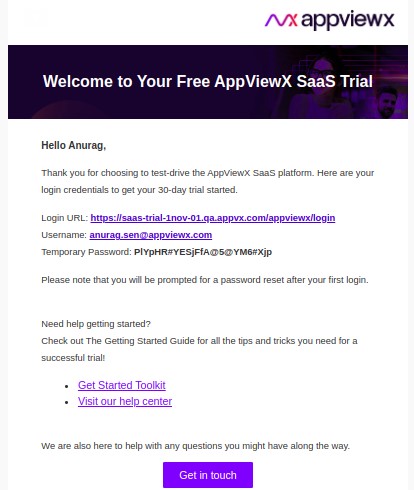
Based on the sign-up information and region, you will be notified with your SaaS account and temporary credentials.
-
Check your inbox for another email welcoming you to the AppViewX trial along
with the login credentials to access your free account.
-
Click the SaaS account URL (for example, https://tetrik.appvx.com/appviewx/login).
You are redirected to the login page.
-
Login to your SaaS account with the credentials provided in the email.
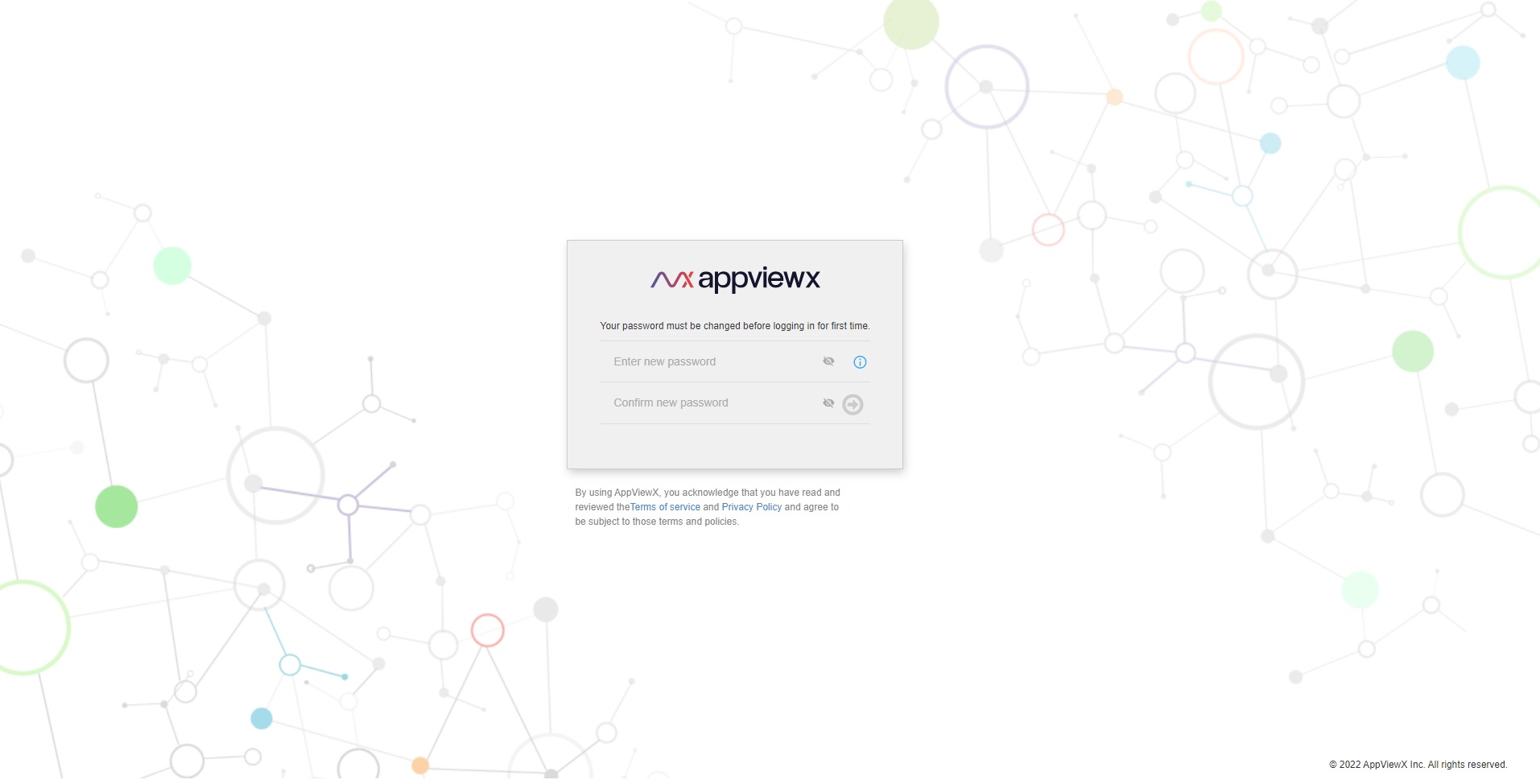
You are asked to change the current password.
-
Reset the default credentials by choosing a new password.
Note: The password must:
- Have at least one uppercase character
- Have at least one lowercase character
- Have one special character such as ~!@#$^&*_-+=|()
- Have minimum of 6 characters and maximum of 24 characters
- Not contain user name
- Not contain more than 3 same characters continuously, for example, aaa
- Not contain blank space
A message, Your password has been changed successfully. Please click here to login, appears. -
Click login.
The login page appears.
-
Log in using your user name and the new password.
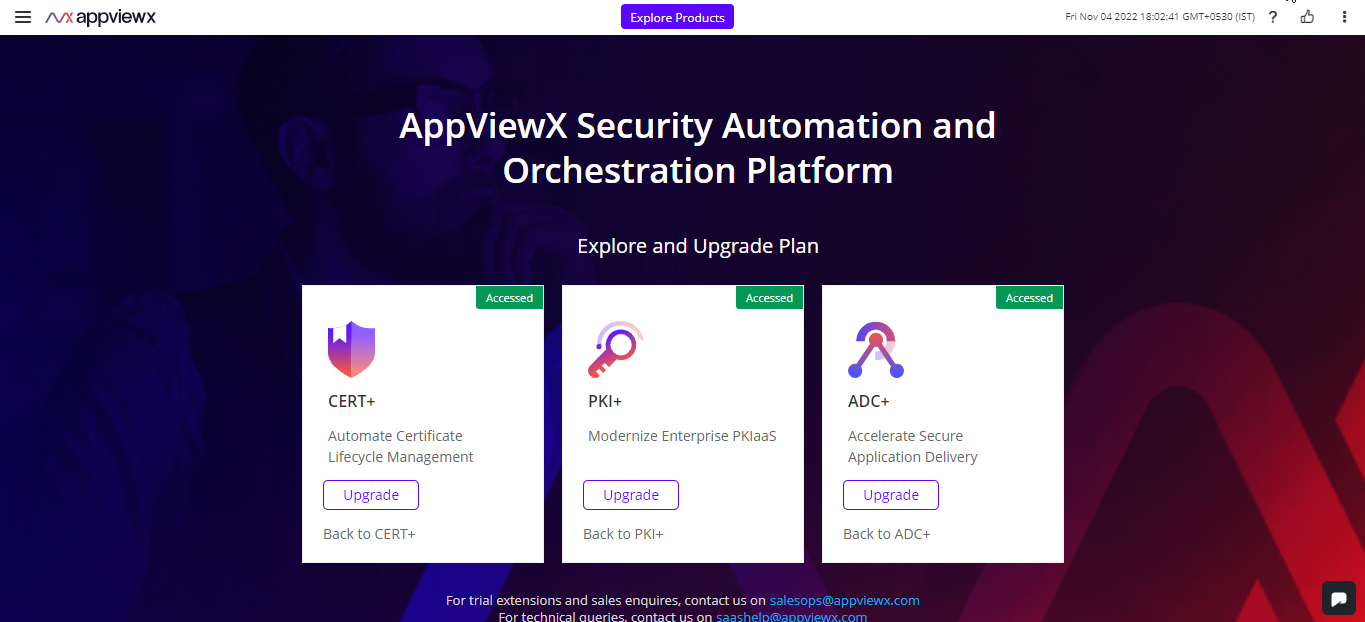
The AppViewX SaaS landing page is displayed. Click the Back to <product name> link to be navigated to that product's individual interface.
 Your onboarding is now complete and your account is
valid for the next 30 days.
Your onboarding is now complete and your account is
valid for the next 30 days.