Using the AppViewX Chatbot
To access the chatbot:
-
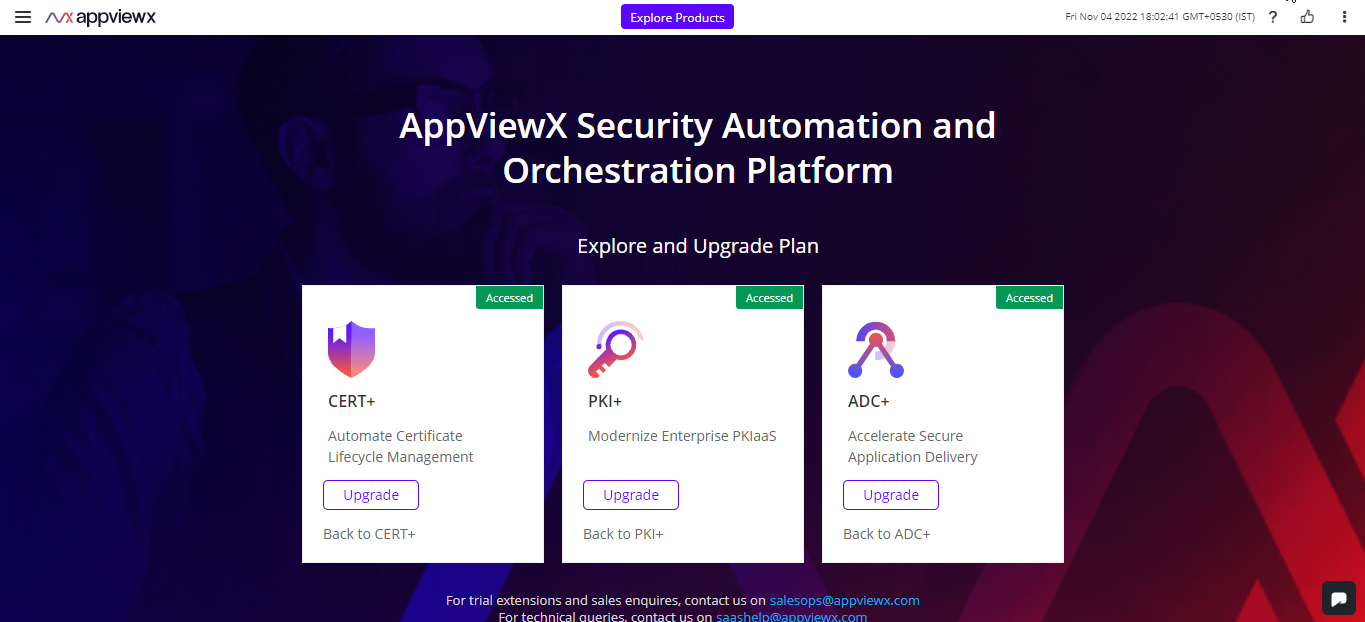
Log in to your SaaS account.
The AppViewX SaaS landing page is displayed.
-
To access the AppViewX chatbot, click
 from the
bottom-right corner of the screen.
Note: This chatbot icon is available on all product screens, enabling you to send a request at any point during a process.The Contact Us pop-up window is displayed.
from the
bottom-right corner of the screen.
Note: This chatbot icon is available on all product screens, enabling you to send a request at any point during a process.The Contact Us pop-up window is displayed.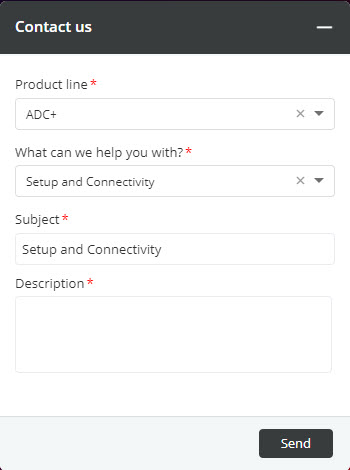
-
In accordance to your query, enter the following details:
Table 1. Field Description Product line* From the dropdown list, select one from the following product line options:
-
CERT+
-
ADC+
- PKI+
What can we help you with?* From the dropdown list, select a category closest to your requirement. The categories in this list include:
-
Setup and Connectivity
-
Download/Installation
-
Artifacts/Solution Guides
-
System Impaired
-
Request for upgrade
-
Request for trial extension
-
Critical
-
Others
Subject* This field is automatically updated with the category you selected in the What can we help you with? Field.
This field is editable, so you can change the subject line if it helps to better explain your query.
Description* In this field, enter the details of your requirement. Note: This field has a character limit of 255 characters. -
-
Click Send.
Depending on the category selected, in the What can we help you with? field, the relevant AppViewX support team will get in touch with you.Note: You can also reach out to our teams using the following details:
- [email protected]
- [email protected].
- Phone
- +1 212 390 1644
- +1 206 207 7541