Add Application Connector
An application connector is a software application running on a server. To add the application connector the application should be managed under the AppViewX device inventory. All the supported devices in the AppViewX inventory can be provisioned with the certificate by adding the connector. The connector enables certificate provisioning for cloud-managed devices. To add an application connector to a server certificate:
-
From the CERT+ main menu, under CERTIFICATE ACTION, select
Push to Device > Server
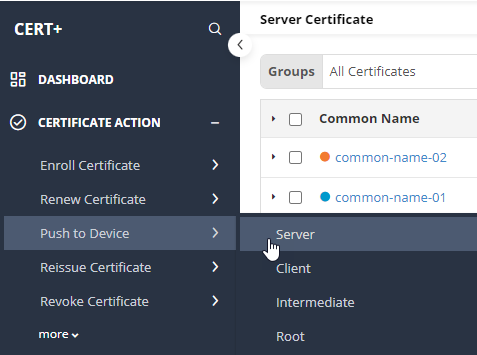 The Server Certificate page is displayed.
 - To open the holistic view/certificate topology page, under Common Name, double click the required certificate.
-
On the certificate topology page, click Add
Connector.

-
Click Add Connector.
The Add Connector window appears.
-
Enter/select the General Information required for adding a
connector.
Table 1. Field descriptions for the General Information section Field Description Category Select the category from the dropdown list. The possible categories are:
- ADC
- Cloud
- Firewall
- MDM
- Server
- WAF.
Vendor Select the desired vendor from the dropdown list. Connector Name Enter a name for the connector that is descriptive enough when viewed within the Certificate topology. Description Enter the description in this field. (Only applicable for Citrix application type) The SNI-enabled virtual server option is displayed. When the checkbox is selected, the virtual servers whose SNI is enabled, will be listed. Also, you can enable SNI for the virtual server by selecting Enable SNI push for Certificate and Enable SNI in Virtual Server. -
From the list of available application objects, for each device you want to
select, click
 .
Based on the certificate format and the server type the certificate details will vary.
.
Based on the certificate format and the server type the certificate details will vary. -
Enter/Select the Certificate Details.
Table 2. Field descriptions for the Certificate Details section Field Description Certificate Type Select the type of certificate to be pushed from the dropdown list. Certificate File Name Enter the desired certificate file name. Certificate ARN Enter the certificate ARN. Key File Name Enter the desired key file name. *PFX Password Note: This field is displayed only when the certificate type is PKCS#12 (*.p12) and PKCS#12 (*.pfx).Enter the PFX password for the certificate file.Push Root and Intermediate Certificates Select the push root and intermediate certificates check box, to push the certificate into the device. Intermediate File or Bundle Name Enter the desired intermediate File or bundle name. Note: To capture any details relevant to a certificate, you can associate certificate tags with a certificate. Certificate tags are key-value pair attributes that you can pass when you assume an IAM role or federate a user in AWS STS. These tags will be pushed along with the certificate to the endpoints. On certificiate discovery, the tags associated with the certificate will be populated in the certificate inventory. -
Push details are the optional fields that can be used based on client
requirements. In the Push Details section, select/enter the details as
follows:
Table 3. Field descriptions for the Push Details section Field Description Script location Select the type of script location. The possible locations are:
- In AppViewX
- In Device.
Pre - Push Script File Name If the user wants to run a certain validation script before the push operation, the path can be specified in this field. To refer to the Pre - and Post - Push Script usage steps click here.
Post - Push Script File Name If the user wants to run a certain validation script after the push operation, the path can be specified in this field. To refer to the Pre - and Post - Push Script usage steps click here.
Overwrite Select the checkbox to overwrite existing certificates with the new certificate. Push automatically Push automatically checkbox to push certificates to the device automatically when there is an update in the certificate. Secure Push (applicable for F5 application type) The Secure Push checkbox is selected by default. This option encrypts the certificates while pushing them into a device. You can uncheck this option if you have permission.
Note: For <.jks> Keystore, a valid alias needs to be entered to reference the certificate within the key store. -
Note: Certificate tags can be added only when Category = Cloud, Vendor = AWS, and Service Types = ACM, IAM, Cloudfront, AmazonELB.Note:To create tags that will be associated with an certificate, enter/select the required Certificate Tags details.
- Associating certificate tags is optional.
- At any given time, a maximum of 50 tags can be associated with one certificate.
-
Click Add.
The certificate tag is displayed in a table below the fields:

-
To edit a tag, from the Actions column, click .
 . Edit the tag as required and click
Update.
. Edit the tag as required and click
Update.
-
To remove a tag, from the Actions column, click
 .
.
- Click Save.