Configuring HydrantID CA
-
Go to
 (Menu) > SIGN+ > ADMINISTRATION > Certificate
Authority.
(Menu) > SIGN+ > ADMINISTRATION > Certificate
Authority.
-
From the displayed CA, select HydrantID.
The HydrantID home page is displayed.
-
Click the Configure Now or +Add icon from the middle or top-right
of the page respectively.
The HydrantID CA details page is displayed.
-
Update the following details in the General Information section as
described in the table:
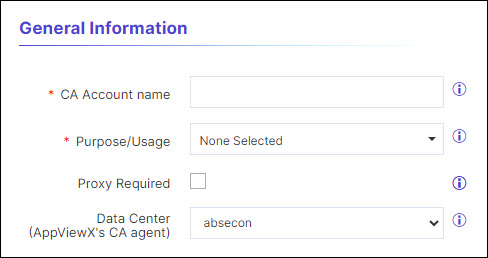
Table 1. General Information - Field Description Table Fields Description *CA Account name A unique name to identify the CA setting. Note: No special characters other than ‘.’, ‘-’,’_’ are allowed. Names should not start with special characters.
*Purpose/Usage Certificate Type for which CLM actions will be enabled. Server, Client and Code-signing are the supported types.
Proxy Required Enable this field if the CA communication needs to happen via Proxy. The proxy details configured in general settings will be used for communication. Data Center (AppViewX's CA agent) Select the data center through which the CA communication needs to happen. Note: The asterisk (*) symbol indicates a mandatory field. -
Update the following details in the CA Configuration section as
described in the table. These fields are necessary for invoking the HydrantId
APIs for Certificate Management.
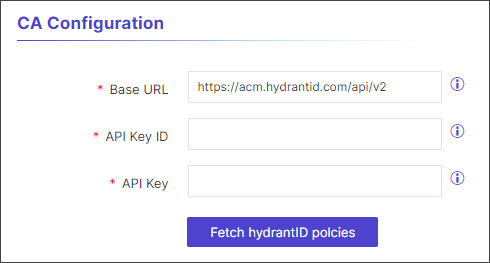
Table 2. CA Configuration - Field Description Table Fields Description *Base URL This URL will contain the hostname of the HydrantID CA instance and used for constructing the API requests. the default value is https://acm.hydrantid.com/api/v2 *API Key ID Enter the API Key ID generated in the HydrantID application. Its is a unique value specific to the user created in hydrant and is used to authenticate the user. *API Key Enter the API Key generated in the HydrantID application. Its is a unique value specific to the user created in hydrant and used to authenticate and authorize requests. Note: The asterisk (*) symbol indicates a mandatory field. -
Click Fetch hydrantID policies.
A list of policies associated with the account are displayed. These are made available from HydrantID and are used for requesting different types of certificates.Note:
- If no profiles available, you will not be able to save the configuration.
- If profiles are available, you will be able to save the configuration in AppViewX.
-
Update the following details in the Advanced Settings section as
described in the table.
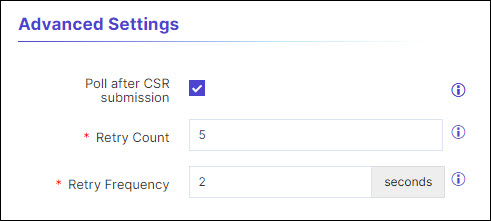
Table 3. Advanced Settings - Field Description Table Fields Description Poll after CSR Submission A check box field when selected will fetch the certificated immediately after CSR Submission on enrollment, renew, and reissue of certificate with the retry count and retry frequency as described below. *Retry Count The number of times the polling will take place after CSR submission. Enter a value between 1 and 10. *Retry Frequency The duration of the polling. enter the value between 1 and 30seconds. Note: The asterisk (*) symbol indicates a mandatory field. -
Click Save.
The created HydrantID configuration settings will be added. A pop-up message is displayed as <CA_name> Settings Added.