Configuring Trustwave CA
-
Go to
 (Menu) > SIGN+ > ADMINISTRATION > Certificate Authority.
-
From the displayed CA, select Trustwave.
The Trustwave home page is displayed.
-
Click the Configure Now or +Add icon from the middle or top-right of the
page respectively.
The Trustwave CA details page is displayed.
- Configure the General
Information details as follows:
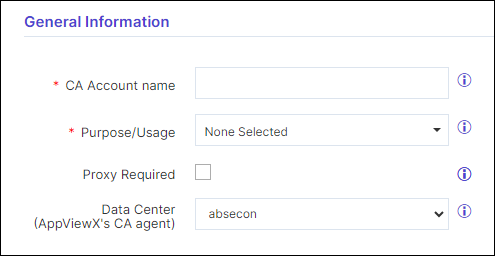
Table 1. General Information - Field Description Table Fields Description *CA Account name Provide an account name for the CA setting. *Purpose/Usage Choose the certificate categories that will be managed by this setting. Possible certificate categories could be: - Server
- Code Signing
Proxy Required Enable this field if the CA communication needs to happen via Proxy. Data Center (AppViewX's CA agent Choose the appropriate Data Center. Note: The asterisk (*) symbol indicates a mandatory field. -
Configure the CA Configuration with information you want to configure:
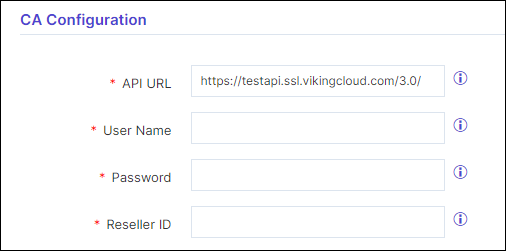
Table 2. CA Configuration - Field Description Table Fields Description *API URL The Trustwave API URL to communicate. E.g.: https://testapi.ssl.trustwave.com/3.0/ *Username The username for API authentication. *Password The password for API authentication. *Reseller ID The Reseller Id for the account. Note: The asterisk (*) symbol indicates a mandatory field. - Configure the Account Details with information you want to configure:
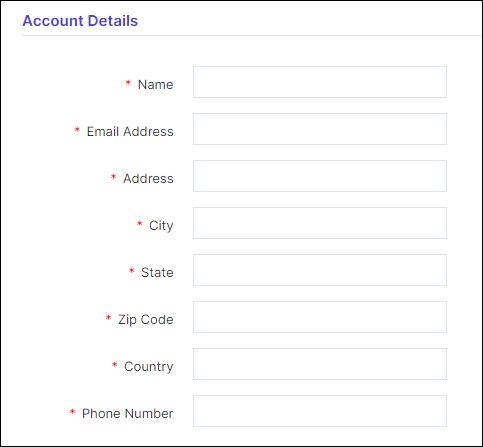
Table 3. CA Configuration - Field Description Table Fields Description *Name The Organization name given in the Trustwave account. *Email Address The Administrator or organization email address given in the Trustwave account. *Address The Organization Address given in the Trustwave account. *City The city name given in the Trustwave account. *State The state name given in the Trustwave account. *Zip code The zip code given in the Trustwave account. *Country The country code given in the Trustwave account. E.g.: US. *Phone number The phone number given in the Trustwave account. Note: The asterisk (*) symbol indicates a mandatory field. - Click Save.