Configuring AppViewX PKIaaS Certificate Authority
To configure AppViewXPKIaaS Certificate Authority:
- Go to CERT+ > Administration > Certificate Authority.
The Certificate Authority page appears.
- Select AppViewX PKIaaS from the list on the LHS of the panel and click Configure Now.
- Enter the following fields:
Table 1. Field Description for AppViewX PKIaaS CA page Field Description General Information *Data Center Select the data center through which the communication must happen. CA Configuration *Upload JSON JSON credentials will be provided by AppViewX. Project Id This is automatically populated. Note: Fields indicated with red asterisk (*) symbol are mandatory.The uploaded credentials are validated for required permissions. Upon successful validation, the credentials are used for rotating the keys and new key is used for the CA creation.
- Click Check to see if the connection is successful.
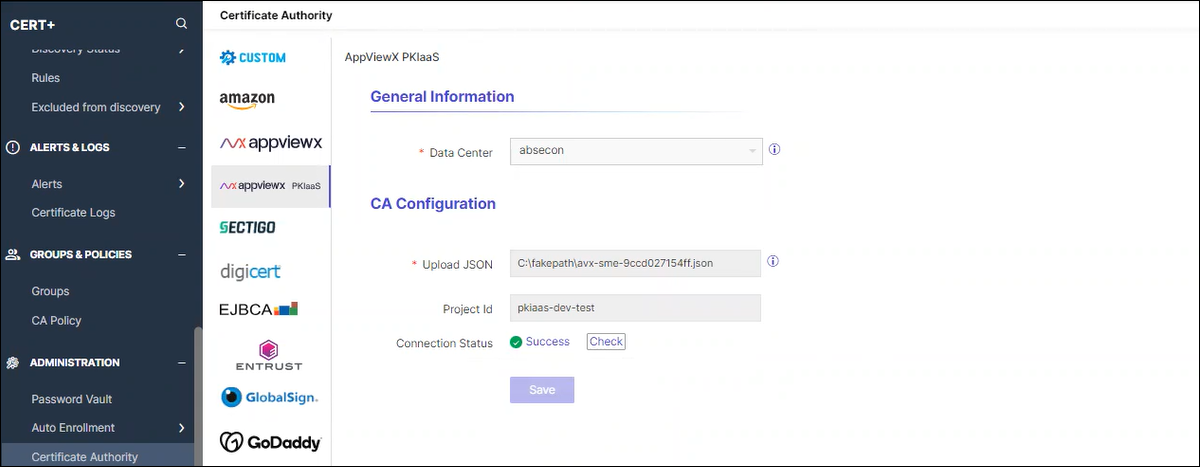
CA communication is validated and the connection status is shown as either Success or Failure.
- Click Save.