Avoiding Upgrade Errors
The following actions must be taken to avoid any post-upgrade errors, if they are applicable in your respective setup:
- Loss of Mongo replica set priority configurations
During application upgrade, mongodb is freshly set up with the latest upgraded versions. The existing replicaset configurations such as replicaset priorities will not be taken ahead and hence have to be re-configured. High latency customers must perform the following step:
- Configure the parameters OPTIMISE_ROUTING_FOR_LATENCY and PREFERRED_DEFAULT_DC in the appviewx.conf
- Re-trigger the
plugins_install.shto change the configurations.
- Custom changes
If the custom_changes.yaml, custom_vm_args.conf are present and updated in the custom changes, then the custom changes will be persistent. Any of the custom changes that may have been done specifically for the customer as noted in the prerequisites will not be present if the above mentioned files are not updated with this configuration.
- External web cert is not upgraded
To update the external CA web certificate, execute the command below:
./appviewx.sh --update-web-certThe following prompts will be displayed:- Enter the absolute path of external cert file:
- Enter the absolute path of external key file:
Enter both the values to proceed. Once the cert upgrade is completed, restart the gateway and web.
- Download the icontrol.jar, axis.jar, and javax.xml.soap-api-1.4.0.jar files and copy them to the external_libsdirectory. For details, refer to the section iControl F5 Integration of the AppViewX Install, Upgrade and Maintenance Guide.
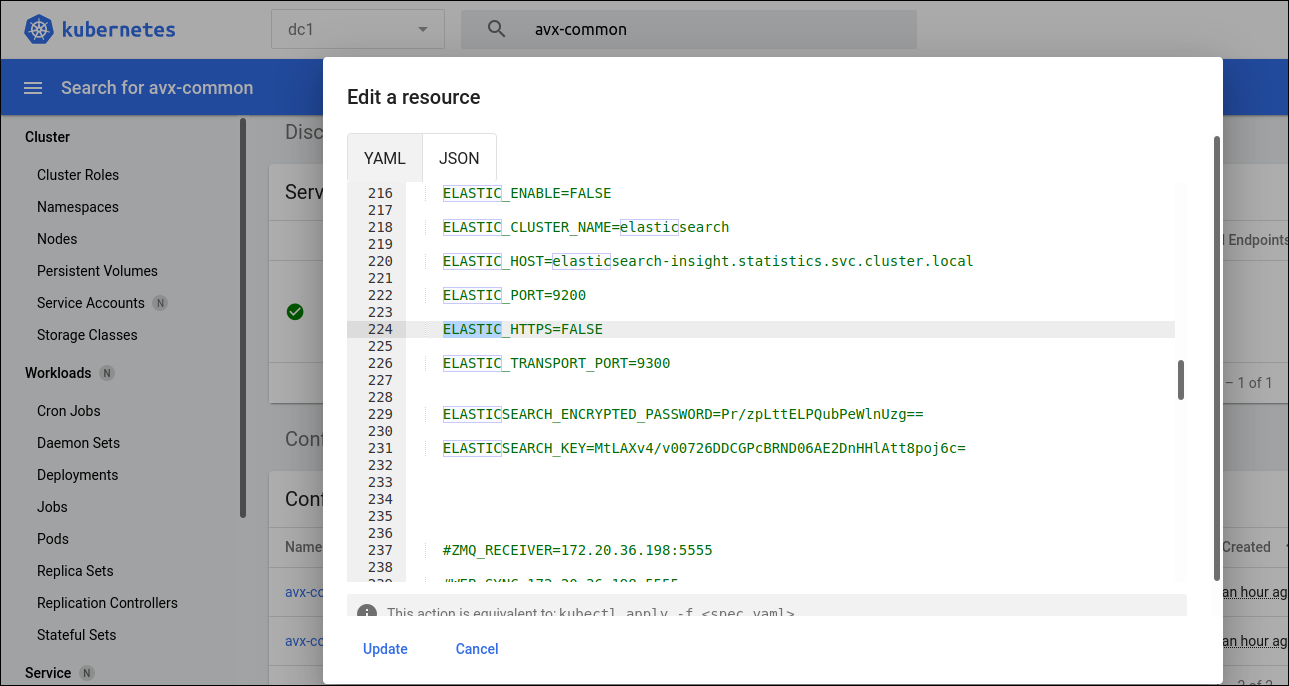
- Setting the ELASTIC_ENABLE as True in the Statistics Configuration
There are two ways to do it, choose from either the command prompt (a) or from the management console UI (b).
- Execute the command
Search for the keyword as Elastic and set ELASTIC_ENABLE as True and below params should have default values as belowkubectl edit configmaps -n <Datacenter1>ELASTIC_ENABLE=TRUE ELASTIC_CLUSTER_NAME=elasticsearch ELASTIC_HOST=elasticsearch-insight.statistics.svc.cluster.local ELASTIC_PORT=9200 ELASTIC_HTTPS=FALSE ELASTIC_TRANSPORT_PORT=9300 - Login to management console >> Search for the namespace with the configured
DC >> Search for avx-common-config in config maps >> Click on Edit and
search for Elastic >> Set as True and give as update as shown below.
- Execute the command