Creating OCSP Signing Certificate
Whenever a sub CA is created for the first time, an OCSP signing certificate will be created using the common name of the sub CA. This OCSP signing certificate will be the default signing certificate for OCSP requests. However, AppViewX PKIaaS Native CA allows users to create custom OCSP signing certificates and use it for signing OCSP requests.
To create an OCSP signing certificate:
-
Go to CERT+ > Certificate Action > Enroll Certificate.
The Enroll Certificate page is displayed.
- Select the Certificate Authority as AppViewX PKIaaS.
- Select the Certificate Profile as OcspSigning.
-
Fill out the other fields as explained in the Section, Adding/Enrolling Certificate.
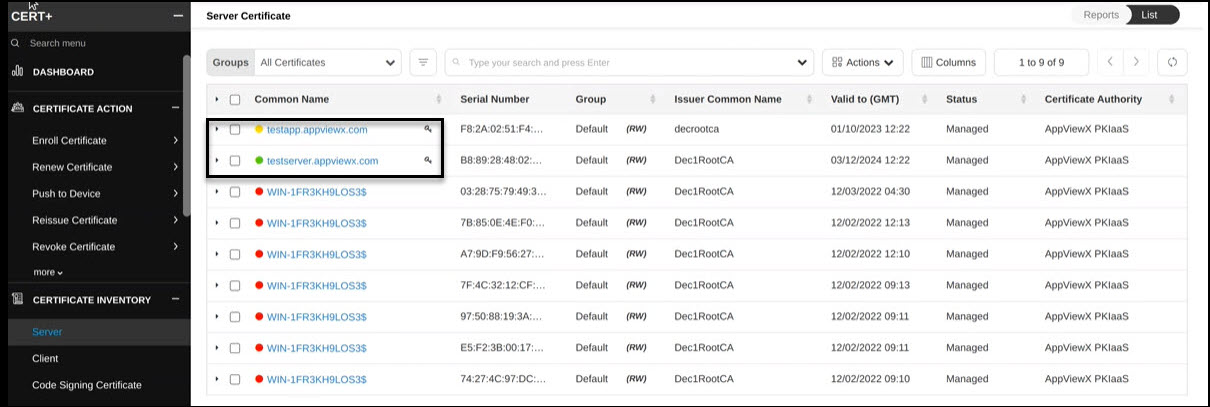
The OCSP signing certificate appears on the CERT+ > Certificate Inventory > Server page as shown with a key symbol beside the common name.