Create a Group
-
Go to
 (Menu) > SIGN+ > GROUPS & POLICIES > Groups.
The Group home page is displayed.
(Menu) > SIGN+ > GROUPS & POLICIES > Groups.
The Group home page is displayed. - SIGN+ is packaged with default certificate groups Default and Certificate-Gateway.
-
Click + Create button in the command bar to create a new
group.

Table 1. Field Description for Group Details Fields Description Select Group Hierarchy Select the parent group to which the new group should be associated Group Name Enter a unique name for the new group Application ID Provide organization ID (if any) to associate with the new group Description Provide the purpose of the new group *: Mandatory fields -
Group Name is mandatory in the Group Details section.
Provide the Group Name to create a new group.
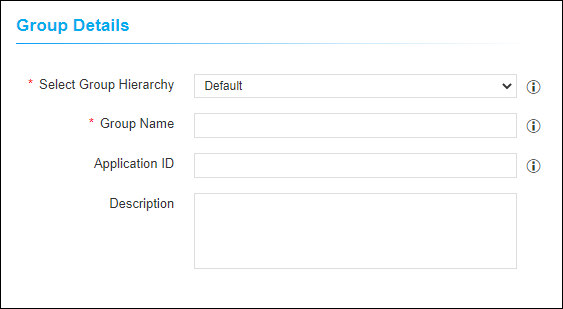
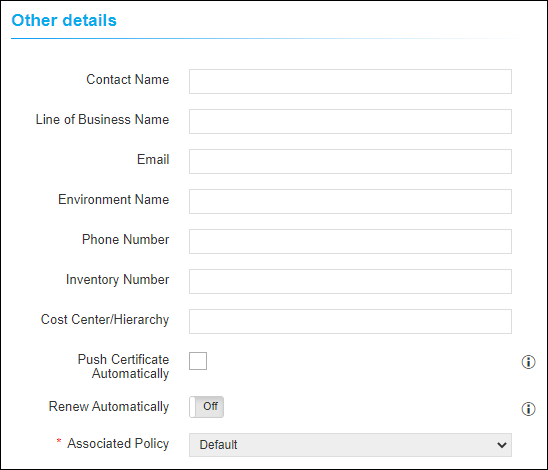
Table 2. Field Description for Other Details Fields Description Contact Name Provide contact person to whom changes should be intimated Line of Business Name Provide the name of the business unit Email Provide contact mail address Environment Name Provide environment name Phone Number Provide a phone number for contact Inventory Number Provide inventory number Cost Center/ Hierarchy Provide Cost Center code/ label Push Certificate Automatically By enabling the check box, the renewed/ reissued certificates in this group are automatically associated with their device Renew Automatically Turn On to automatically renew the certificate belongs to this group. Associated Policy Displays the policy associated with this group. *: Mandatory fields - The fields in the Other Details section are used based on the
organization's needs.
-
Click Create button to create the group.
Users can view the group only if it is associated with the Resource of their User Group. To associate the Group with a Resource, click the Update Group and Configure the Resources for User Access button instead of the Create button. This will create the group and navigate to Resources. Refer to the Create a Resource section of the Platform Guides to configure user access.
- The newly created Group is added to the Group inventory. Click the
Name (Group name) to view the group details.

- Post certificate discovery, you can view the count of certificates Code Signing associated with this group.
- Click the count in the Server Certificates column to view the certificates.