Accessing Signing Inventory
You have to access the SIGN+ node to access the various functions provided by it.
To access Signing Inventory:
- Go to
 (Menu) > SIGN+ > Signing > Signing Inventory.
The Signing Inventory page is displayed.
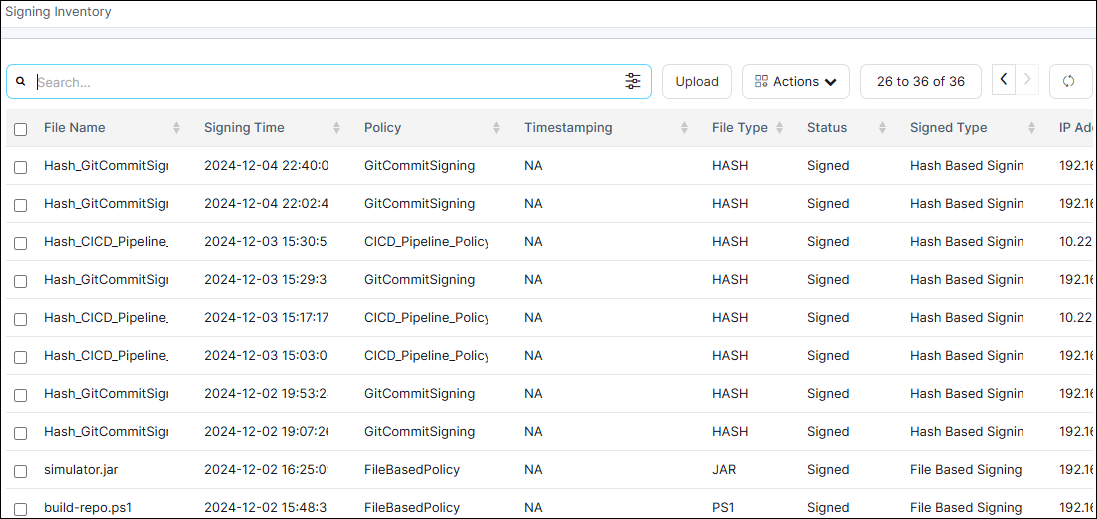
- Select one or more inventory files to be Downloaded or Deleted.
- From the command bar on the top right, click Actions.
- From the list of available actions, select Download or Delete.
- To Download or Delete the selected file, click Yes in the Confirm download or delete pop-up window.
- The selected file will be Downloaded or Deleted.
- Additionally, you have the option to Upload file.
- From the command bar, click Upload.
The Upload & Sign page is dispalyed, where you can proceed with file upload.
- To select a file to be uploaded to the signing inventory, click Browse.
- Select the required file and click Upload.