Revoking Code Signing Certificate
- Go to
 (Menu) > SIGN+.
 - Under the CERTIFICATE ACTIONS, select Revoke Certificate > Code
Signing Certificate.
The Code Signing Certificate page is displayed.
- To revoke a Code Signing Certificate, select the certificate name under
Common Name.
The holistic view of the selected certificate is displayed.
- Hover over the three-dot menu for the certificate, and then click Revoke.
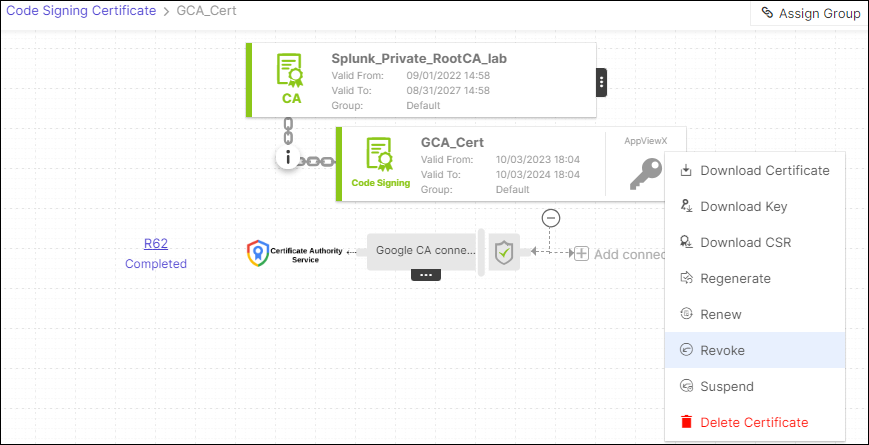
- The Certificate Revoke dialog box is displayed.
- In the Certificate Revoke dialog box, select the reason for revoking the certificate from the dropdown.
- You can also enter comments in the Comments text field (optional), and then
click Yes.
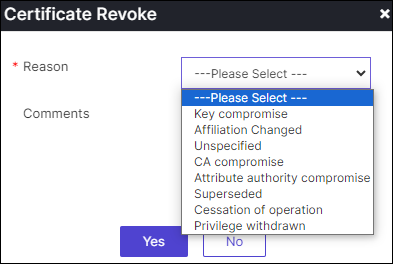
- The revoke process is initiated for the selected certificate.
If the Approval Required checkbox is enabled, the request will progress through the Approve and Implementation stages.
- To proceed, click Approve on the certificate's holistic view.
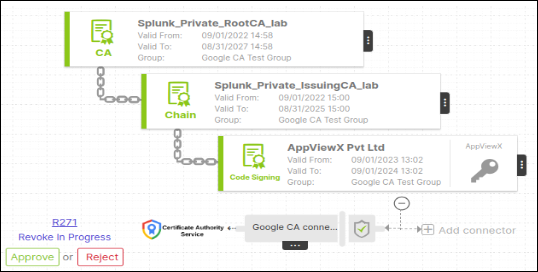
- In the Approve dialog box, enter your comments (optional).
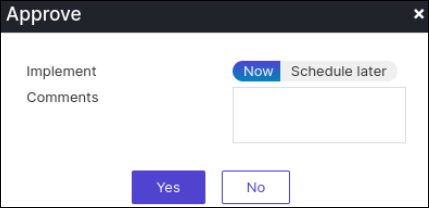
If you want to schedule automatic approval for the workflow request in the future, click Schedule later. You can then choose the Implementation Time from the calendar field.
- Click Yes.
- On the certificate holistic view, click Implement to proceed.
- In the Implement dialog box, enter your comments.
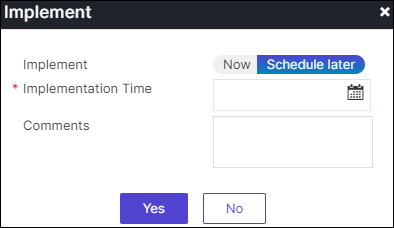
If you want the workflow request to be automatically approved in the future, click Schedule later. You can then select the Implementation Time from the calendar field.
- Click Yes.
- After the certificate is revoked, the status updates to Completed.