Actions on User Key/Host Key Inventory
You can perform the following actions from the Key Inventory page.
| Action | Description | ||||||||||||||||||
|---|---|---|---|---|---|---|---|---|---|---|---|---|---|---|---|---|---|---|---|
| Change status | Users with RW permission can change the status of a key to Managed or Monitored. | ||||||||||||||||||
| Export | You can export the user or host key details from their respective inventory in .csv or .xls format. | ||||||||||||||||||
| Upload User SSH key |
Note: This field appears only for User Key
Inventory.
|
||||||||||||||||||
| Revoke | Note: This field appears only for User Key
Inventory. Users with RW permission can revoke certificates
that are associated with keys that have a private key and key pair
(public + private). If the selection has even one key that is a public
key, then revoke is disabled. |
||||||||||||||||||
| Rotate | Users with RW permission can rotate selected user keys or host keys
based on the rotation configuration outlined in their corresponding key
policies. Keys selected for rotation are automatically backed up and
stored in a secure encrypted format in the Recently Rotated Keys.
The
details of backup are available in the audit log. On successful
completion of backup, a message appears in the audit log, Backup
completed for the <key type> for action <action> with name
<key name> with fingerprint <key fingerprint> with group name
<key group name> by the user <user
name>. On selecting keys for rotation, a
confirmation message appears. On confirming, the rotate operation is
triggered via workflow. To check the status and reports, go to
Automation > Service Request > All and select your
request from All requests. The
newly rotated key adheres to the following naming convention:
KEYTYPE_TIMESTAMP, where key type denotes the encryption
algorithm of the key while timestamp is when you have rotated the
key in the yyyyMMdd_HHmmss_SSS_counter format where: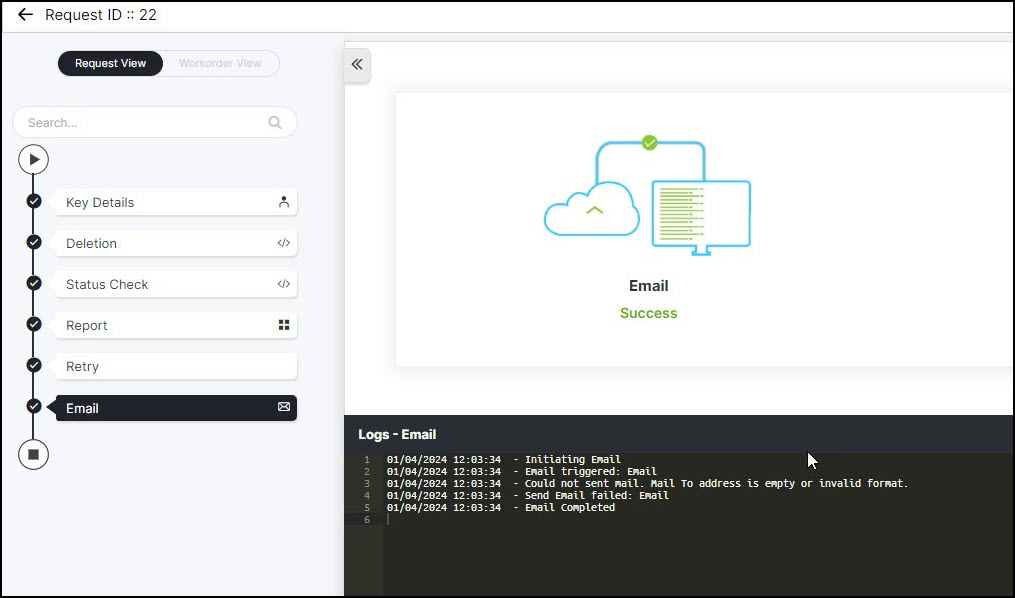
Upon successful rotation of the key, the Comments field is updated. Important:
Best practices before rotating host keys:
Note: The following points are applicable
when the Enable Global Known hosts
option is enabled under  (Menu) icon >
SSH+ > Administration > Advanced Settings.
Enabling this option may have implications for your
network. (Menu) icon >
SSH+ > Administration > Advanced Settings.
Enabling this option may have implications for your
network.
Best practices before rotating user keys:
Note: The following points are applicable
when the Enable Global Authorized
keys option is enabled under (Menu) icon >
SSH+ > Administration > Advanced Settings.
Enabling this option may have implications for your
network.
CAUTION: Rotating keys can
result in access loss and authentication problems if AppViewX does
not have access to all the infrastructure information. Proceed with
caution and ensure proper backup and alternative authentication
methods are in place. |
||||||||||||||||||
| Delete | Users with RW permission can:
|
||||||||||||||||||