AVXpert AI Assistant
You can ask
your queries and get answers in an informative way. The answer to your query is
based on the content from the product documentation. This search is entirely
conversational. Based on the response, you can also ask further questions. The
response is from source documentation, which you can refer to for details on
helpcenter.
Note: AVXpert AI assistant is disabled by
default.
When you enable AVXpert AI Assistant from RBAC the  (AVXpert) icon appears on the bottom right. The Doc
Hub tab opens by default, under Actions tab
you can explore for Smart search and Quick
navigation capabilities, under History tab
you have all the list of previous search queries on AVXpert.
(AVXpert) icon appears on the bottom right. The Doc
Hub tab opens by default, under Actions tab
you can explore for Smart search and Quick
navigation capabilities, under History tab
you have all the list of previous search queries on AVXpert.
Enable ACF Permission for AVXpert
-
Go to Platform module IDENTITY >
Role.
You will be redirected to the Role page.
-
Click on the role name to enable the ACF permission.
You will be redirected to the Modify :: [RoleName] page, with the Information tab open by default.
- Switch to the Authorized Functions tab and expand the AppViewX Buddy by clicking (Expand) icon.
- To assign an AVXpert AI assistant, select the checkbox beside the AppViewX Buddy.
-
Click Save.
The ACF permission will be successfully updated and AVXpert is enabled.
Doc Hub
Perform the following steps to use the
AVXpert to find appropriate content and resolve your
queries:-
Click the AVXpert icon to open the Help
panel.
Note: AVXpert icon is displayed, only if the AVXpert ACF permission is enabled for the user/role.
-
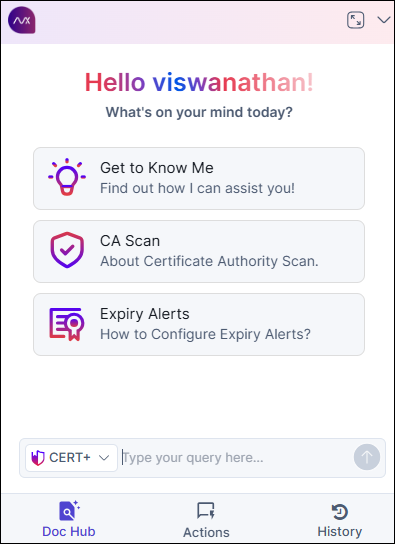
There are few predefined queries on how AVXpert can assist. Select the
product from the dropdown. You can select the
default question in the panel or type your question in the text box to find
the related content in the AVXpert
documentation.
-
Select Send
 icon or press Enter to view the response to your questions.
Depending on your question, you may view the content, applicable images, and links to the Frequently Asked Questions articles.
icon or press Enter to view the response to your questions.
Depending on your question, you may view the content, applicable images, and links to the Frequently Asked Questions articles.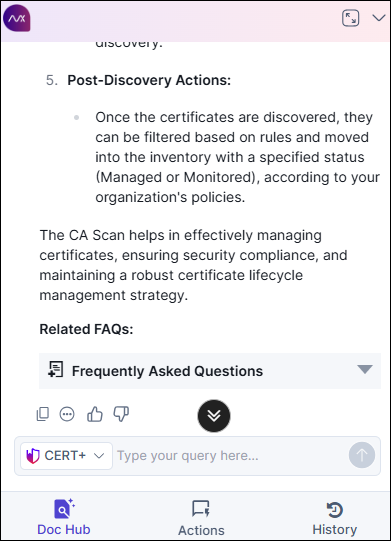 Expand the Frequently
Asked Questions and view the related content links in
response.
Expand the Frequently
Asked Questions and view the related content links in
response. -
Select the History tab to view the conversation
history from the panel. You can click on the previous conversation and find
relevant content.
Instead of searching through user guides and reference documents, you can use the AVXpert feature to quickly find relevant answers to your queries. This helps save time and allows you to focus on content, resulting in enhanced productivity and efficiency.
Actions
Perform the following steps to use the
AVXpert to find appropriate Smart search and Quick
navigation:-
Click the AVXpert icon to open the Help
panel.
The Doc Hub tab opens by default.
-
Click the Actions tab.
You can Experience effortless certificate search and seamless navigation using Smart Search and Quick Navigation within the system.
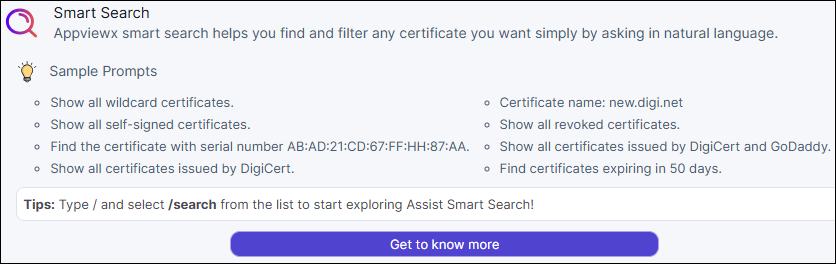
- Smart Search: Appviewx smart search helps you find and filter
any certificate you want simply by asking in natural language.
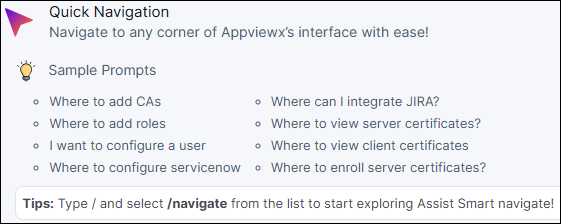
- Quick Navigation: Navigate to any corner of Appviewx’s
interface with ease!
- Smart Search: Appviewx smart search helps you find and filter
any certificate you want simply by asking in natural language.
- Type your question in the text box to find the related smart search or quick navigation in the AVXpert Actions.
-
Select Send
icon or press Enter to view the response to your questions.
Depending on your question, you may view the quick navigation route links or Smart Search results displayed on the main screen.
-
The system effectively interprets user requests, executes the appropriate
search query, and directs users to the relevant inventory information.
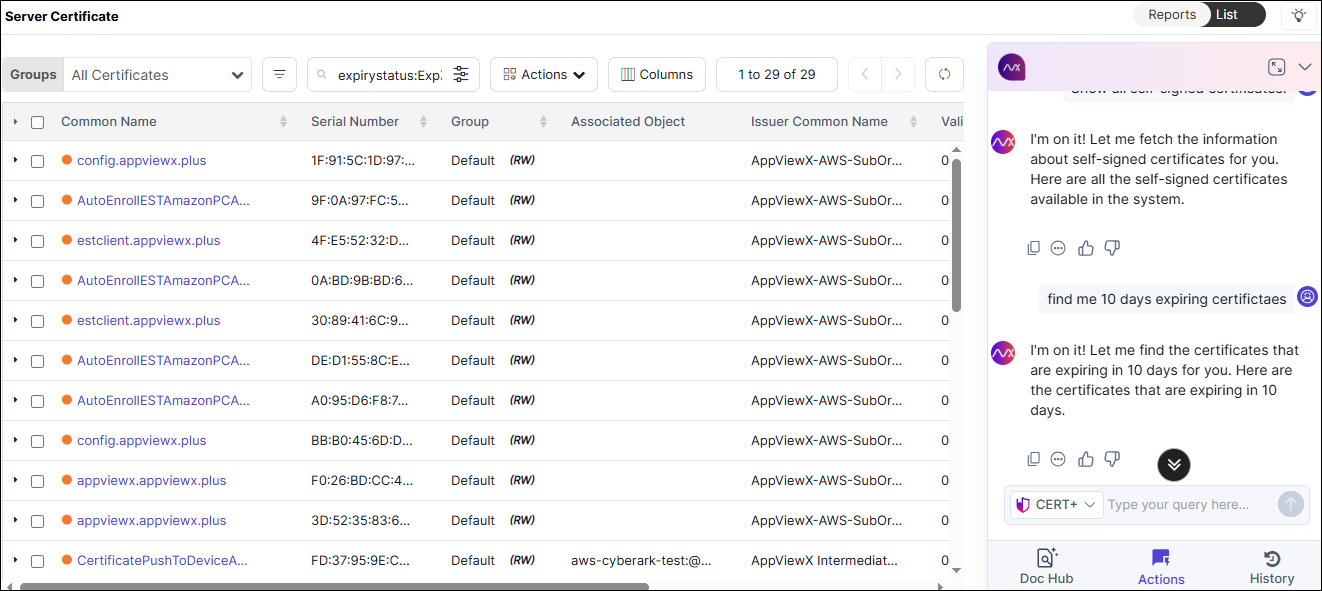
Or
Navigation search results provide links to relevant routes.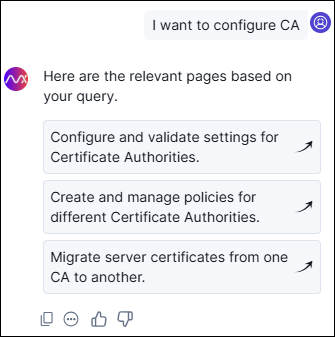
- Click the corresponding route link to navigate to the desired location.
- To view previous conversations and relevant searches, select the History tab on the panel.