Configuration for Device Settings
Configuring Device Specification
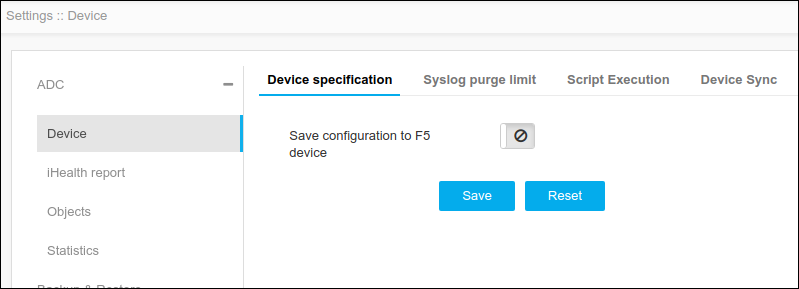
Save the changes of device specification configuration on the F5 device after config fetch. This enables all the changes to be reflected on the F5 file.
To configure a device specification,
- Click Menu > ADC+ > SETTINGS > Module Settings > ADC > Device > Device Specification tab.
-
Click the toggle icon to enable Save Configuration to the device.
Note: In this example, F5 device specification is shown.
-
Click Save.
Note: To reset the changes, click Reset.
Configuring Syslog Purge Limit
Syslog purge limit enables to limit of the number of Syslog persisted against a device. The oldest logs will be automatically deleted on exceeding the limit.
To configure the Syslog purge limit,
- Click Menu >ADC+ > SETTINGS > Module Settings > ADC > Device > Syslog purge limit tab.
-
On the Syslog purge limit tab, specify the syslog limit per device.
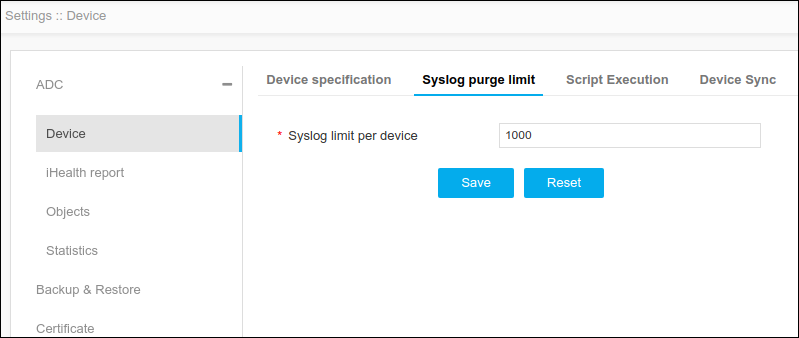 By default, the limit is set to 1000 and can be extended till 5000.
 -
Click Save.
Note: To reset the changes, click Reset.
Configuring Script Execution
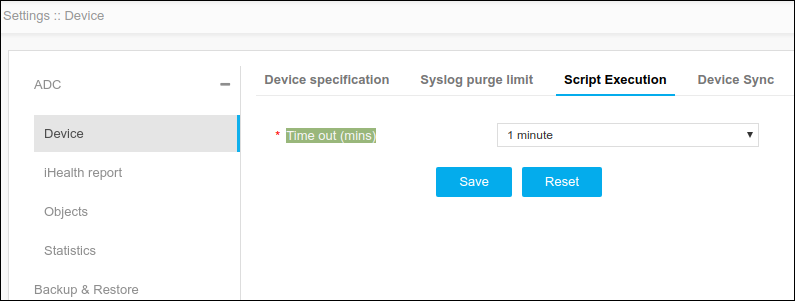
Script Execution setting allows you to specify the time-out limit of script execution. If the script execution exceeds the specified time, AppViewX will automatically terminate the script.
To configure script execution,
- Go to Menu > ADC+ > SETTINGS > Module Settings > ADC > Device > Script Execution tab.
-
On the Script Execution tab, specify the timeout
limit.
-
Click Save.
Note: To reset the changes, click Reset.
Configuring Device Sync
The device Sync feature allows to customize the configuration sync operations.
To customize the configuration sync operations:
- Go to Menu > ADC+ > SETTINGS > Module Settings > ADC > Device > Device Sync tab.
-
On the Device Sync tab, specify the following:
-
Config fetch - Allows to schedule the config fetch process at a specific time for selected days. Ensures device changes are reflected in AppViewX.
-
HA - Sync - Ensures the HA devices are synchronized in specified intervals.
Note: To set device sync, the AppViewX Group Sync flag must be enabled while adding a device to run HA sync as per configured interval.
-
-
Click Save.
Note: To reset the changes, click Reset.