Role
| New Menu | Old Menu |
|---|---|
| In the Platform module, from the left pane, under
IDENTITY, select Role. The Role page is displayed, with all the roles listed with their Name, Description, and Status. |
From the main menu, select Account > Role. The Role page is displayed, with all the roles listed with their Name, Description, and Status . |
|
Note: For more information on how to switch
between menus, click here.
|
|
- On the Role page, select any role from the list of roles, for example admin.
-
To see the list of permissions that can be defined for this role, under the
Authorized Functions tab, expand Automation > Service
Requests.
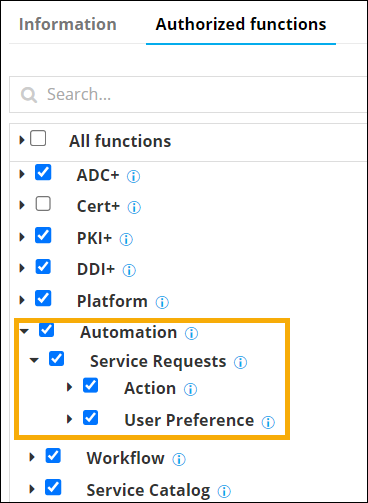 Note: If you are using the old menu, under the Authorized Functions tab, expand Request > Workflow.
 -
To see the permissions available under Action, click
 (Select Right) icon.
Table 1. Various actions that can be authorized or restricted for a user within workflows Action Description Abort Provision to allow or restrict a user to abort a workflow request instantaneously. Clone Provision to allow or restrict a user to clone a workflow request with a different name. Pause / Resume Provision to allow or restrict a user to pause or resume a workflow request. Rollback Provision to allow or restrict a user to trigger an alternative rollback workflow that you have added or imported for a workflow. Schedule Provision to allow or restrict a user to schedule a specific time to initiate a workflow request. Trigger Provision to allow or restrict a user to trigger or submit a workflow request View all requests Provision to allow or restrict a user to view submitted workflow requests of all users. View my requests Provision to allow or restrict a user to view workflow requests initiated by the user. View usergroup requests Provision to allow or restrict a user to view workflow requests initiated by the usergroup. - Select/Deselect the checkbox to allow/restrict that action for the selected user.
-
To see the permissions available under User Preference, click
(Select Right) icon.
Table 2. Various actions that can be authorized or restricted for a user under User Preference Action Description Show Overview Provision to show or hide the Overview menu for a user. Show Custom reports Provision to show or hide Custom reports menu for a user. Show My workflow Provision to show or hide My workflow menu for a user. Show Scheduled jobs Provision to show or hide Scheduled jobs menu for a user. Show All requests Provision to show or hide All requests menu for a user. Show Open requests Provision to show or hide Open requests menu for a user. Show Success requests Provision to show or hide Success requests menu for a user. Show Failed requests Provision to show or hide Failed requests menu for a user. Show Assigned requests Provision to show or hide Assigned requests menu for a user. Show Audits Provision to show or hide Audit menu for a user. Show Archival requests Provision to show or hide Archival requests menu for a user. Show Restore requests Provision to show or hide Restore requests menu for a user. Show Preference Provision to show or hide Preference menu for a user. Show Request logs Provision to show or hide Request logs for a user. Show Manage catalog Provision to show or hide the Manage catalog window for a user. Show Request stage Provision to show or hide the service request stage view for a user. - Select/Deselect the checkbox to allow/restrict that action for the selected user.
-
To see the permissions that can be defined for the user in the Workflow Studio,
expand Automation > Workflow.
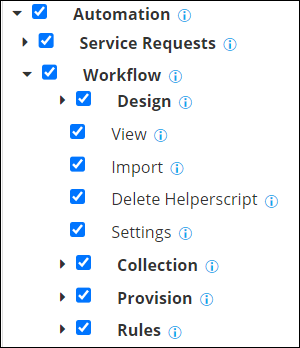 Note: If you are using the old menu, under the Authorized Functions tab, expand Request > Workflow.
| Action | Description |
|---|---|
| Design | Provision to allow or restrict a user to design a
workflow. The following permissions are available under
Design:
|
| View | Provision to allow or restrict a user to view detailed information about a workflow. |
| Import | Provision to allow or restrict a user to import workflows from other environments. |
| Delete Helperscript | Provision to allow or restrict a user to delete helper script(s). |
| Settings | Provision to allow or restrict a user to update workflow settings. |
| Collection | Provision to allow or restrict a user to access Collection. |
| Provision | Provision to allow or restrict a user to manage provisioning settings. |
| Rules | Provision to allow or restrict a user to define action-based rules to trigger workflows for ADC objects and dynamically tag resources. |
- Select/Deselect the checkbox to allow/restrict that action for the selected user.
- Once the required permissions have been assigned, click Save.