Configuring Policy for Entrust MPKI CA
-
Go to
 (Menu) >
SIGN+ > GROUPS & POLICIES > CA Policy.
The CA Policy page is displayed.
(Menu) >
SIGN+ > GROUPS & POLICIES > CA Policy.
The CA Policy page is displayed. -
Click + Create from the top-right corner of the page.
The CA Policy:: Create page is displayed.
-
Refer the Configuring Policy Details section in the SIGN+
Admin Guide to configure the following:
- Policy Details
- Group Selection
- Compliance Check
-
In the CA Details section, from the Certificate Authority list in
the left, select Entrust MPKI.
The CA Details section is updated to display fields relevant to Amazon Private CA.
-
Enter/Select the policy details for Entrust MPKI.
Table 1. Field Description for CA Details Field Description *CA Accounts Select a CA account from the list to create the policy. The selected CA account will be listed in the CA Accounts table.
*Bit Length - Key Type From the dropdown list, select one (or more than one), bit length- key type pair(s). The discovered certificate's Key Type and Bit length will be compared against the selected B bit length- key type pair(s) to check for complaince with the policy. The Selected bit length- key type pair(s) is enforced while performing any certificate request operations such as New, Renew, Regenerate.
*Hash Function From the dropdown list, select one (or more) hash functions. The discovered certificate's Key Hash Algorithm will be compared against the selected hash function to check for compliance with the policy. The selected hash function(s) is enforced while performing any certificate request operations such as New, Renew, Regenerate.
*: Mandatory fields -
Enter/Select the Certificate parameters values.
Table 2. Field description for certificate parameters Field Description Host name Enter the host name. The host name cannot start and end with a . (period)
*Allowed Domain Names Enter only the white-listed domain names. Press enter after adding the domain name. Multiple domain names can be added.
Common Name Enter the common name. For example, *.domain.com This enforces domains for which a certificate can be requested. The common name is enforced at the time of performing any certificate request operations such as New, Renew, Regenerate.
Note: Use the * (asterisk) for the host part of the FQDN to enforce the domain. For example, *.domain.com will only allow users to request certificates with domain.com. Allowed special characters: *(Asterisk), - (hyphen), . (period).Organization Enter the organization name. The discovered certificate's subject organization will be compared against the organization provided in the policy to check for compliance. The organization is enforced at the time of performing any certificate request operations such as New, Renew, Regenerate.
Organization Unit Enter the organization unit. The discovered certificate's Subject Organization Unit will be compared against the organization unit provided in the policy to check for compliance. Organization Unit is enforced at the time of performing any certificate request operations such as New, Renew, Regenerate. Locality Enter the locality name. The discovered certificate's locality will be compared against locality provided in the policy to check for compliance. The locality is enforced at the time of performing any certificate request operations such as New, Renew, Regenerate.
State Enter the state. The discovered certificate's state will be compared against the state provided in the policy to check for compliance. The state is enforced at the time of performing any certificate request operations such as New, Renew, Regenerate.
Country code Enter the country code. The discovered certificate's country code will be compared against the country code provided in the policy to check for compliance. Country code is enforced at the time of performing any certificate request operations such as New, Renew, Regenerate.
Email Enter the email address of the organization unit. The discovered certificate's email address will be compared against the email address provided in the policy to check for compliance. The email address is enforced at the time of performing any certificate request operations such as New, Renew, Regenerate.
Subject Alternative Name Enter the subject alternative name (SAN). It helps enforce additional domains for which a certificate can be requested. The SAN is enforcedat the time of performing any certificate request operations such as New, Renew, Regenerate. Note: Use the * (asterisk) for the host part of the FQDN to enforce the domain. For example, *.domain.com will only allow users to request certificates with domain.com. Allowed special characters: *(Asterisk), - (hyphen), . (period)*: Mandatory fields -
Click Save CA Details to save the configuration.
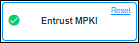
A green tick mark is displayed in the Certificate Authority pane against Entrust MPKI to indicate that the details are successfully stored.
- From the Group selection, select one or more groups to map to the policy.
-
From the Compliance Check section, to perform an
immediate compliance check, enable Perform Compliance
check.
Note: A scheduled compliance check will run periodically based on the settings defined in the job scheduler.
-
Click Create Policy to create a new policy.
The policy is created and a confirmation message is displayed.