Configuring Signing Policy
-
Go to
 (Menu) > SIGN+ > GROUPS & POLICIES > Signing
Policy.
The Signing Policy page is displayed.
(Menu) > SIGN+ > GROUPS & POLICIES > Signing
Policy.
The Signing Policy page is displayed. - From the top-right corner of the page, click Create.
-
Enter/select the Policy details.
Table 1. Field description for the Policy Details section Field name Description *Policy Name Provide a unique name for the signing policy. No special characters other than ‘.’, ‘-’,’_’ are allowed. The name should not start with special characters. *Hash Function Select the hash function you want to configure for code signing: [Dropdown Options - SHA-1, SHA-256, SHA-384, SHA-512] Timestamping Choose a trusted timestamping authority from the dropdown list: [Dropdown Options - DigiCert, Entrust, Global Sign, IdenTrust, Sectigo, Other, None ]. If you choose Other, kindly provide the timestamping URL.
Note: If you select None, the Timestamping will not be applied to the configured signing policy.*Signing Type Choose between Hash Based or File Based signing *File Types This field is displayed only when the Signing Type is set as File Based. Select one or more file types that should be signed using the signing policy. Supported file types include PS1, EXE, CAT, MSI, JS, JAR, APK, VBS, CAB, WSF, DLL, PSM1, PSD1, PS1XML, JSE, and VBE among others.Note: Selected file types will only be permitted for upload and signing under this policy.Note: Signing operations for the HSM-based certificates for the script files will be supported by upgrading the JSign Version from 3.0 to 6.0.Restriction: CAT files do not work with HSM-based certificates, but works for a File Based certificates.Data Center This field is displayed only when the Signing Type is set as File Based. Select the data center from the dropdown where timestamping requests will be routed. Ensure that the selected TSA URL is reachable from all servers managed under the chosen data center.
Restriction Type Select None or between IP-based restriction or IP range-based restriction. *List of IP's This field is displayed when the Restriction Type is set as IP. If you selected IP-based restriction, enter a list of valid individual IP addresses at subnet or system level.
*Start IP *End IP
This field is displayed when the Restriction Type is set as IP Range. If you selected an IP range-based restriction, enter the start and end IP addresses, ensuring the end IP is greater than the start IP.
Enable HSM Polling This applies to HSM-based certificates. Enable the toggle to allow the system to retry fetching the signing operation status based on the configurations defined in the signing policy, overriding the global Sign Settings. Note: Enable HSM Polling option is enabled by default for all existing signing policies.*Number Of Polls This field is displayed when the Enable HSM Polling toggle is enabled.
Add the number of polls if the certificate is based on HSM, and Specify the total number of polls to be conducted within the designated polling interval and the value must be an integer between 1 and 20.*Polling Interval This field is displayed when the Enable HSM Polling toggle is enabled.
Add the Polling Interval if the certificate is based on HSM, Set the time interval between consecutive polls and the value must be an integer between 1 and 300000 milliseconds.Test Policy Select the checkbox to create the policy for internal testing. Enabling this option ignores all signatures associated with the policy in the license counting. Enable Email notification Enable the toggle button to receive email notifications and updates via email when the signing events occur. *: Mandatory fields -
(Optional step) If the Enable Email notification
toggle switch is enabled then enter/select the Email
Configuration details as described below.
Table 2. Field description for the Email Configuration section Field name Description *Email Subject Enter the subject line for the email notification to identify the purpose or content of the email. Acceptable characters are letters, numbers, and spaces. *To Enter one or more recipients email address separated by comma. Event Type Choose the type of events for which notifications are required. The values are Success, Failure, or Both. *Required Field A multi-select dropdown field with values - Policy name, Signing Type, Key Name, IP Address, Signing Time, and Username. Select one or more values whose details are to be displayed in the mail body for comprehensive notification.
*: Mandatory fields -
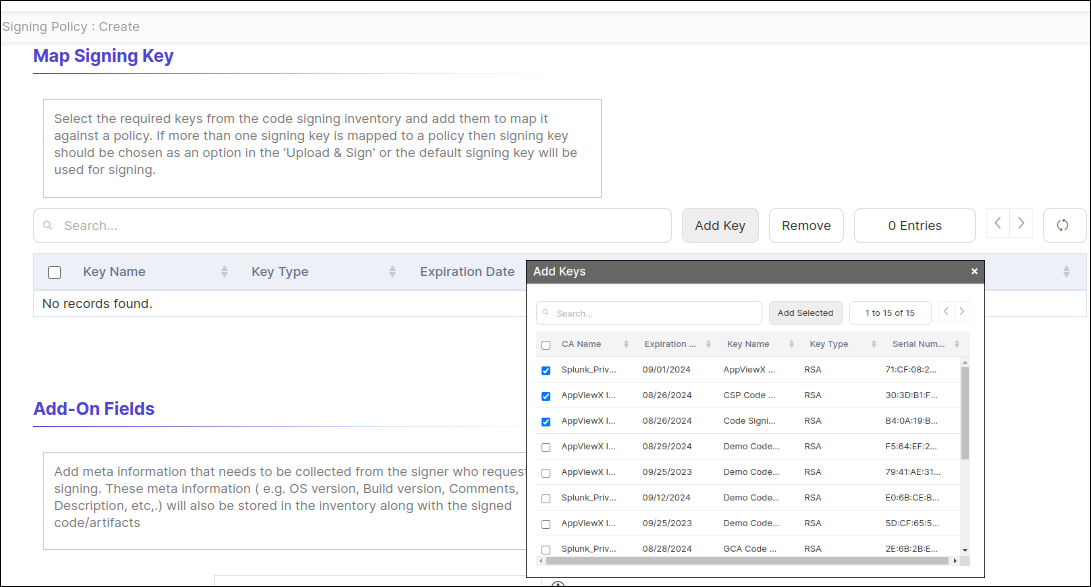
In the Map Signing Key section, select the required keys
from the code signing inventory and add them to map them against a policy as
shown in the below images. If more than one signing key is mapped to a policy
then the signing key should be chosen as an option in the Upload & Sign or
the default signing key will be used for signing. Click the Add
Key button to add the keys.
-
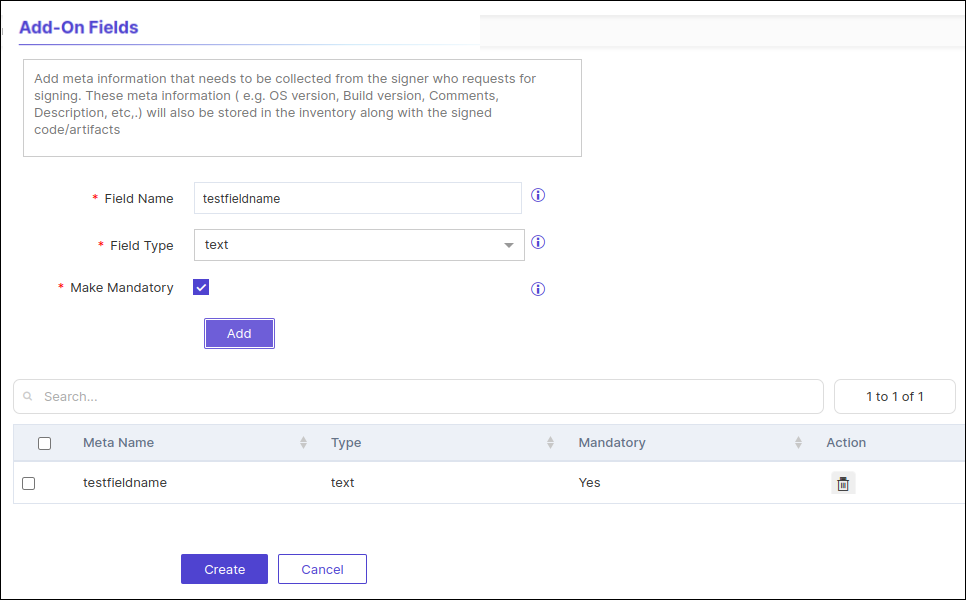
In the Add-On Fields section, add meta information that
needs to be collected from the signer who requests for signing. This meta
information ( e.g. OS version, build version, comments, description, etc,.) will
also be stored in the inventory along with the signed code/artifacts. Enter
values in the Field Name and Field
Type fields and select the Make Mandatory
checkbox as required.
-
Click Add.
The Add-On Fields will be added in the meta information table.
-
Click Create.
The signing policy is created in the inventory.Note: Deletion of a signing policy is restricted if it is associated with a signing record.
- Upload and sign the code signing file with the specified file type selected during policy creation.