Code Signing as a Service 
Note: For Code Signing as a Service, we currently support only
Fortanix HSM.
Note: Ensure the HSM
configuration is stored. If not, please contact AppViewX support.
-
Go to
 (Menu) > SIGN+ > GETTING STARTED.
-
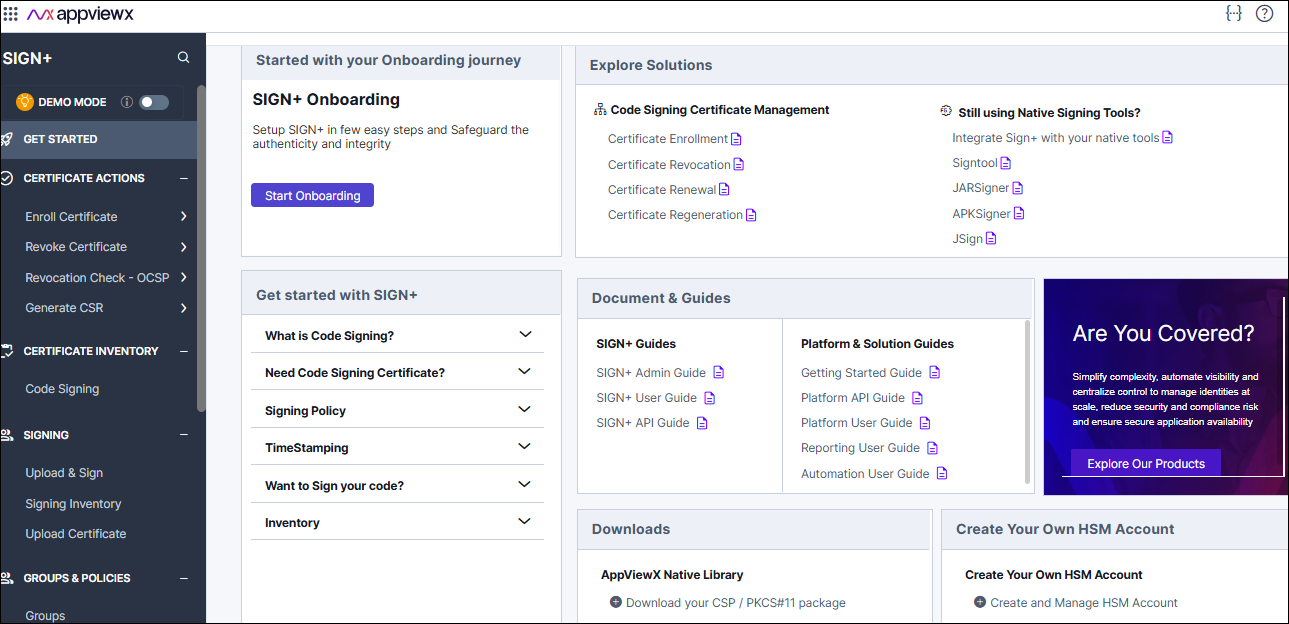
On the GETTING STARTED page, locate the Create Your Own HSM
Account section, then click Create and Manage HSM Account.
 The Create HSM Account page is displayed.
 - Select the required Data Center from the dropdown list where you wish to create your HSM account.
-
Click Create HSM Account.
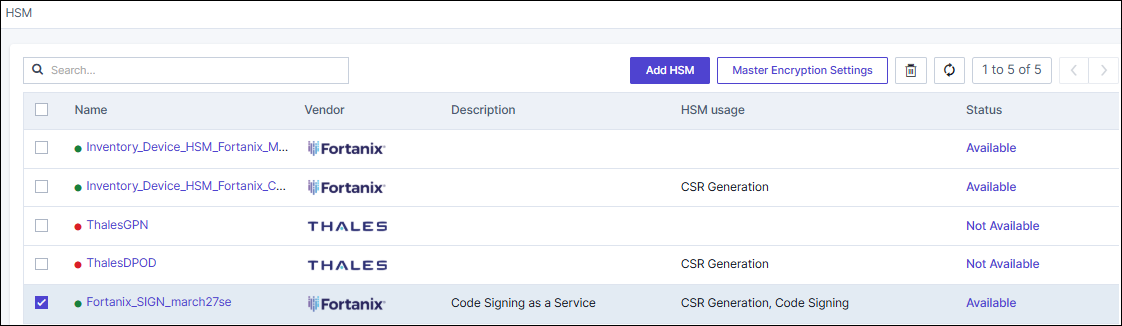
A confirmation message will appear indicating that your HSM account has been successfully created.You will be automatically redirected to the HSM Inventory page, where the newly created HSM account will be listed.
 Note: To know more details on configuring Fortanix HSM, click here.