AppViewX InfinityAI Assistant (Tech Preview) 
When you enable InfinityAI Assistant from RBAC the
 (InfinityAI) icon appears on the bottom right. The Doc
Hub tab opens by default, under Actions tab
you can explore for Smart search and Quick
navigation capabilities, under History tab
you have all the list of previous search queries on InfinityAI.
(InfinityAI) icon appears on the bottom right. The Doc
Hub tab opens by default, under Actions tab
you can explore for Smart search and Quick
navigation capabilities, under History tab
you have all the list of previous search queries on InfinityAI.
Enable ACF Permission for InfinityAI
-
Go to Platform module IDENTITY >
Role.
You will be redirected to the Role page.
-
Click on the role name to enable the ACF permission.
You will be redirected to the Modify :: [RoleName] page, with the Information tab open by default.
- Switch to the Authorized Functions tab and expand the InfinityAI by clicking (Expand) icon.
- To assign an InfinityAI assistant, select the checkbox beside the InfinityAI.
-
Click Save.
The ACF permission will be successfully updated and InfinityAI is enabled.
Doc Hub (Knowledgebase)
The Infinity AI Dockhub simplifies the process of finding product documentation for customers who would otherwise have to search through a wide range of content. The Dock Hub internally refers to the current version of the product documentation, pulls the data, and optimizes it to show relevant information to the customer. The feature supports all product lines and is integrated into InfinityAI.
View the InfinityAI.
Perform the following steps to use the
InfinityAI to find appropriate content and resolve your
queries:-
Click the InfinityAI icon to open the
Help panel.
Note: InfinityAI icon is displayed, only if the InfinityAI ACF permission is enabled for the user/role.
-
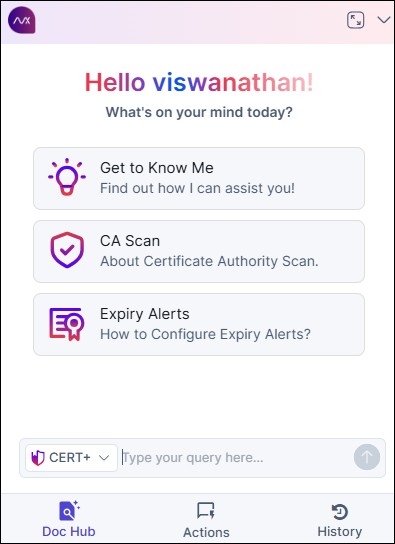
There are few predefined queries on how InfinityAI can assist. Select the
product from the dropdown. You can select the
default question in the panel or type your question in the text box to find
the related content in the InfinityAI
documentation.
-
Select Send
 icon or press Enter to view the response to your questions.
Depending on your question, you may view the content, applicable images, and links to the Frequently Asked Questions articles.
icon or press Enter to view the response to your questions.
Depending on your question, you may view the content, applicable images, and links to the Frequently Asked Questions articles.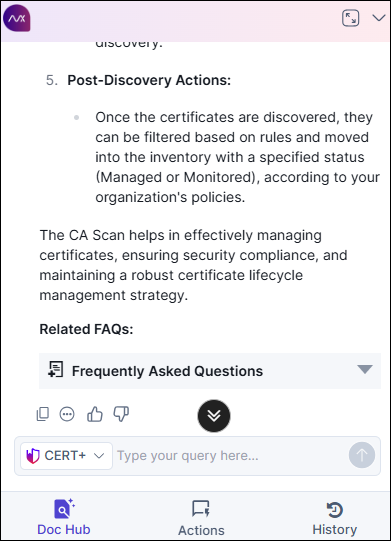 Expand the Frequently Asked
Questions and view the related content links in
response.
Expand the Frequently Asked
Questions and view the related content links in
response. -
Select the History tab to view the conversation
history from the panel. You can click on the previous conversation and find
relevant content.
Instead of searching through user guides and reference documents, you can use the InfinityAI feature to quickly find relevant answers to your queries. This helps save time and allows you to focus on content, resulting in enhanced productivity and efficiency.
Actions
Perform the following steps to use the InfinityAI to find
appropriate Smart search and Quick navigation:-
Click the InfinityAI icon to open the
Help panel.
The Doc Hub tab opens by default.
-
Click the Actions tab.
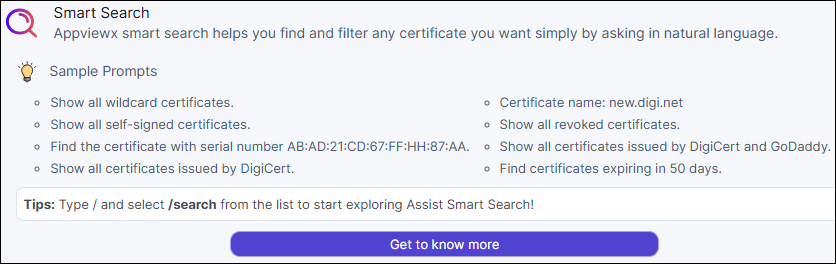
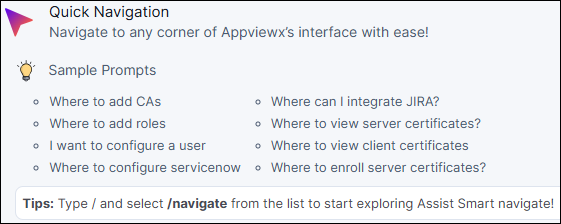
You can Experience effortless certificate search and seamless navigation using Smart Search and Quick Navigation within the system.
- Type your question in the text box to find the related smart search or quick navigation in the InfinityAI Actions.
-
Select Send
icon or press Enter to view the response to your questions.
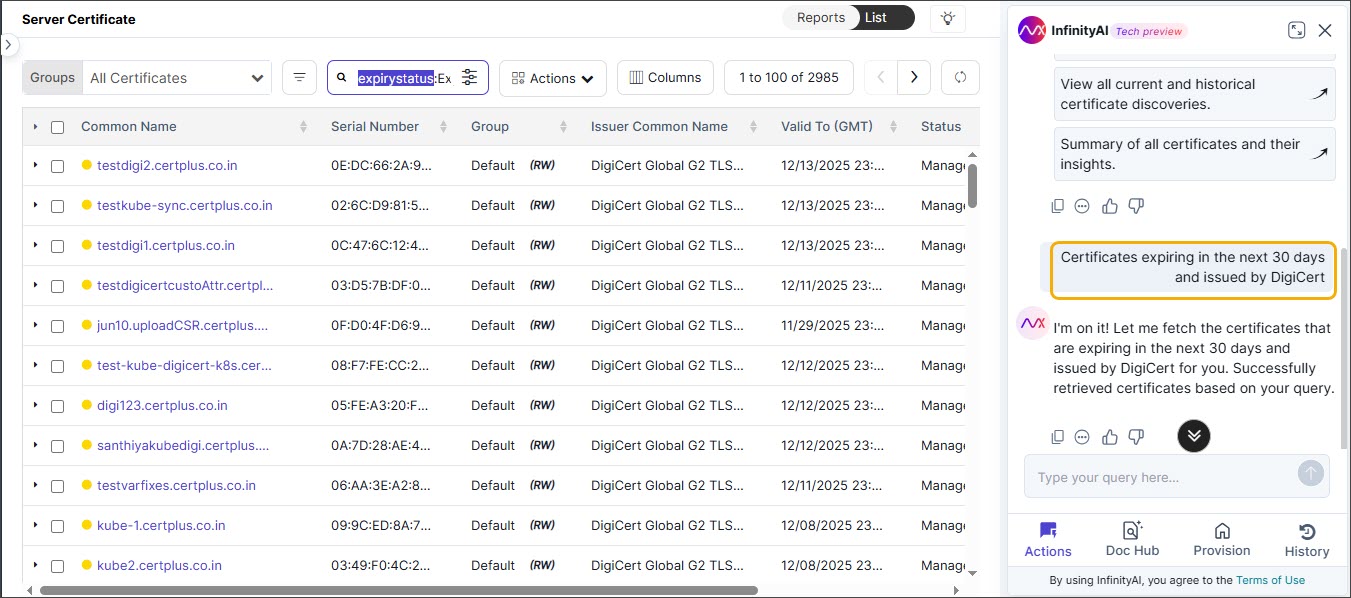
Depending on your question, you may view the quick navigation route links or Smart Search results displayed on the main screen.
- To view previous conversations and relevant searches, select the History tab on the panel.
Smart Search
Quick Navigation
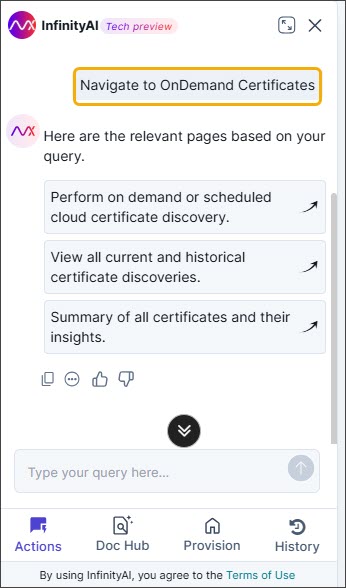
Click the corresponding route link to navigate to the desired location.