Accessing the Store
| New Menu | Old Menu |
|---|---|
| In the Automation module, from the navigation pane on the
left, under WORKFLOW, select Store. The Workflow > Store page is displayed. |
The Workflow > Store page is displayed. |
|
Note: For more information on how to switch
between menus, click here.
|
|
The Store is an inventory of all out of the box
(OOB) workflows made available to users. All OOB workflows are presented in a catalog
view with related workflows grouped together under one catalog. The Store can be
accessed under WORKFLOW section.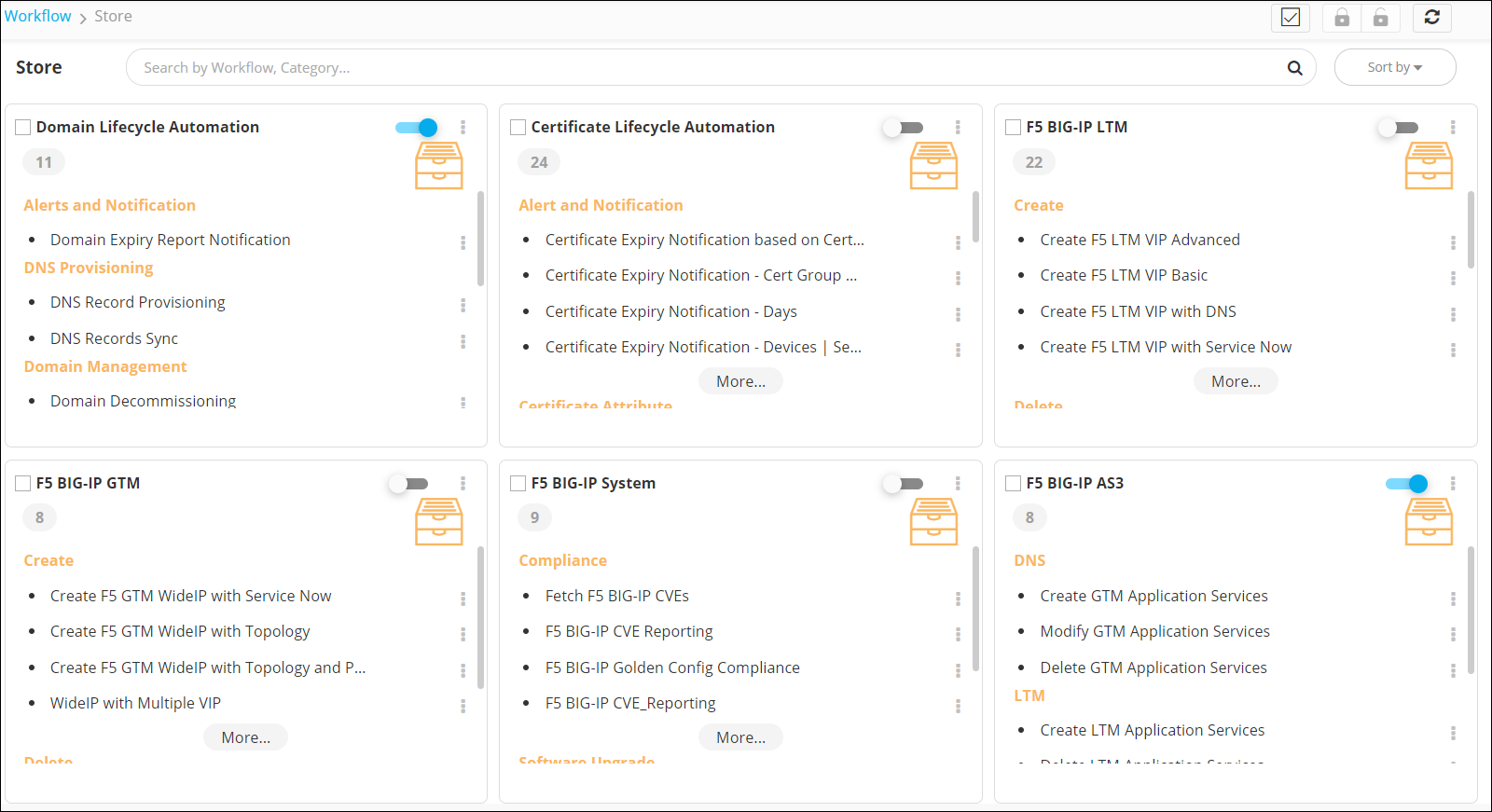
| Action | Description |
|---|---|
| Search bar | Allows you to search for a specific workflow in the Store. |
 |
Allows you to select all workflow catalogs on the Store page. |
 |
Allows you to enable all the workflows in a selected workflow catalog(s). Note: This action is enabled only when you
select a workflow catalog(s).
|
 |
Allows you to disable all the workflows in a selected workflow catalog(s). Note: This action is enabled only when you
select a workflow catalog(s).
|
 |
Refreshes the page |
| Sort by | Allows you to sort the catalogs. |
The following options are available in the Store.