Configuring GoDaddy
-
Go to DDI+ > INTEGRATION HUB, and
then click Add new vendor.
The Select vendor page is displayed.
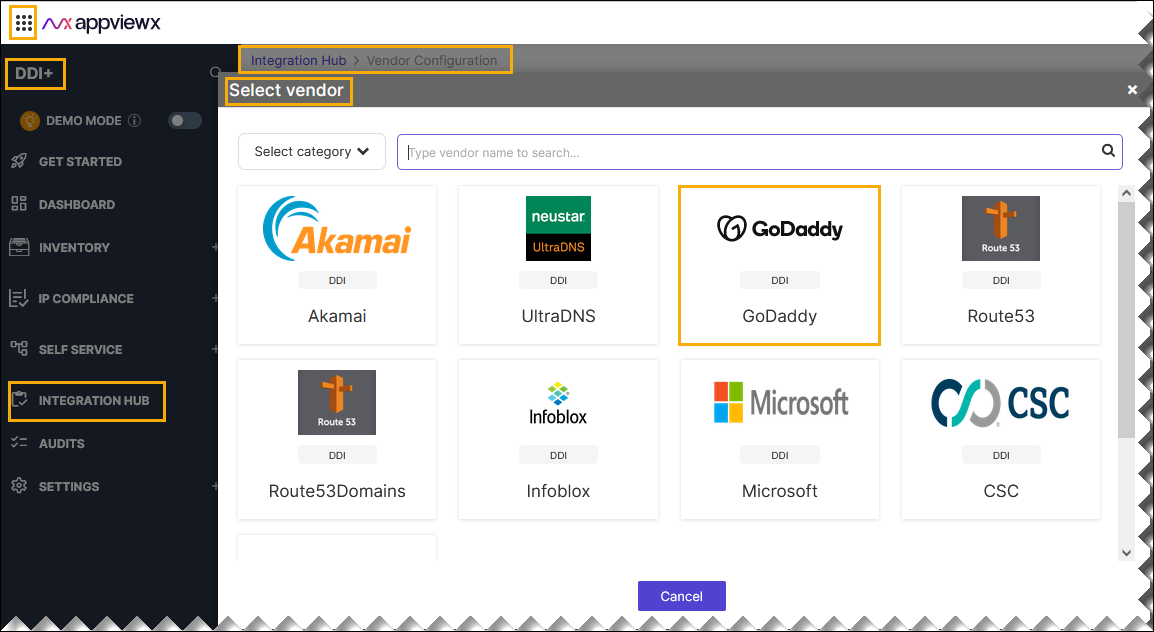
- On the Select Vendor page, click GoDaddy.
-
On the Vendor Configuration page, under the
Information section, enter or select the required
field information.
The following table describes the various fields in this section:
Field Description *Name Enter a unique name to identify the vendor account which is being configured. Description Enter a description for the purpose of configuring this vendor, if required. Data center Select a data center from the options available in the dropdown list. *: Mandatory fields -
On the Vendor Configuration page, under the Credentials section,
enter or select the required field information.
The following table describes the various fields in this section:
Field Description Auth type Displays the API Key method of authentication selected by default. *Key Enter the authorization key. *Add to Select Header from the dropdown list if not already selected. *URL Enter API URL for the vendor with the HTTPS/HTTP protocol. *Value Enter the authorization value. *: Mandatory fields - Enable Config sync for parsing the vendor
-
On the Vendor Configuration page, under the Configurations
section, turn on the Enable Advanced Config toggle to add additional
vendor configuration attributes.
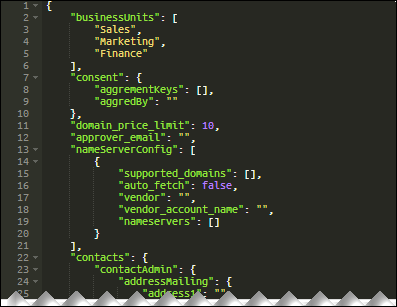 Sample Schema:
{ "businessUnits": [ "Sales", "Marketing", "Finance" ], "consent": { "aggrementKeys": [ "DNRA" ], "aggredBy": "sample host/ip" }, "domain_price_limit": 10, "approver_email": "[email protected]", "nameServerConfig": [ { "supported_domains": [ ".com", ".org", ".in", ".biz" ], "auto_fetch": false, "vendor": "", "vendor_account_name": "", "nameservers": [ "test1.ns.com", "test2.ns.com" ] }, { "supported_domains": [ ".net", ".info" ], "auto_fetch": false, "vendor": "SampleVendor", "vendor_account_name": "SampleVendorAccount", "nameservers": [] } ], "contacts": { "contactAdmin": { "addressMailing": { "address1": "Sample Address", "address2": "Sample Address", "city": "Sample City", "country": "Sample Country", "postalCode": "Sample Code", "state": "Sample State" }, "email": "[email protected]", "fax": "", "nameFirst": "Sample Name", "nameLast": "Sample Name", "organization": "Sample Organization", "phone": "12346768990" }, "contactBilling": { "addressMailing": { "address1": "Sample Address", "address2": "Sample Address", "city": "Sample City", "country": "Sample Country", "postalCode": "Sample Code", "state": "Sample State" }, "email": "[email protected]", "fax": "", "nameFirst": "Sample Name", "nameLast": "Sample Name", "organization": "Sample Organization", "phone": "12346768990" }, "contactRegistrant": { "addressMailing": { "address1": "Sample Address", "address2": "Sample Address", "city": "Sample City", "country": "Sample Country", "postalCode": "Sample Code", "state": "Sample State" }, "email": "[email protected]", "fax": "", "nameFirst": "Sample Name", "nameLast": "Sample Name", "organization": "Sample Organization", "phone": "12346768990" }, "contactTech": { "addressMailing": { "address1": "Sample Address", "address2": "Sample Address", "city": "Sample City", "country": "Sample Country", "postalCode": "Sample Code", "state": "Sample State" }, "email": "[email protected]", "fax": "", "nameFirst": "Sample Name", "nameLast": "Sample Name", "organization": "Sample Organization", "phone": "12346768990" } }, "requestorMapping": { "requestor_email": "[email protected]" } }The following table explains the strings in the JSON schema:
Table 1. Strings Description aggredBy Originating client IP address of the end-user's computer when they consented to these legal agreements. aggrementKeys Unique identifiers of the legal agreements to which the end-user has agreed, as returned from the/domains/agreements endpoint as DNRA. domain_price_limit The domain_price_limit field serves to establish a threshold price for domain registrations. If the cost of a domain surpasses the value set in domain_price_limit, explicit approval is mandated for the registration. If the domain's price falls below the domain_price_limit, no approval is necessary. approver_email The approver_email field is to trigger an email notification for approval when the price of a domain registration exceeds the specified domain_price_limit. If the cost surpasses this limit, an email is automatically sent to the designated approver for review and confirmation nameServerConfig The nameServerConfig field is configured to facilitate the automatic selection of nameservers based on predefined conditions during the domain registration process supported_domains explicitly define the list of Top-Level Domains (TLDs) permitted for use in the domain procurement process, particularly when configured nameservers are in use. Like [".com", ".net" ] auto_fetch used to automatically retrieve the name server information from the configured name server account in AppViewX vendor The vendor field is to specify the DNS vendor from which the name server should be automatically fetched. This is applicable only if the auto fetch is true. vendor_account_name The vendor_account_name field is used to specify vendor account name configured in AppViewX, specifically for automatically fetching the nameserver. This configuration is applicable only when the auto_fetch flag is set to true nameservers The 'nameservers' string is utilized to indicate the list of all nameservers to be assigned during domain registration. This is relevant only when the 'auto_fetch' flag is set to false, as in: ["example1.ns.com", "example2.ns.com"]. *: Mandatory fields - Click Finish.