Onboarding Journey
- Going to
 (Menu) icon > All Products. Click
Try it free from Modernize & Simplify PKI. A message,
Your license activation is in progress. Please wait.., is
displayed.
(Menu) icon > All Products. Click
Try it free from Modernize & Simplify PKI. A message,
Your license activation is in progress. Please wait.., is
displayed.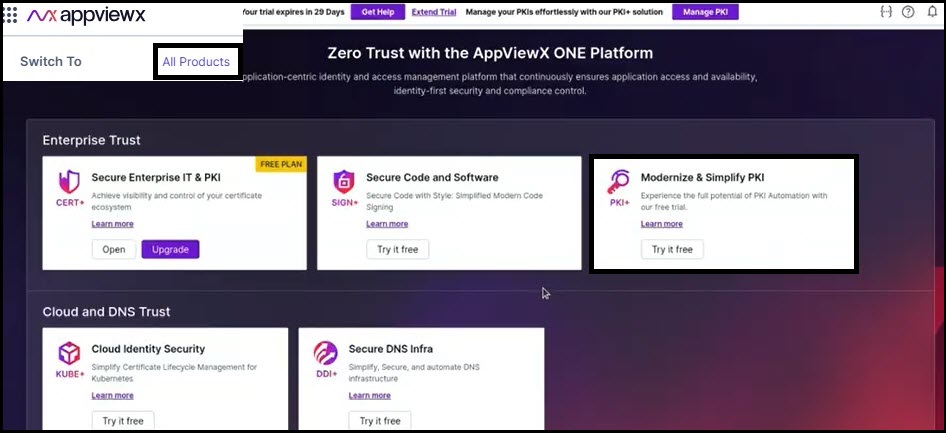
-OR-
- From the Insights > Summary page by any of the following ways:
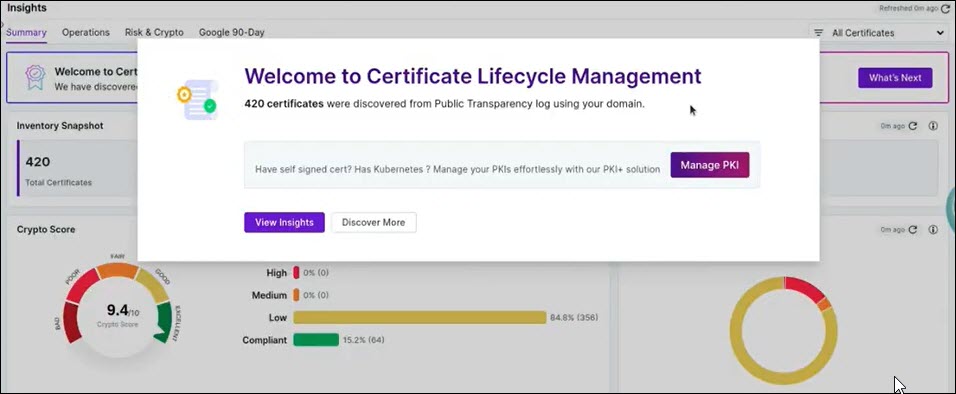
- After completing your first certificate discovery, you will see this
pop-up window:
-OR-
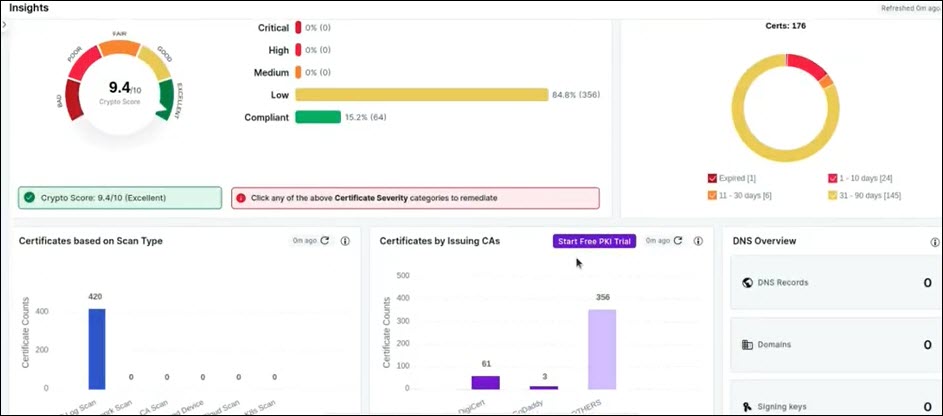
- Scroll down to Certificates by Issuing CAs and click Start
Free PKI Trial.
-OR-
- After completing your first certificate discovery, you will see this
pop-up window:
- Click Manage PKI on the banner page on top.

Clicking Manage PKI will direct customer to the PKI license subscription page.
- On activating the license, your PKI+ free plan is also activated.
- Select user group from the dropdown list, and click Assign.The Get Started with PKI+ page appears.
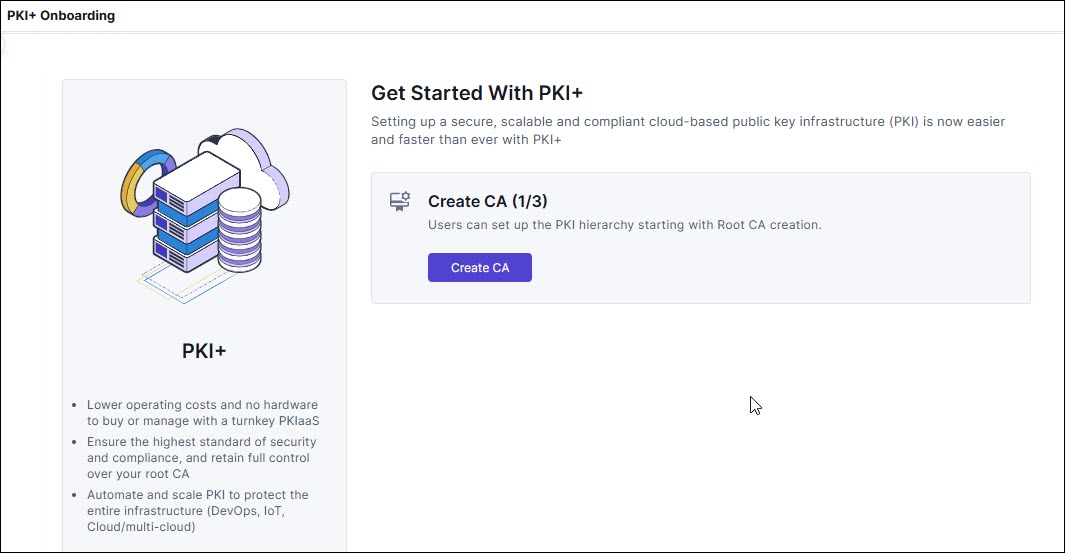
- Click Create CA to create a PKI hierarchy by creating the Root
Certificate Authority.The Create Root CA page appears.
- Enter the fields as described in the table.
Table 1. Field Description for Create Root CA page Field Description Select CA Type *CA Name By default, the CA name is populated. You can edit this. *Template By default, RootCA_Default is selected. You can edit this. *Valid for By default, validity is set to 10 years. Configure CA Subject DN Details *CA Common Name Enter the root CA subject name. *Organization Enter the organization name owning the CA. Organization Unit Enter the business unit for CA operations. City Enter the city name. State Enter the state name. Country Enter the country of the organization. Configure CA Key Size and Algorithm CSR Generation You can only select AppViewX. *Key Size and Algorithm Select the CA key size and algorithm from the dropdown list. Custodian Settings Custodian By default, the freemium customer (logged in user) is added as the custodian. Custodians are responsible for approving any action performed in PKI+. Custodians are the individuals responsible for issuance of root and intermediate certificates. They approve or reject certificate requests, manage the lifecycle of certificates, and ensure auditability and compliance. To add more custodians, click Manage. The following screen appears.
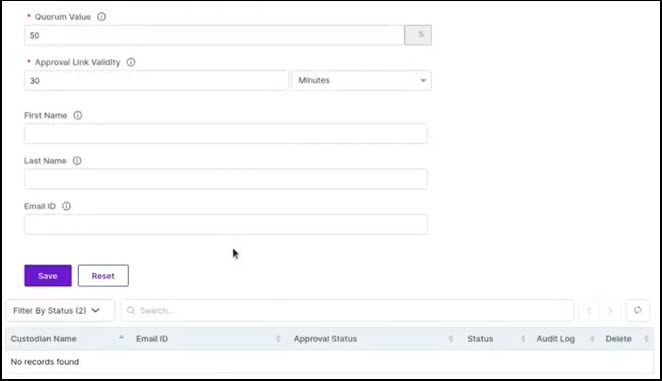 Note:
Note:- Quorum value is set to 50%, which means that if the custodian group has two members, then only one custodian is needed to approve any CLM action. For more information, see Custodian Management.
- Quorum value is an editable field and can contain values ranging from 20 through 100. You can edit this per your organizational need.
- Newly added custodians appear in the Custodian text box with an increment, for example, if one custodian is added, then the text box displays the default custodian +1.
Note: Fields marked with red asterisk (*) symbol are mandatory. - Click Create.
A window with the summary of values entered appears.
- Click Proceed.The freemium customer gets an email for approving the CA creation.Note: The approval link in the email is valid only for 48 hours.On approval, a message, CA Creation in Progress, appears. Wait until it changes to CA Successfully Created.
Table 2. Action Status Description and Required Action Action Status Status Description Required Action Email Verification - Pending Inactive The custodian's email verification is pending approval and is not active. Note: If you want to abort the action, click Abort. Any workflow that is triggered and is in progress is killed from the Request page prior to triggering any further actions.The requester receives a notification email. Click the here hyperlink to be directed to the AppViewX login page and approve the request by going to Menu > Requests > All requests. Add - Approval Pending Inactive The custodian has been added but is awaiting approval from active custodians. Active custodians must click the here hyperlink in the email to be redirected to the AppViewX login page. Add - Approved Active The custodian has been approved and added successfully. On successfully logging in, go to Menu > Requests > All requests. Click Approve. Email Verification - Rejected Inactive The custodian has been rejected. On rejecting a request, a confirmation popup window appears if the requester wants to submit the request. Click OK to resubmit. 
- Enter the fields as described in the table.
- Click Create subordinate CA.The Create Subordinate CA page appears.
- Enter the fields as described in the table.
Table 3. Field Description for Create Subordinate CA page Field Description Select CA Type *CA Name By default, the CA name is populated. You can edit this. *Issuer Name By default, the issuer name is populated. You can edit this. *Template By default, RootCA_Default is selected. *Valid for By default, validity is set to 5 years. Configure CA Subject DN Details *CA Common Name Enter the root CA subject name. *Organization Enter the organization name owning the CA. Organization Unit Enter the business unit for CA operations. City Enter the city name. State Enter the state name. Country Enter the country of the organization. Configure CA Key Size and Algorithm CSR Generation You can only select AppViewX. *Key Size and Algorithm Select the CA key size and algorithm from the dropdown list. Custodian Settings Custodian By default, the freemium customer (logged in user) is added as the custodian. He/she will get the approval links via email for all the actions performed in the PKI hierarchy creation. Note: Fields marked with red asterisk (*) symbol are mandatory. - Click Create.
A window with the summary of values entered appears.
- Click Proceed.The freemium customer gets an email for approving the CA creation.Note: The approval link in the email is valid only for 48 hours.On approval, a message, Subordinate CA Creation in Progress, appears. Wait until it changes to Subordinate CA Successfully Created.
Table 4. Action Status Description and Required Action Action Status Status Description Required Action Email Verification - Pending Inactive The custodian's email verification is pending approval and is not active. Note: If you want to abort the action, click Abort. Any workflow that is triggered and is in progress is killed from the Request page prior to triggering any further actions.The requester receives a notification email. Click the here hyperlink to be directed to the AppViewX login page and approve the request by going to Menu > Requests > All requests. Add - Approval Pending Inactive The custodian has been added but is awaiting approval from active custodians. Active custodians must click the here hyperlink in the email to be redirected to the AppViewX login page. Add - Approved Active The custodian has been approved and added successfully. On successfully logging in, go to Menu > Requests > All requests. Click Approve. Email Verification - Rejected Inactive The custodian has been rejected. On rejecting a request, a confirmation popup window appears if the requester wants to submit the request. Click OK to resubmit. 
- Enter the fields as described in the table.
- Click Issue Certificate.The Issue Certificate page appears.
- Enter the fields as described in the table.
Table 5. Field Description for Issue Certificate page Field Description *CA Name Select a CA name from the dropdown list. Certificate Type By default, End Certificate is selected. *Template Select a template from the dropdown list. Validity By default, the validity is set to 1 year. *Upload CSR Browse and upload CSR. *Certificate Download Format By default, .PEM is selected. Note: Fields marked with red asterisk (*) symbol are mandatory. - Click Issue Certificate.
A message, Certificate generated successfully, appears on the top of the page.
You can view server/client/code signing certificate or enroll server/client/code signing certificate by clicking the links on the RHS of the page.
- Enter the fields as described in the table.