Viewing Certificate Reports
To view certificate reports:
- Click Certificate Inventory and click the type of certificate for which you
want to view the report.
The Reports page is selected.
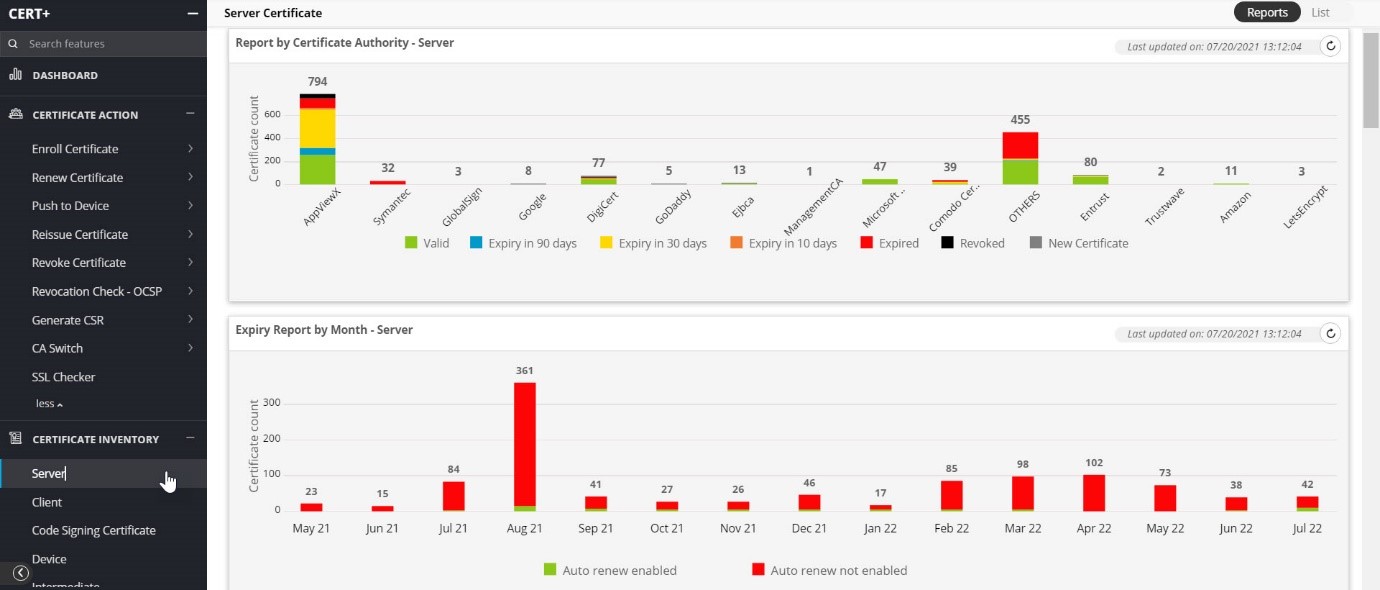
Although each certificate report displays the data differently, the same set of data is used to generate each report.
- The following reports are segregated and displayed as widgets on the Client
Certificate screen:
- Report by Certificate Authority: A bar chart that shows the total
certificate count for each Certificate Authority (CA), made up of colored
bars representing the following statuses:
- Green - Valid certificates
- Blue - Certificates with an expiry in 90 days
- Yellow - Certificates with expiry in 30 days
- Orange - Certificates with expiry in 10 days
- Red - Expired certificates
- Black - Revoked certificates
- Gray - New certificates
- Expiry Report by Month: A bar chart that shows the total number of certificates expiring each month.
- Policy Compliance: A pie chart that shows the number of compliant and non-compliant certificates in the system, with each sector in the chart representing a different kind of policy such as Strict or Suggestive. You can also export the report details from the Policy Compliance Report widget.
- Stale Certificate: A pie chart that shows the number of expired and revoked certificates.
- Certificate Summary: A doughnut chart that categorizes the certificates based on expiration, with the total count of certificates made up of colored bars representing the same statuses listed for the Report by Certificate Authority widget. You can also configure the report settings from the Certificate Summary Report widget.
- Count by Issuer: A doughnut chart that shows the total number of certificates managed by the issuer such as Root CA or the Intermediate CA. You can also configure the report settings from the Count by Issuer widget.
- Report by Certificate Authority: A bar chart that shows the total
certificate count for each Certificate Authority (CA), made up of colored
bars representing the following statuses: