Password Vault
Before you Begin: To decrypt the password-protected certificates, ensure that you have a valid certificate password.
-
Go to
 (Menu) > SIGN+ >
ADMINISTRATION > Password Vault.
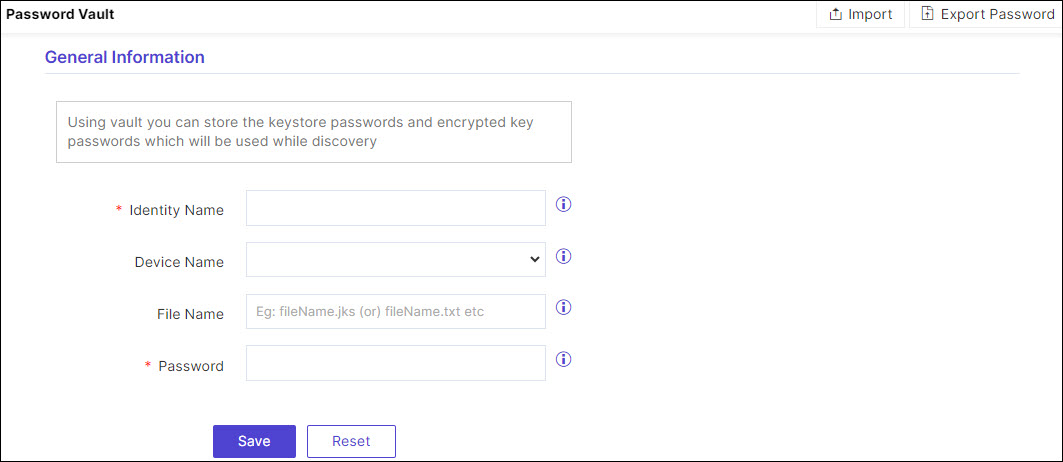
The Password Vault page is displayed.
(Menu) > SIGN+ >
ADMINISTRATION > Password Vault.
The Password Vault page is displayed. - In the General Information section, enter an Identity Name for the password you want to add in the vault.
- From the Device Name dropdown, select the ADC device whose password-protected certificate details you want to store.
- In the File Name field, enter a certificate file name to help users identify it.
- In the Password field, enter the password that is associated with the certificate.
- Click Save.
- To import a file (in XLS or CSV format) with a list of all certificate passwords, from the
top-right corner of the page, click Import.
 The Password Vault : Upload page is displayed.
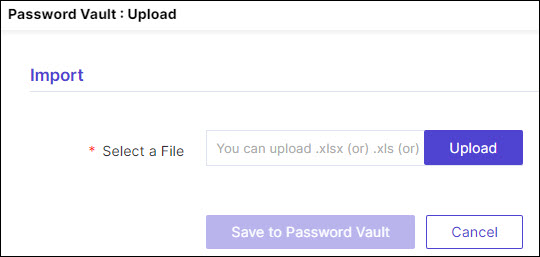 This option is used to store the certificate passwords directly in the
vault instead of adding them manually.
This option is used to store the certificate passwords directly in the
vault instead of adding them manually. - To export all stored certificate passwords from the vault as a zip file to your local system, from the top-right corner of the page, click Export Password.
-
To modify the existing details, click Edit.
To update the password, click Update.
To delete the password details, click Delete.