Discovery Status
To discover keys using the discovery status option:
-
Go to
 (Menu) icon > SSH+ > Discovery > Discovery
Status.
The Discovery Status page is displayed.
(Menu) icon > SSH+ > Discovery > Discovery
Status.
The Discovery Status page is displayed. -
Displays the following details:
Table 1. Field description for Discovery Status section Field Description Discovery Name Displays unique discovery name. This helps you identify it easily. This field is clickable and opens a discovery report for the host with the following discovery status:
- Successful: Displays all tabs such as Hosts, Host Keys, User Keys, and Risk Report. Hosts can have statuses such as Managed or Monitored.
- Failed: Displays only the Hosts tab. Each host has a Failed status, which is a hyperlink. Clicking it displays the reason for failure in a pop-up window.
- Partial: Displays all tabs. The Hosts tab displays statuses such as Managed, Monitored, or Failed. The Failed status is a hyperlink. Clicking it displays the reason for failure in a pop-up window.
Discovery Mode Displays the mode of discovery (IP range, subnet, or managed devices). Discover action Displays the discovery action as Instant or Scheduled. Recurrence Type Displays the frequency of the run of the discovery key instance. Status Displays the discovery status which are Successful, Failed, or Partial. You can click the status to open a pop-up window displaying a summary of the discovery results.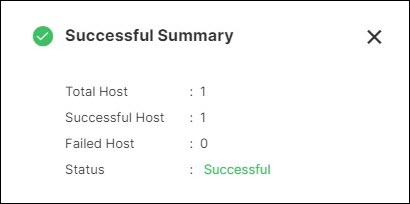 To check the host status, click the Discovery Name > Hosts > Host status.
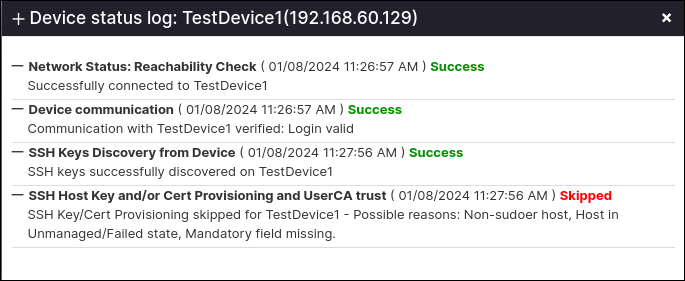 For more details on the
error messages, see Error Messages.
For more details on the
error messages, see Error Messages.Start Time Displays the Start Time--the time set to start the discovery run. You can customize it if the Recurrence Type is one of these: - Daily
- Weekly
- Monthly
- Yearly
End Time Displays the date and time when the discovery ends. Description Displays the details pertaining to the discovery stating the purpose.
- To schedule a discovery using the same input parameters, click Actions > Rediscover.
- To delete a discovery, select the checkbox against the Discovery Name(s)
that has to be deleted and click Actions > Delete.
The selected discovery is deleted from the AppViewX database.